Document (BRD)
Shyamji Exchange — Admin Panel Business Requirements Document
Owner & Downline Management Modules · Detailed Feature Specification, Business Rules & Client Approval
A About This Document
This document defines the detailed business requirements of the Admin Panel of the Shyamji Exchange platform — the operational console used by the Owner and the downline hierarchy (Admin, Super Master, Master, User) to manage balances, risk, events, casino, content, bonuses and banking. Each module is described by its purpose, the features included, the reference screen(s) captured from the staging build, the user flow, and applicable business rules.
Brand & theme reference
The Admin Panel keeps the Shyamji Exchange identity: a black content canvas, a crimson-to-royal-blue gradient top bar, and a dark maroon sidebar. The gold crest wordmark anchors the login screen and the collapsed top-bar corner. Status and action accents (green deposit, amber withdraw, red live/negative) are used consistently across listings.
How to review
- Each module below is collapsed by default — click its title bar to expand the full detail, or click a Contents link to jump straight to it.
- Review each module against the described features, flows and rules.
- Mark Approved or Changes Required in the module approval block, and note specifics under Remarks.
- Sign the consolidated approval on the final page once all modules are reviewed.
B Contents
Click any module link to jump to it and expand its detail.
- 06Reports
-
- 8.1Category Level
- 8.2Provider Level
- 8.3Game Control
-
- 13.1Deposit/Withdraw
- 13.2Game Transaction
- 16Logout
Module 01
Login (Admin Panel)
›
The Admin Login screen is used by the Owner only. Admin, Super Master and Master each authenticate through their own agent URL rather than this shared login screen.
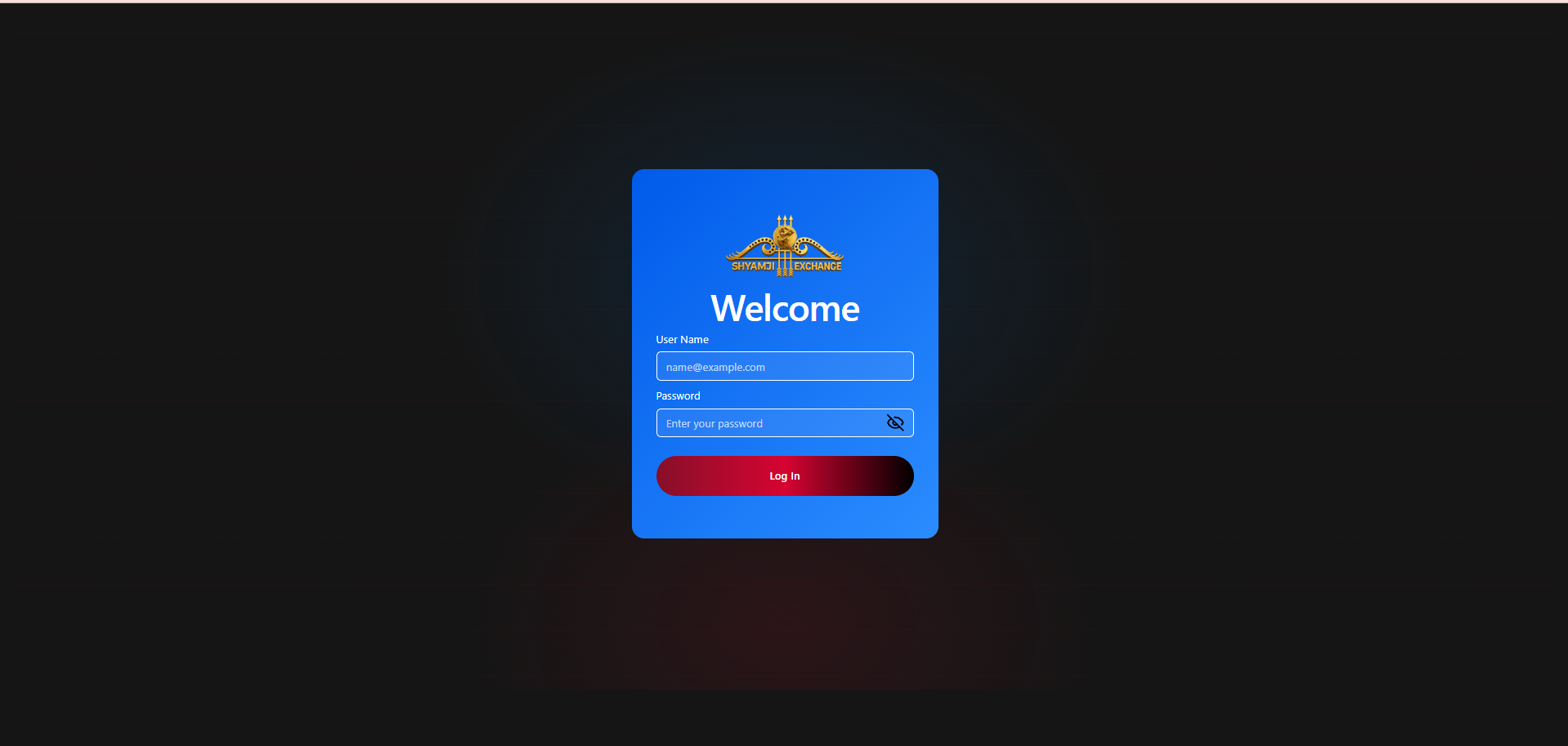
Features included
| Brand crest / wordmark | Included |
| "Welcome" heading | Included |
| User Name field | Included |
| Password field (show / hide toggle) | Included |
| Log In button (gradient CTA) | Included |
Login flow
Validation
- User Name and Password are both mandatory.
- Invalid credentials display an inline error.
- Suspended / Inactive / Bet Lock accounts (see Change Status, §4.4) cannot log in.
Error scenarios
- Invalid username or password.
- Account status not Active.
- Server / session error.
Not included
Forgot Password link OTP Verification Two-Factor Authentication Remember Me
Module 02
Dashboard
›
The Dashboard is the landing page after login. It gives an at-a-glance operational snapshot of balances, live exposure, downline composition, betting and casino activity, device mix, top performers and login activity — every widget respects an independently selectable date range.
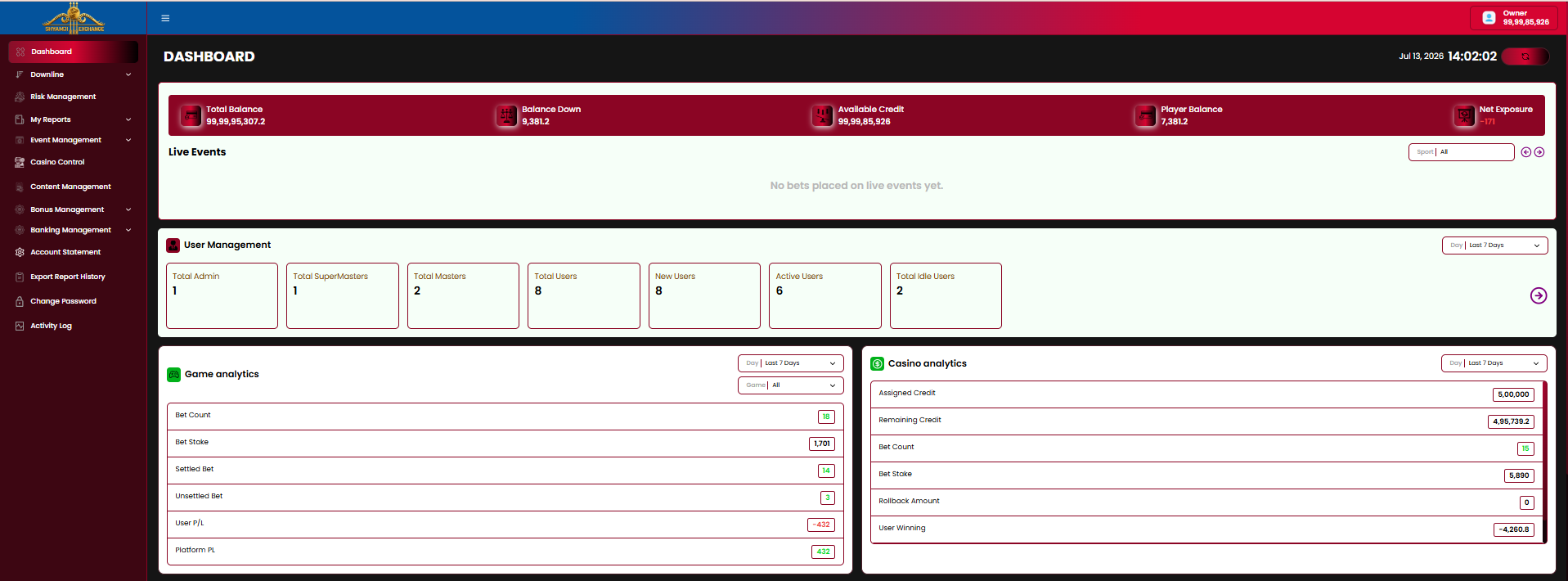
2.1 Balance Summary & Live Events
| Total Balance | amount |
| Balance Down | amount |
| Available Credit | amount |
| Player Balance | amount |
| Net Exposure | amount |
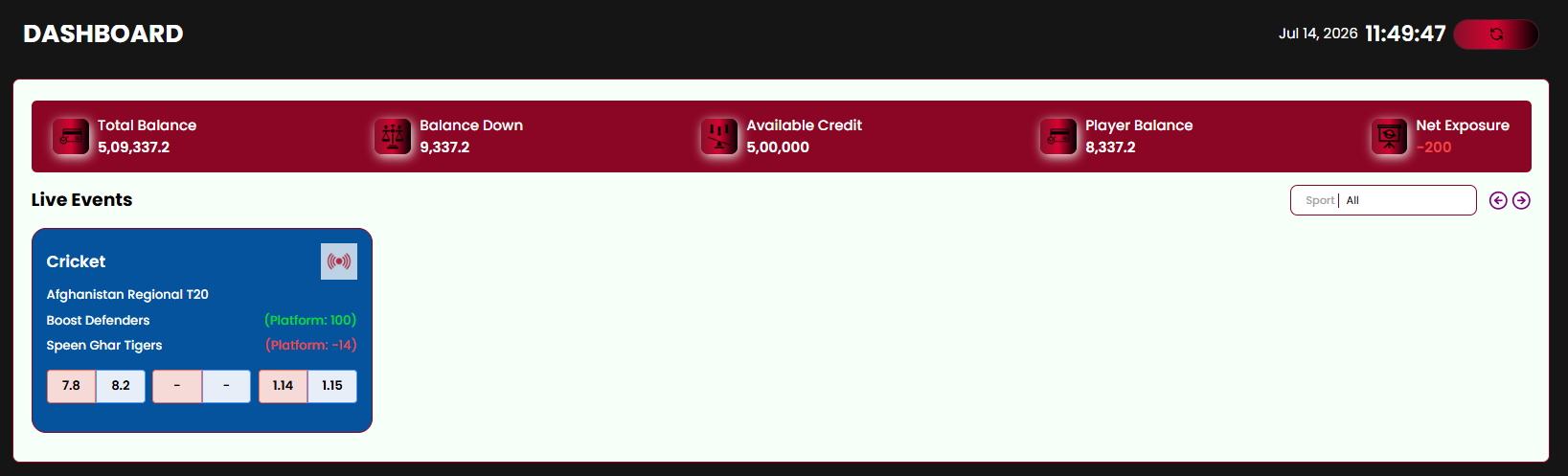
The Live Events panel lists in-play matches with bets placed, filterable by Sport (default "All"); each card shows the platform's live P/L per selection (green/red) alongside the current back/lay price ladder. An empty state reads "No bets placed on live events yet."
2.2 User Management
| Total Admin | count |
| Total SuperMasters | count |
| Total Masters | count |
| Total Users | count |
| New Users | count |
| Active Users | count |
| Total Idle Users | count |
Filterable by Day (default "Last 7 Days"); an arrow shortcut opens the full downline report.
2.3 Game Analytics
| Bet Count | count |
| Bet Stake | amount |
| Settled Bet | count |
| Unsettled Bet | count |
| User P/L | amount |
| Platform PL | amount |
Filterable by Game (default "All") and Day (default "Last 7 Days").
2.4 Casino Analytics
| Assigned Credit | amount |
| Remaining Credit | amount |
| Bet Count | count |
| Bet Stake | amount |
| Rollback Amount | amount |
| User Winning | amount |
| Platform Winning | amount |
Filterable by Day (default "Last 7 Days").
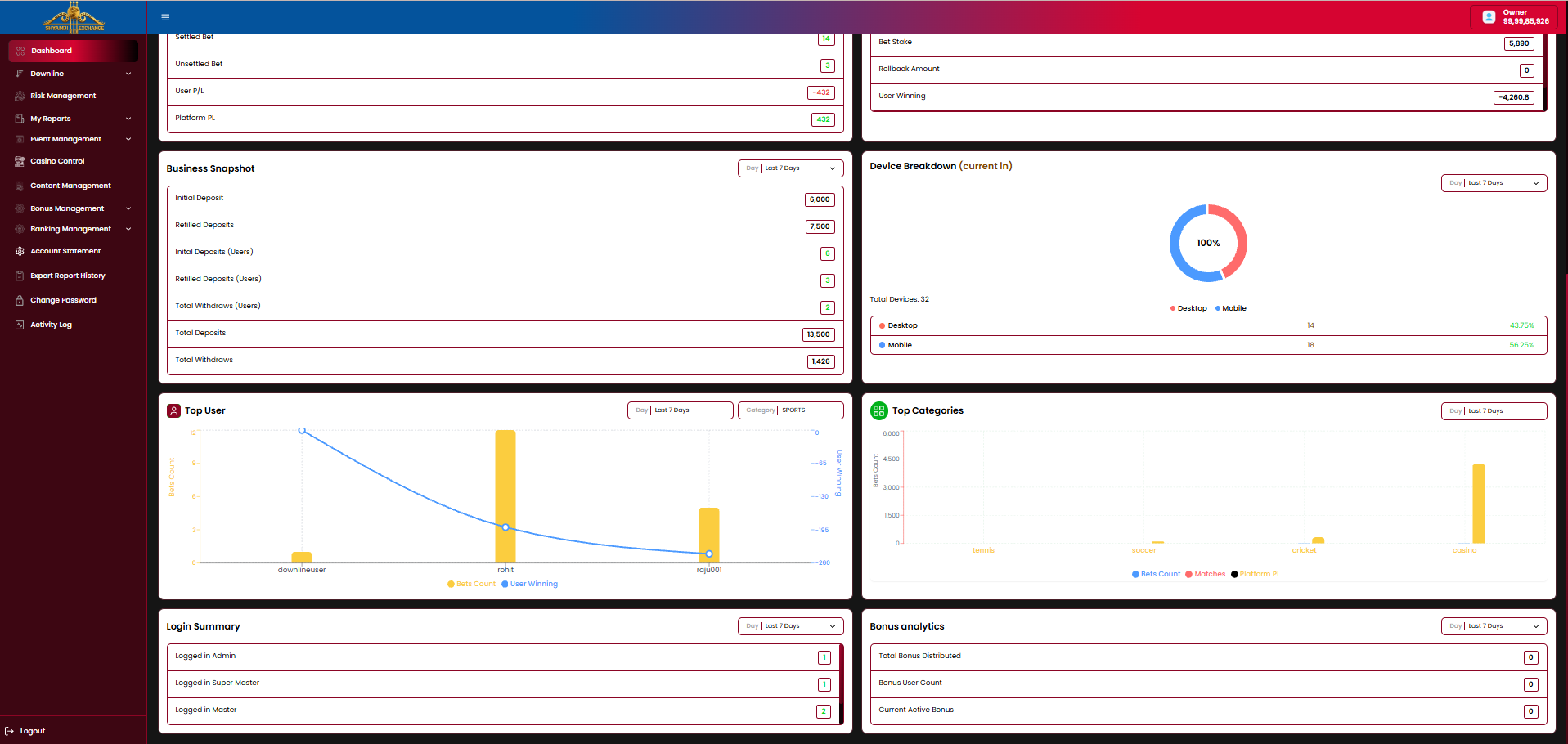
2.5 Business Snapshot
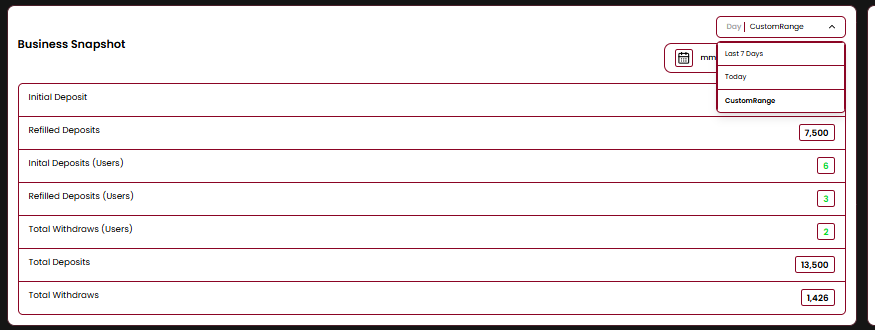
| Initial Deposit | amount |
| Refilled Deposits | amount |
| Initial Deposits (Users) | count |
| Refilled Deposits (Users) | count |
| Total Withdraws (Users) | count |
| Total Deposits | amount |
| Total Withdraws | amount |
Date range business rules
- Day selector offers Last 7 Days, Today, and Custom Range.
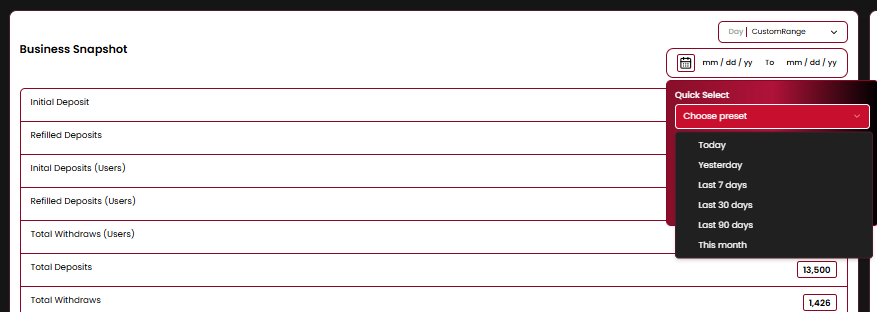
- Custom Range reveals an mm/dd/yy → mm/dd/yy picker plus a Quick Select dropdown: Today, Yesterday, Last 7 days, Last 30 days, Last 90 days, This month.
- Every widget on the Dashboard recalculates independently for its own selected range.
2.6 Device Breakdown (Current In)
Donut chart of active sessions by device, with a Total Devices count and a Desktop / Mobile legend showing count and percentage share. Filterable by Day.
2.7 Top User
Combo bar + line chart plotting Bets Count (bars) against User Winning (line) per username, filterable by Category (e.g. Sports) and Day.
2.8 Top Categories
Bar chart of Bets Count by sport / category (tennis, soccer, cricket, casino), filterable by Day.
2.9 Login Summary
| Logged in Admin | count |
| Logged in Super Master | count |
| Logged in Master | count |
| Logged in User | count |
Filterable by Day (default "Last 7 Days").
2.10 Bonus Analytics
| Total Bonus Distributed | amount |
| Bonus User Count | count |
| Current Active Bonus | count |
Filterable by Day. Ties into the Bonus Management module (§10).
Not included
Widget drag-reorder / customization Per-widget export Auto-refresh interval setting
Module 03
Sidebar & Navigation
›
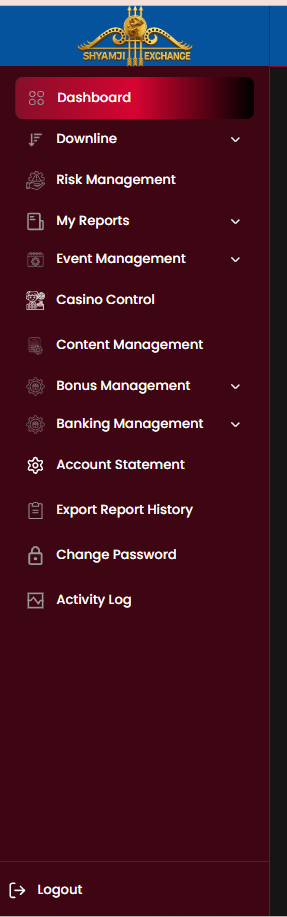
A fixed left sidebar on the dark maroon canvas gives access to every module. Expandable groups (chevron icon) reveal their sub-items; the active item is highlighted with a red gradient pill.
| Item | Behaviour |
|---|---|
| Dashboard | Opens the Dashboard (Module 02) |
| Downline expandable | Admin · Super Master · Master · User · Settlement (Module 04) |
| Risk Management | Opens Risk Management (Module 05) |
| My Reports expandable | Opens Reports (Module 06) |
| Event Management expandable | Events · Bet Config (Module 07) |
| Casino Control | Category Level · Provider Level · Game Control (Module 08) |
| Content Management | Banner Management · Alert Notification · Contact Support (Module 09) |
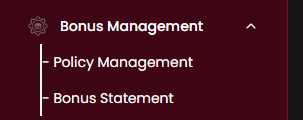
| Bonus Management expandable | Policy Management · Bonus Statement (Module 10) |
| Banking Management expandable | Deposit / Withdrawal Requests · Manage Accounts (Module 11) |
| Account Statement | Owner's own statement (Module 13) |
| Export Report History | Opens Export Report History (Module 12) |
| Change Password | Opens Change Password (Module 15) |
| Activity Log | Owner's own login activity (Module 14) |
| Logout | Pinned at the bottom, ends the session (Module 16) |
Business rules
- Sidebar can be collapsed/expanded via the hamburger icon in the top bar.
- Expandable groups show a chevron and reveal sub-items inline, pushing the list below down.
- The active item / group is highlighted with the brand red gradient.
- Logout always sits at the bottom of the list, separated by a divider.
Module 04
Downline Management
›
Downline Management is the core operational area: every level of the reseller hierarchy — Admin, Super Master, Master, and the End User — is listed, drilled into, and acted upon from here, with a Settlement view for fund transfers between adjacent levels.
4.1 Hierarchy Overview
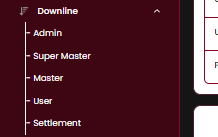
- Clicking a level in the Downline submenu lists every account created directly under the currently logged-in node at that level.
- Clicking an account's username drills one level down — e.g. opening an Admin reveals the Super Masters created under that Admin, and so on down to Users.
- Settlement (§4.7) sits alongside the hierarchy levels for direct fund transfer between the current node and its immediate downline.
4.2 Admin / Super Master / Master Listing
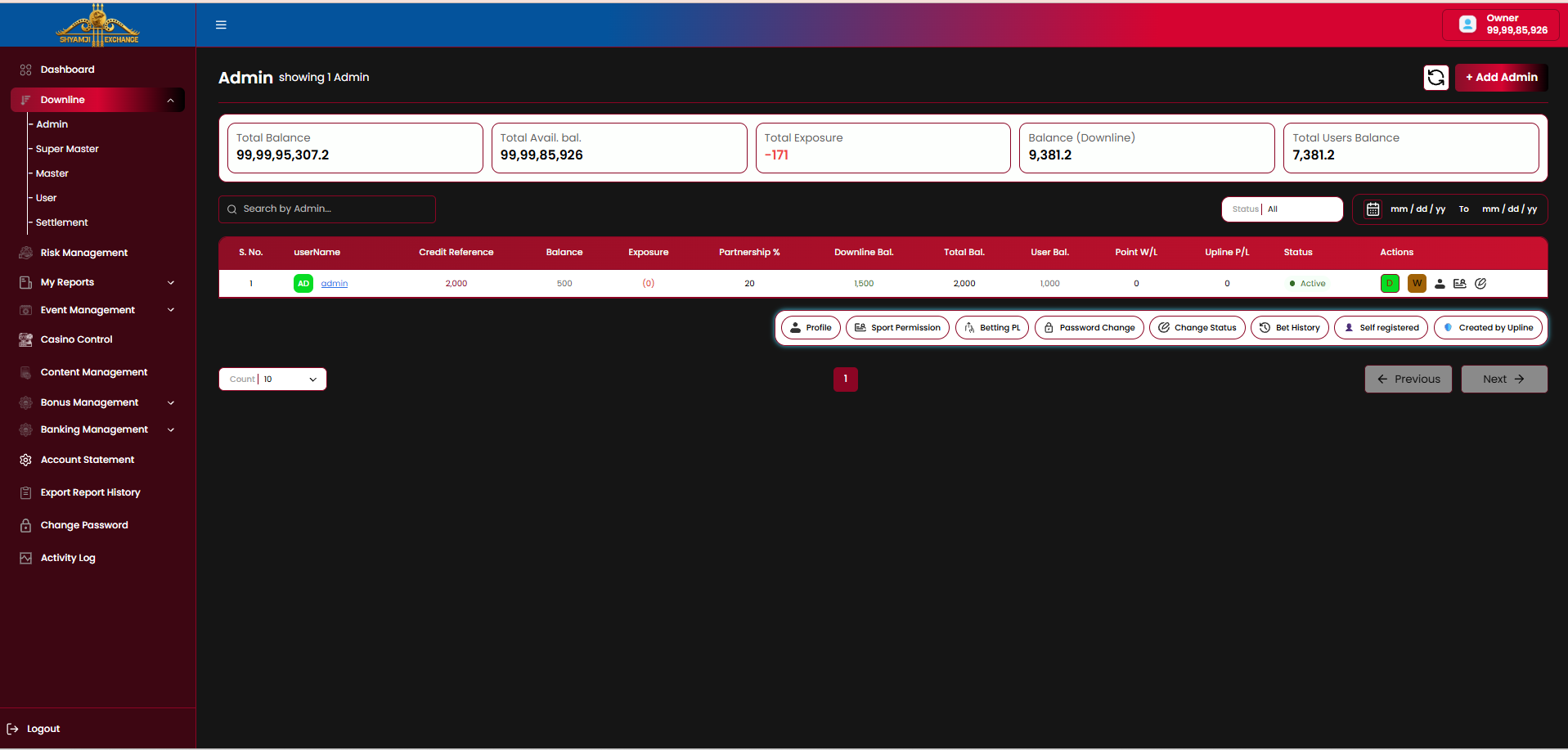
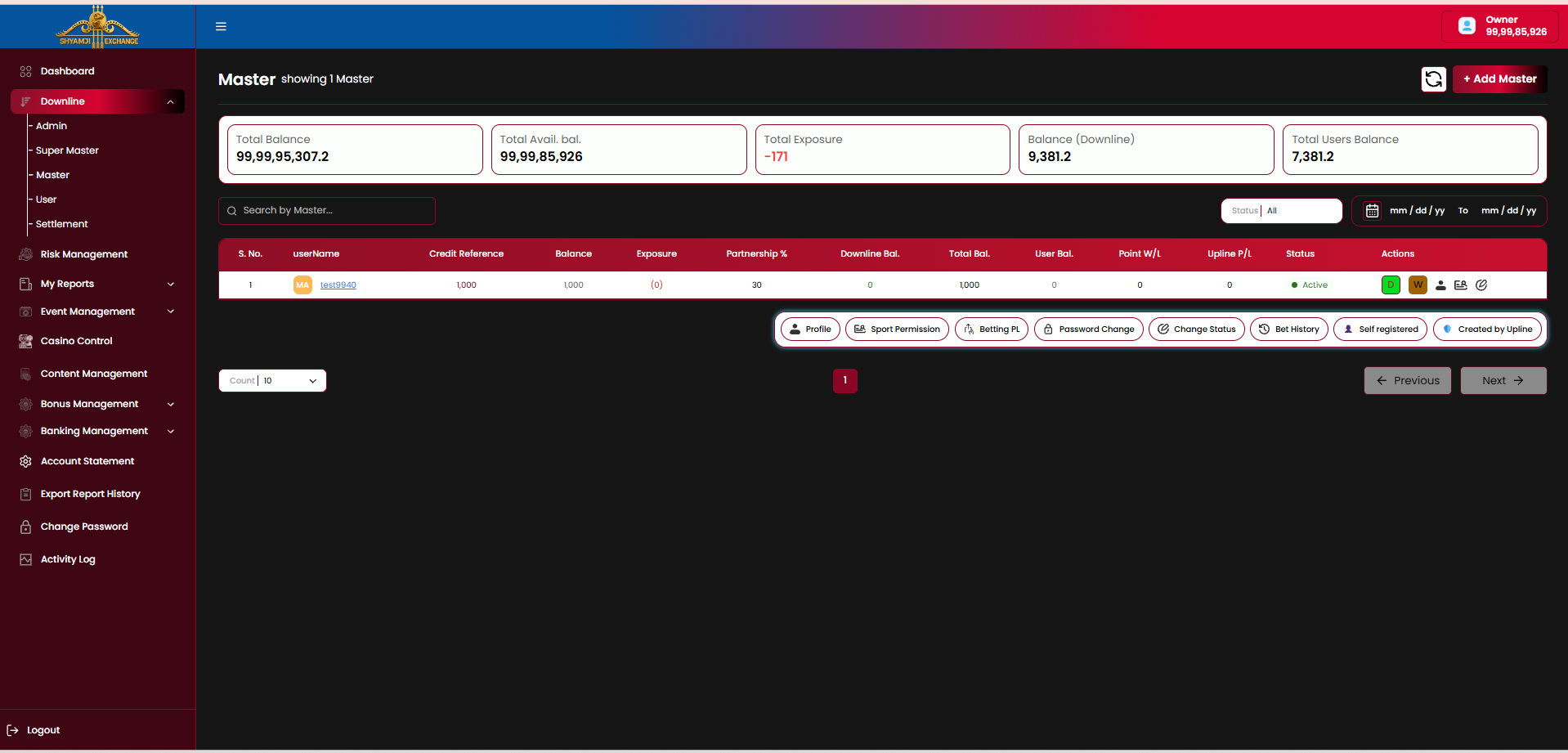
Admin, Super Master and Master share one listing layout — only the role label, "+ Add [Role]" button and populated rows differ.
KPI strip
| Total Balance | amount |
| Total Avail. Bal. | amount |
| Total Exposure | amount |
| Balance (Downline) | amount |
| Total Users Balance | amount |
Table columns
| Column | Description |
|---|---|
| S. No / userName | Row index and account username (with role initial badge, e.g. "AD" / "MA") |
| Credit Reference | Credit line assigned to this account |
| Balance | Current account balance |
| Exposure | Current locked exposure, shown in parentheses |
| Partnership % | Revenue / loss share percentage with this account |
| Downline Bal. | Sum of balances of everyone below this account |
| Total Bal. | Own balance + downline balance |
| User Bal. | Balance held specifically at the End User level under this account |
| Point W/L | Points won/lost figure |
| Upline P/L | Profit/loss passed up to this account's upline |
| Status | Active / Inactive / Suspended / Bet Lock pill |
| Actions | Quick D (Deposit) / W (Withdraw) icons, plus an expandable row of: Profile, Sport Permission, Betting PL, Password Change, Change Status, Bet History, Self registered / Created by Upline tags |
Controls
- Search by [Role] name.
- Status filter (default "All").
- Date range filter (mm/dd/yy → mm/dd/yy).
- "+ Add Admin" / "+ Add Super Master" / "+ Add Master" button, top right.
- Refresh icon to reload the listing.
- Count-per-page selector (default 10) with Previous / Next pagination.
4.3 User Listing (End User)
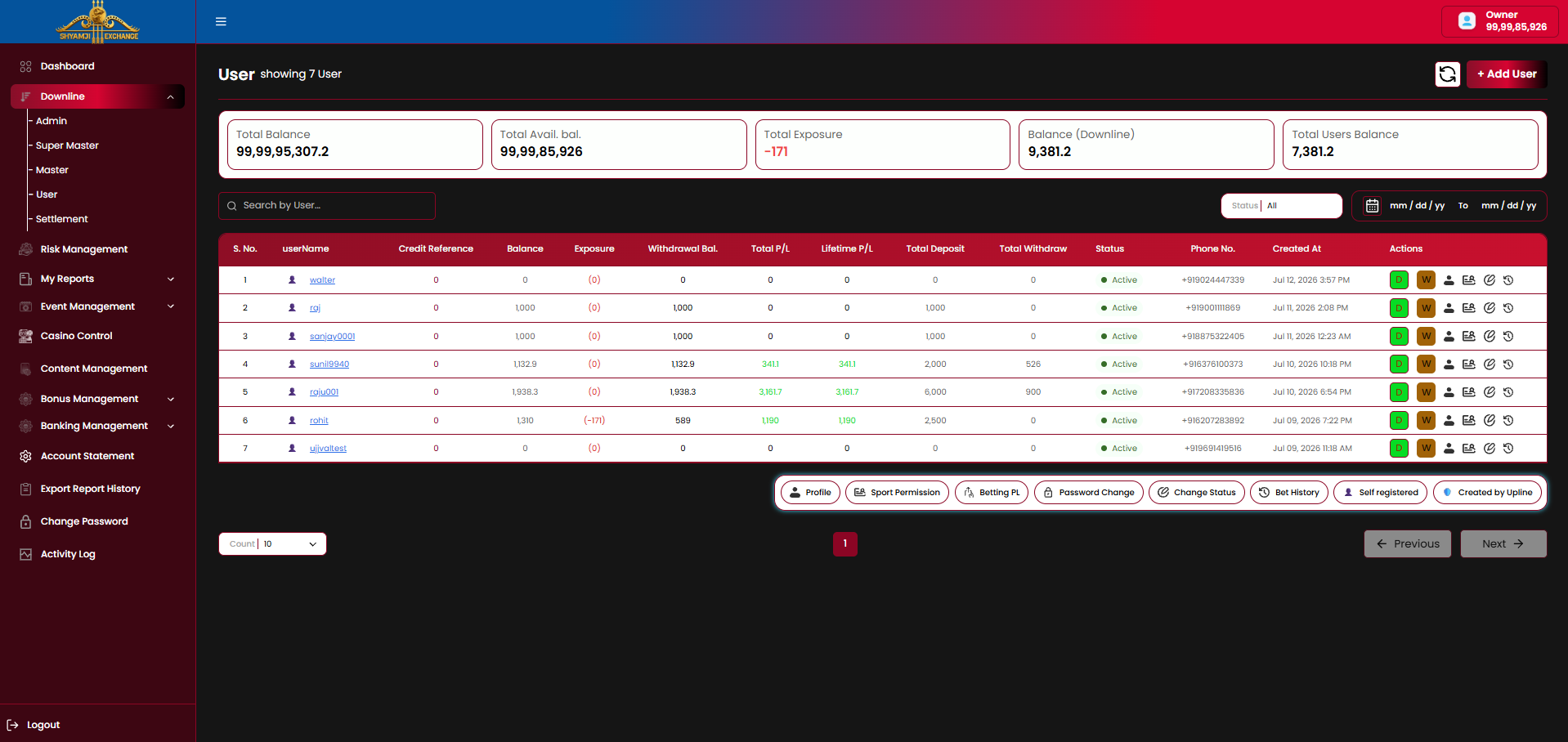
The End User listing shares the same KPI strip and action set as §4.2, with a wider set of columns reflecting real-money player activity rather than downline roll-up figures.
Additional / differing columns
| Column | Description |
|---|---|
| Withdrawal Bal. | Amount currently available for the user to withdraw |
| Total P/L | Profit/loss for the selected date range |
| Lifetime P/L | All-time profit/loss |
| Total Deposit | Lifetime deposits |
| Total Withdraw | Lifetime withdrawals |
| Phone No. | Registered mobile number |
| Created At | Account creation date / time |
"Credit Reference", "Downline Bal.", "Total Bal.", "Upline P/L" are not shown here as a User has no further downline. The "+ Add User" button replaces "+ Add Admin/Master".
4.4 Row Action Pop-ups
Four pop-ups are reached from every listing row's action icons (§4.2 / §4.3) and behave identically at every hierarchy level — Admin, Super Master, Master, and direct End User.
4.4.1 Deposit
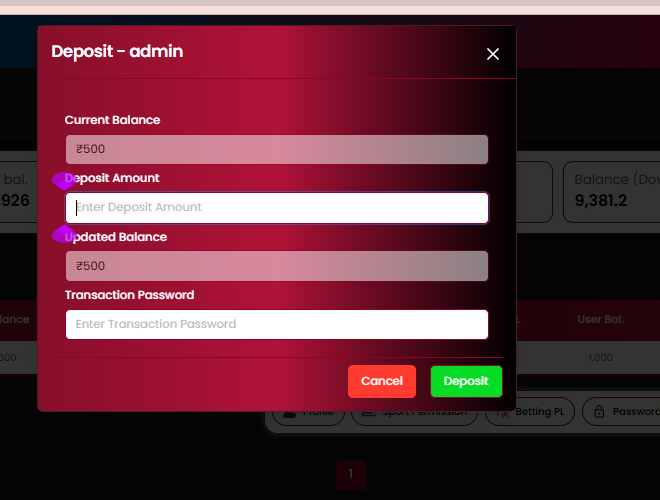
| Current Balance | Shown, read-only |
| Deposit Amount | Input |
| Updated Balance | Auto-calculated preview |
| Transaction Password | Required |
| Cancel / Deposit buttons | Included |
4.4.2 Withdraw
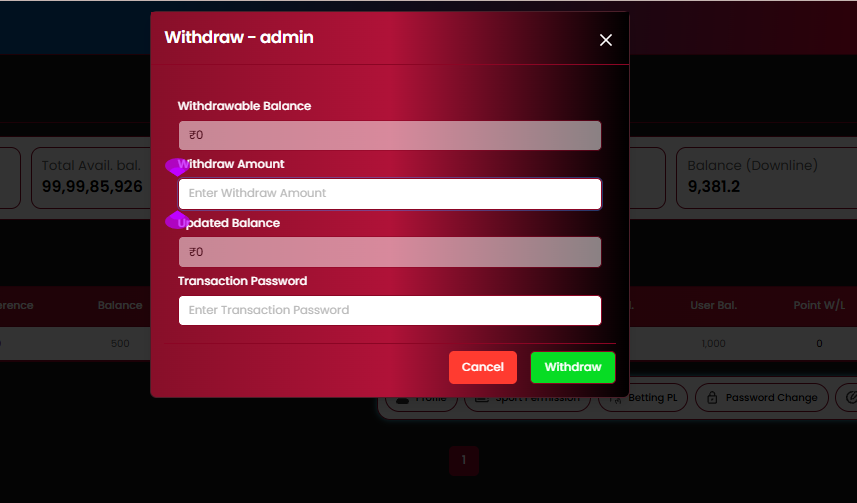
| Withdrawable Balance | Shown, read-only |
| Withdraw Amount | Input |
| Updated Balance | Auto-calculated preview |
| Transaction Password | Required |
| Cancel / Withdraw buttons | Included |
4.4.3 Sport Permission
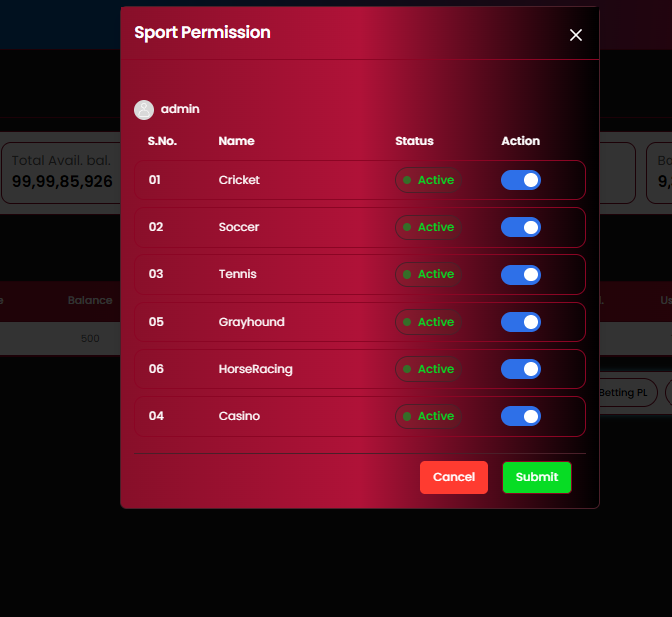
Per-sport toggle list: Cricket, Soccer, Tennis, Grayhound, HorseRacing, Casino — each with an Active/Inactive status label and an on/off toggle, submitted together via the Submit button.
4.4.4 Change Status
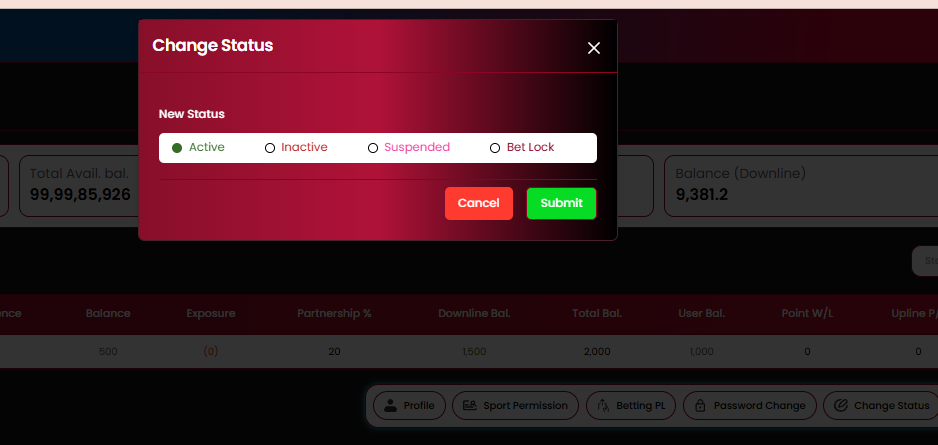
Single-select radio group: Active, Inactive, Suspended, Bet Lock, confirmed via Submit.
Business rules
- Deposit / Withdraw require the account's Transaction Password, separate from the login password.
- Deposit / Withdraw amounts flow through the Downline Bal. / Total Bal. roll-up shown in the listings (§4.2 / §4.3).
- Sport Permission controls which sports a downline account (and its own downline) can accept bets on.
- Suspended and Bet Lock statuses block login (Module 01) and/or new bet placement respectively — exact distinction to be confirmed.
- These four pop-ups are identical whether triggered from an Admin/Super Master/Master row or directly from a User row.
4.5 Downline Profile Detail — Admin / Super Master / Master
Opening "Profile" on an Admin, Super Master or Master row opens a 3-tab detail view: Account Summary, Transaction History, Activity Log.
Account Summary
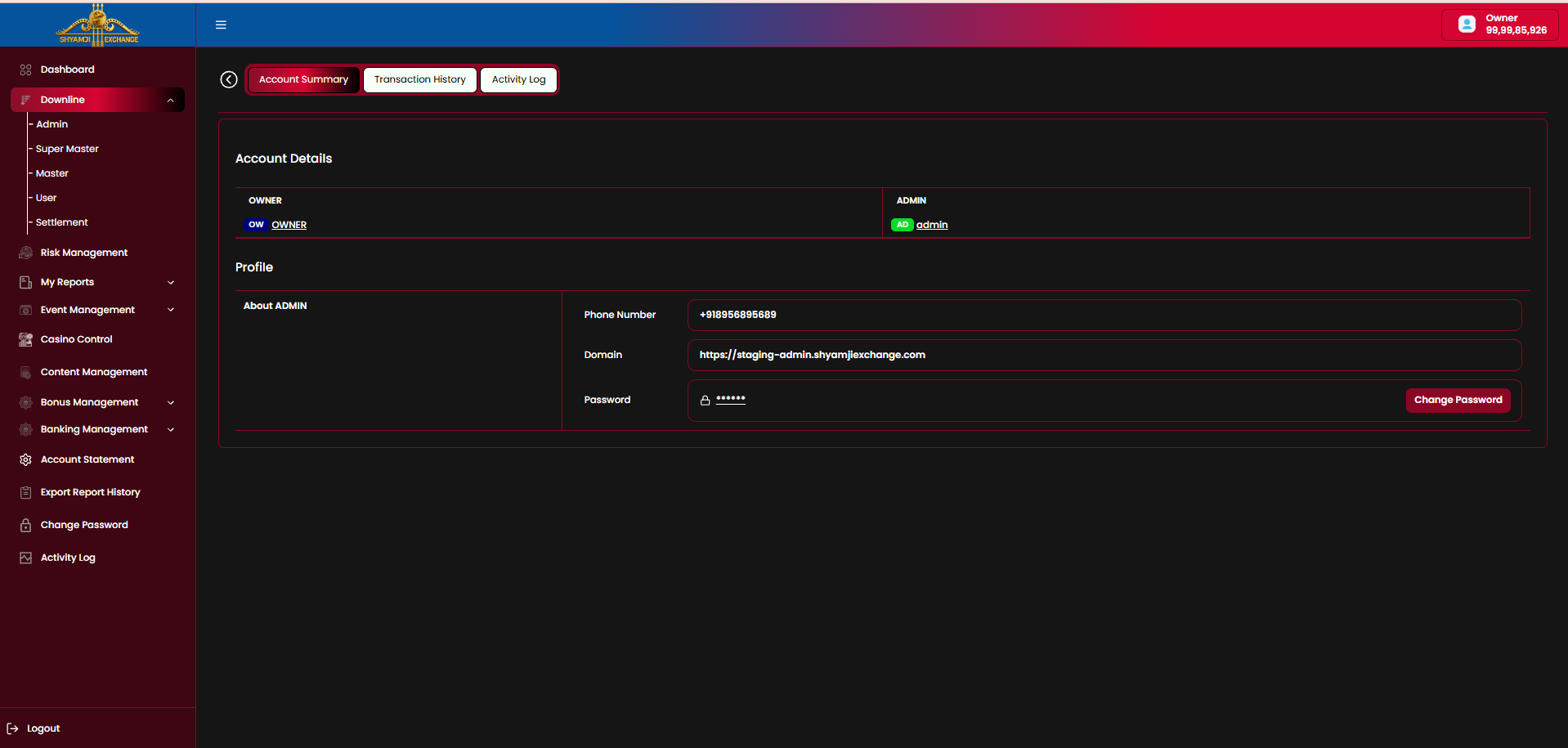
Shows the Account Details chain (Owner → the selected account, each with a role badge) and a Profile panel with Phone Number, Domain and a masked Password field with a Change Password action.
Transaction History
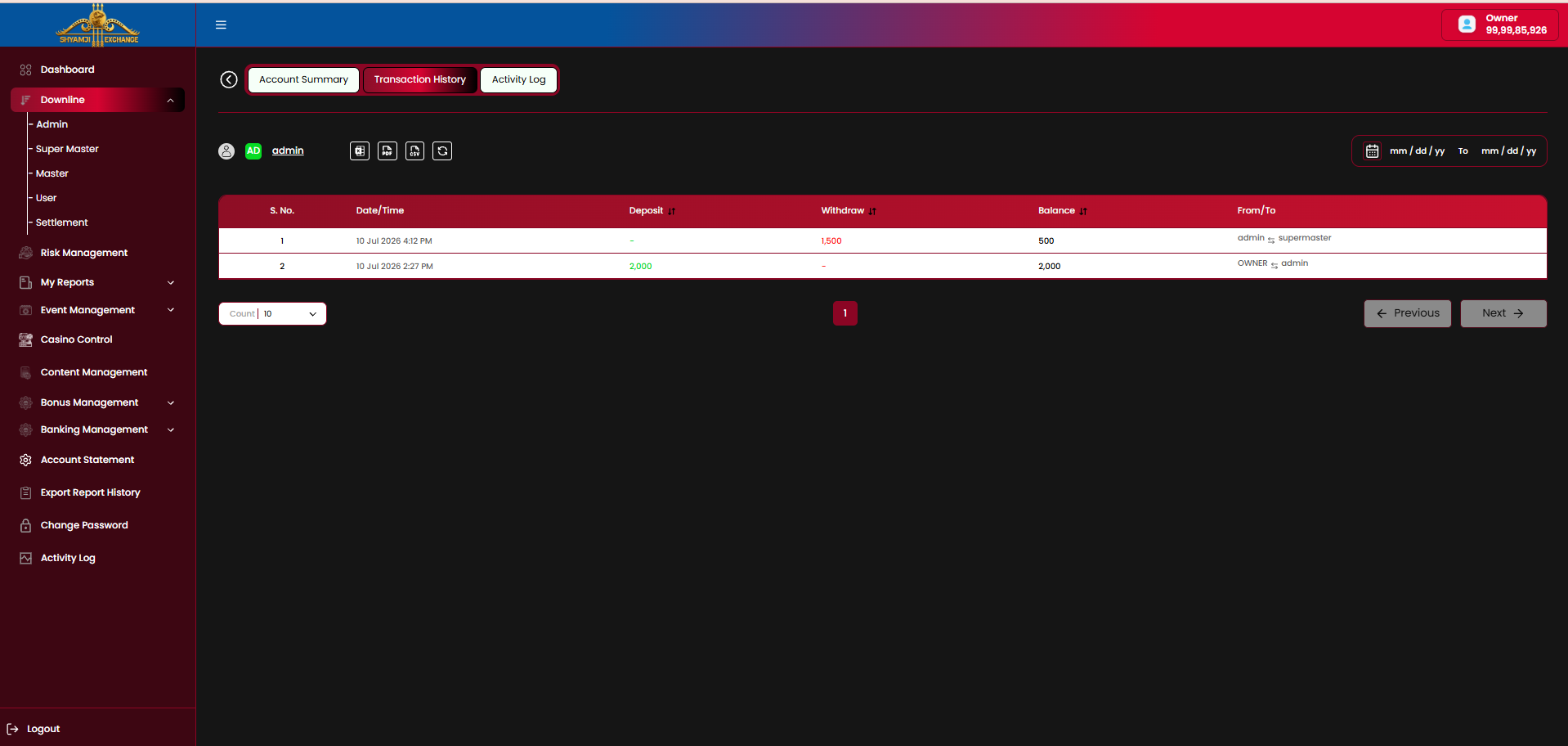
| Column | Description |
|---|---|
| S. No / Date-Time | Row index and transaction timestamp |
| Deposit / Withdraw | Amount moved, sortable |
| Balance | Resulting balance after the transaction |
| From/To | The two accounts involved (e.g. "admin → supermaster") |
Export to Excel / PDF / CSV icons, a refresh icon, and a date range filter sit above the table.
Activity Log
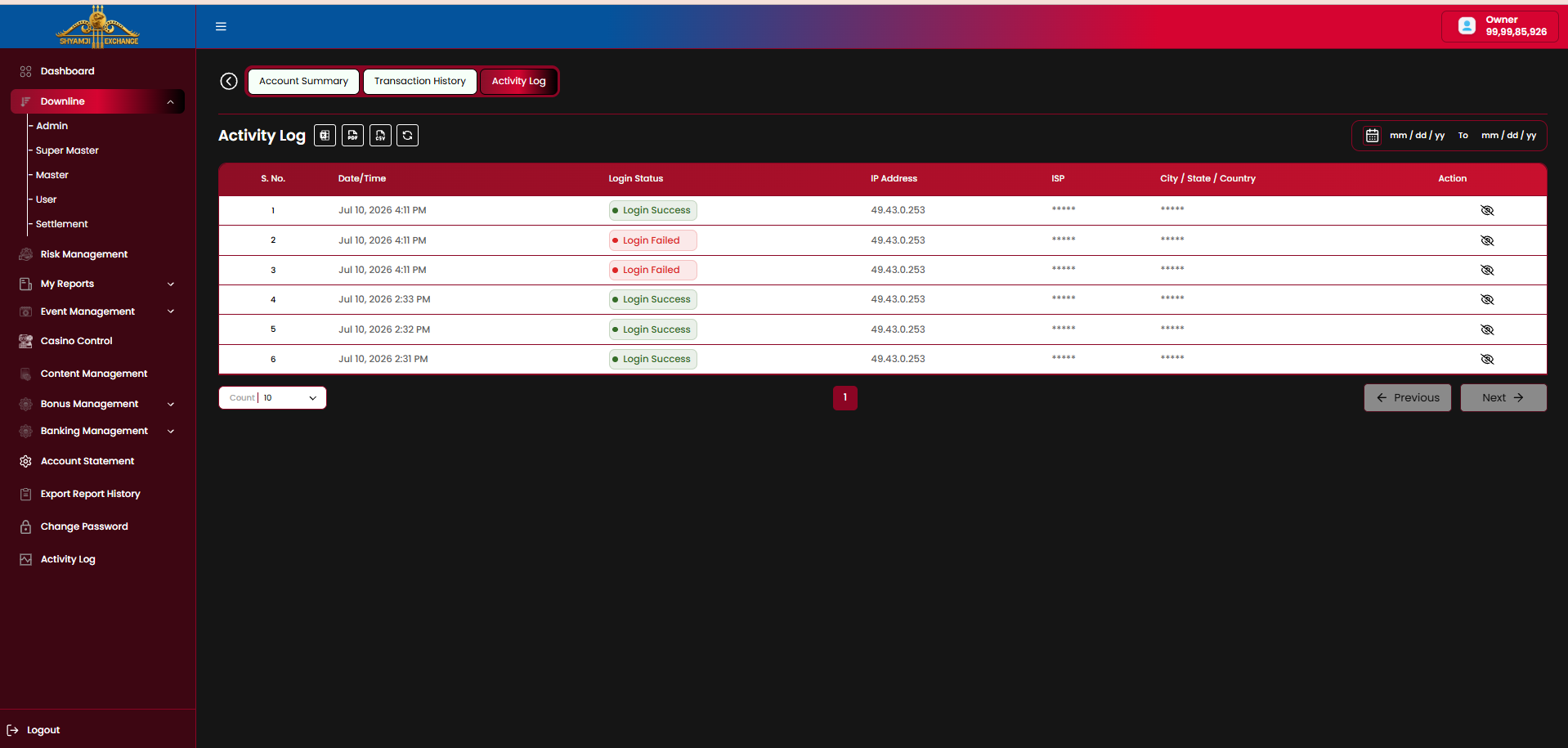
| Column | Description |
|---|---|
| S. No / Date-Time | Row index and login attempt timestamp |
| Login Status | Login Success / Login Failed pill |
| IP Address | Origin IP of the login attempt |
| ISP | Masked by default |
| City / State / Country | Masked by default |
| Action | Eye icon to reveal the masked ISP / location fields |
4.6 End User Profile Detail
Opening "Profile" directly on an End User row expands the tab set to 5 tabs — Account Summary, Bet List, Betting Pnl, Account Statement, Activity Log — since a User is a real player rather than a reseller node.
Account Summary
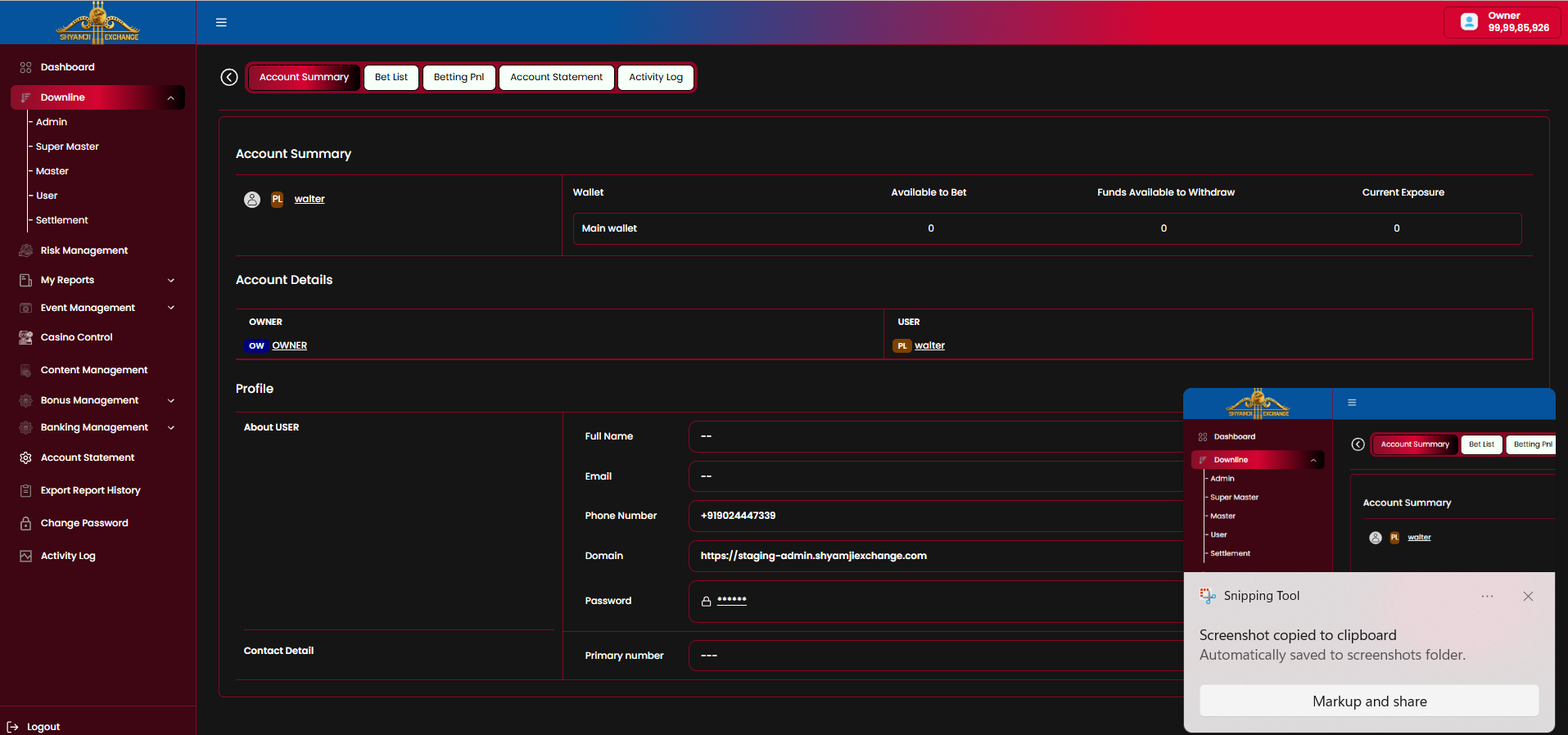
| Section | Fields |
|---|---|
| Main wallet | Available to Bet · Funds Available to Withdraw · Current Exposure |
| Account Details | Owner → User chain with role badges |
| Profile — About USER | Full Name · Email · Phone Number · Domain · Password (with Change Password) |
| Contact Detail | Primary number |
Full Name, Email and Primary number show as "--" placeholders when not set by the user.
Bet List
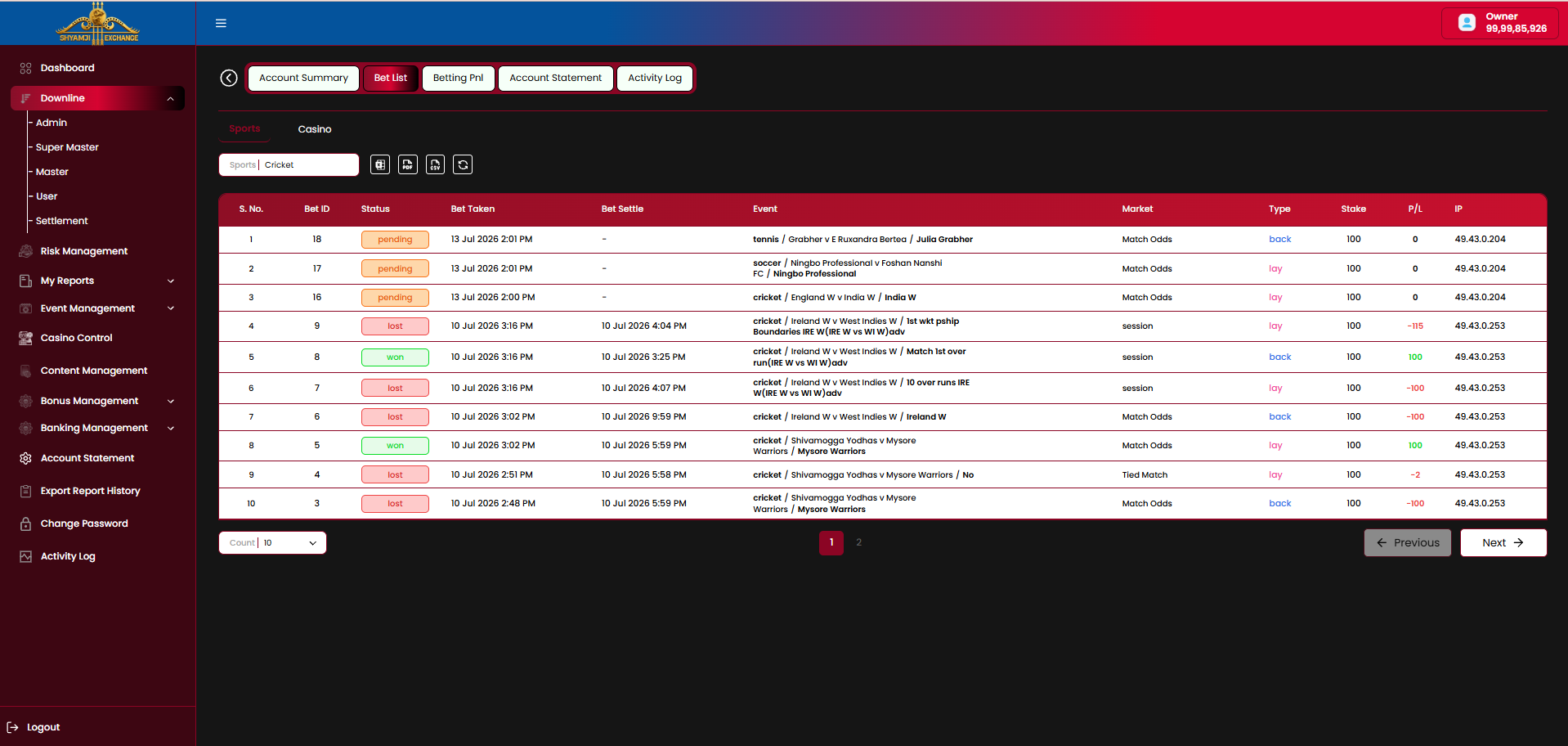
| Column | Description |
|---|---|
| Bet ID / Status | Pending / Won / Lost pill |
| Bet Taken / Bet Settle | Placed and settled timestamps |
| Event | Sport / competitors, e.g. "cricket / Ireland W v West Indies W" |
| Market | Match Odds, Session, Tied Match, etc. |
| Type | back (blue) / lay (pink) |
| Stake / P/L | Amount staked and resulting profit/loss |
| IP | IP address the bet was placed from |
Sports / Casino top-level toggle, a Sport filter (e.g. "Cricket"), export icons, refresh, date range filter and pagination.
Betting Pnl
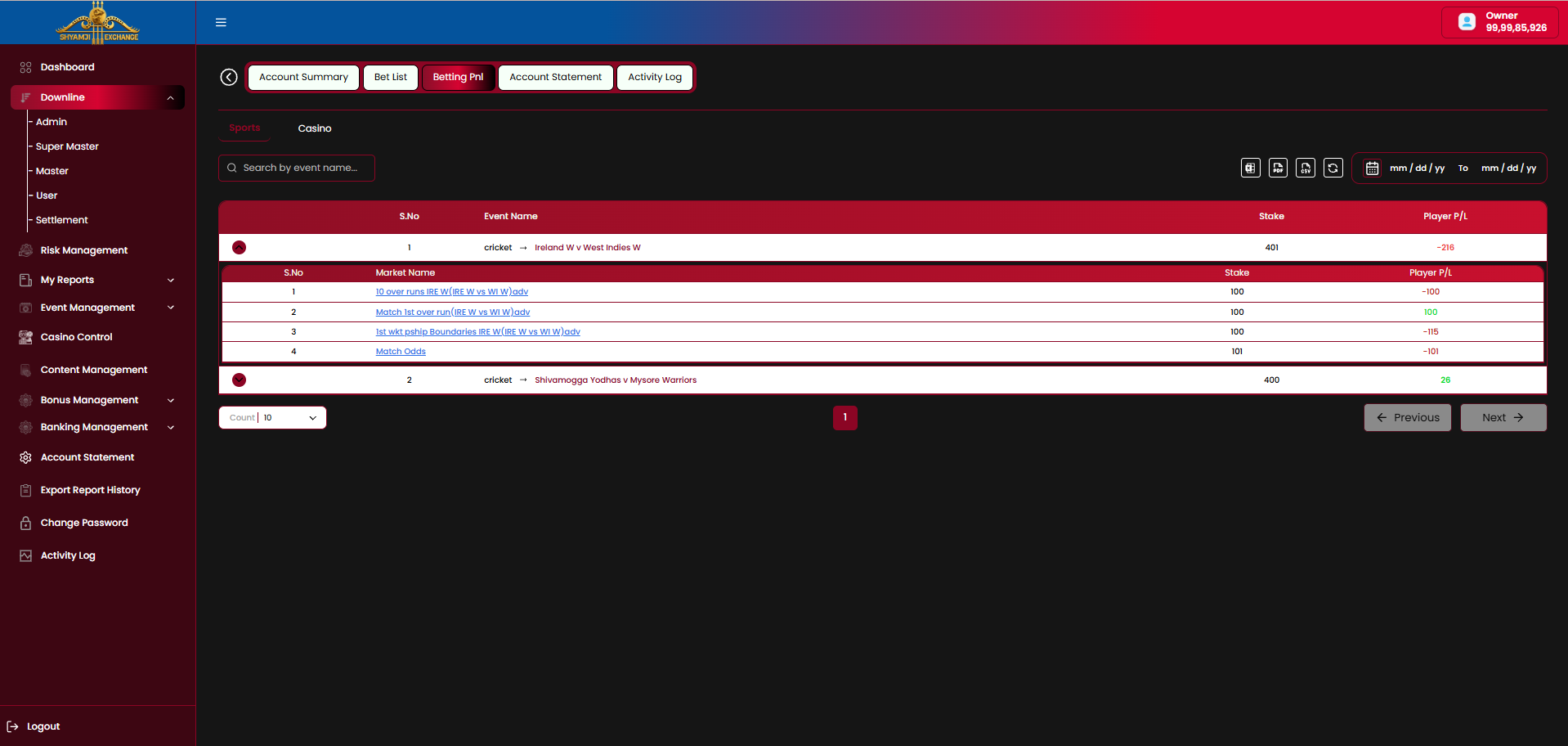
- Rows group by Event, each showing total Stake and Player P/L; a row expands to its Market Name breakdown.
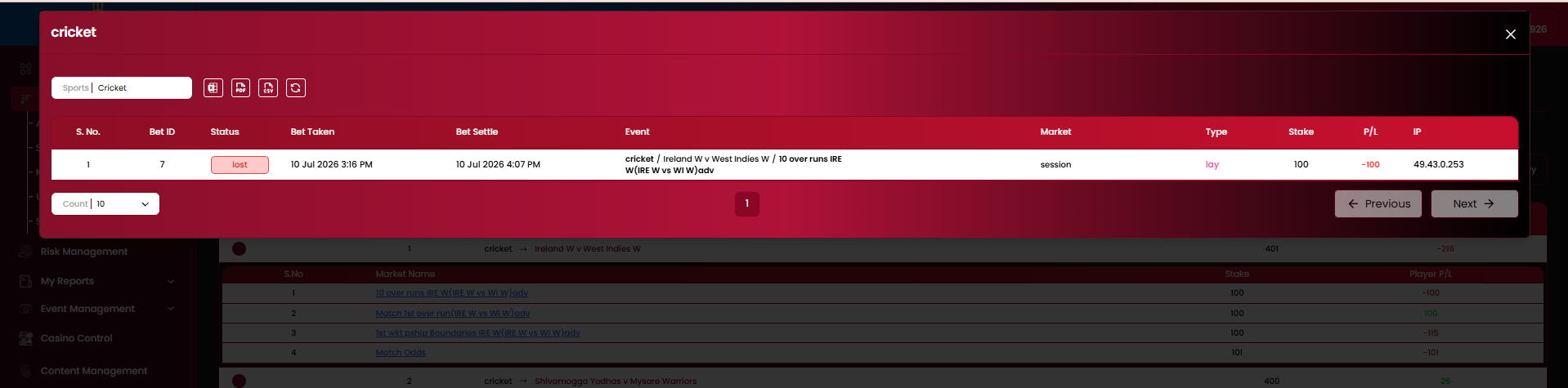
- Clicking a market name opens a modal listing every individual settled bet for that market (Bet ID, Status, Bet Taken/Settle, Event, Market, Type, Stake, P/L, IP).
- Search by event name; Sports / Casino toggle; export, refresh and date range controls.
Account Statement
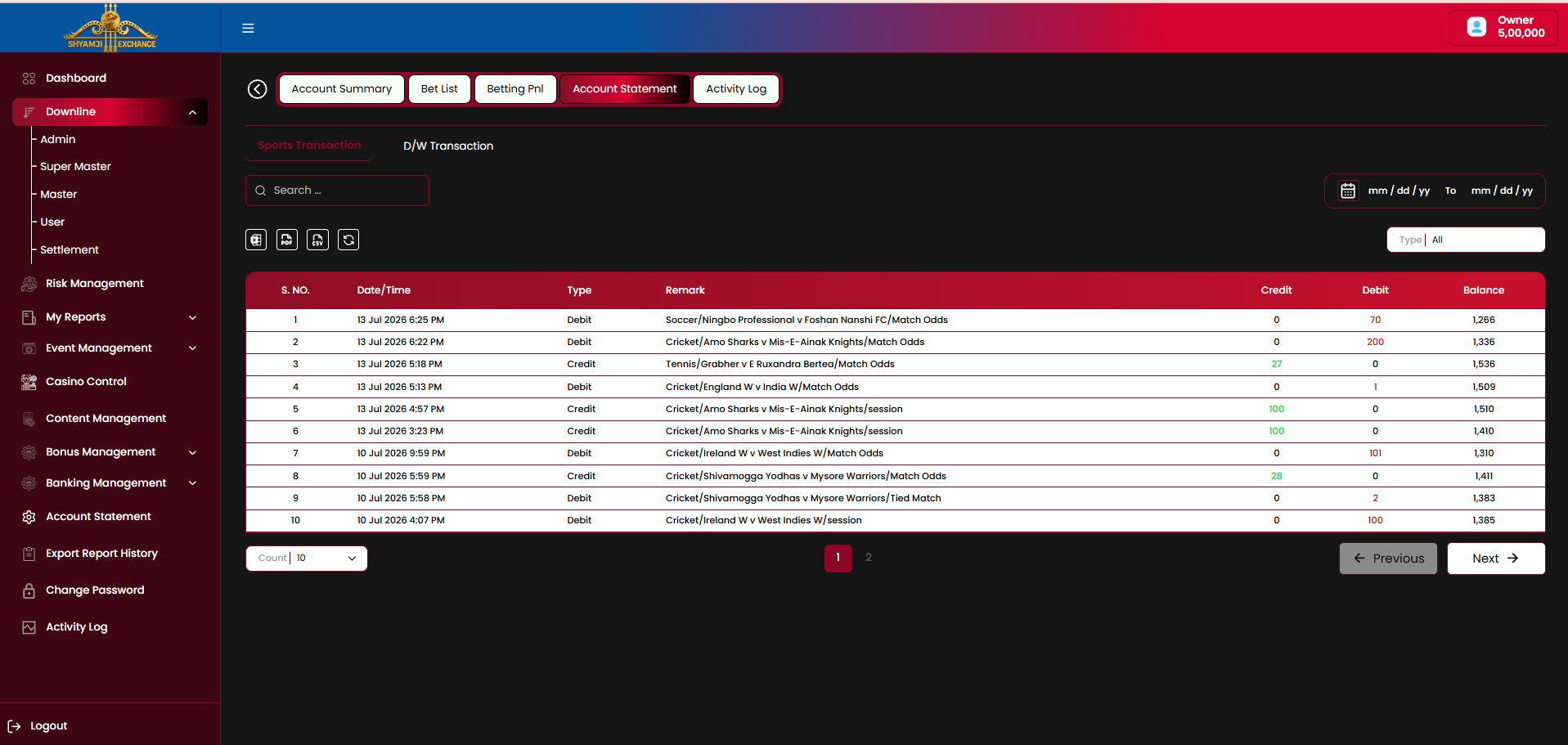
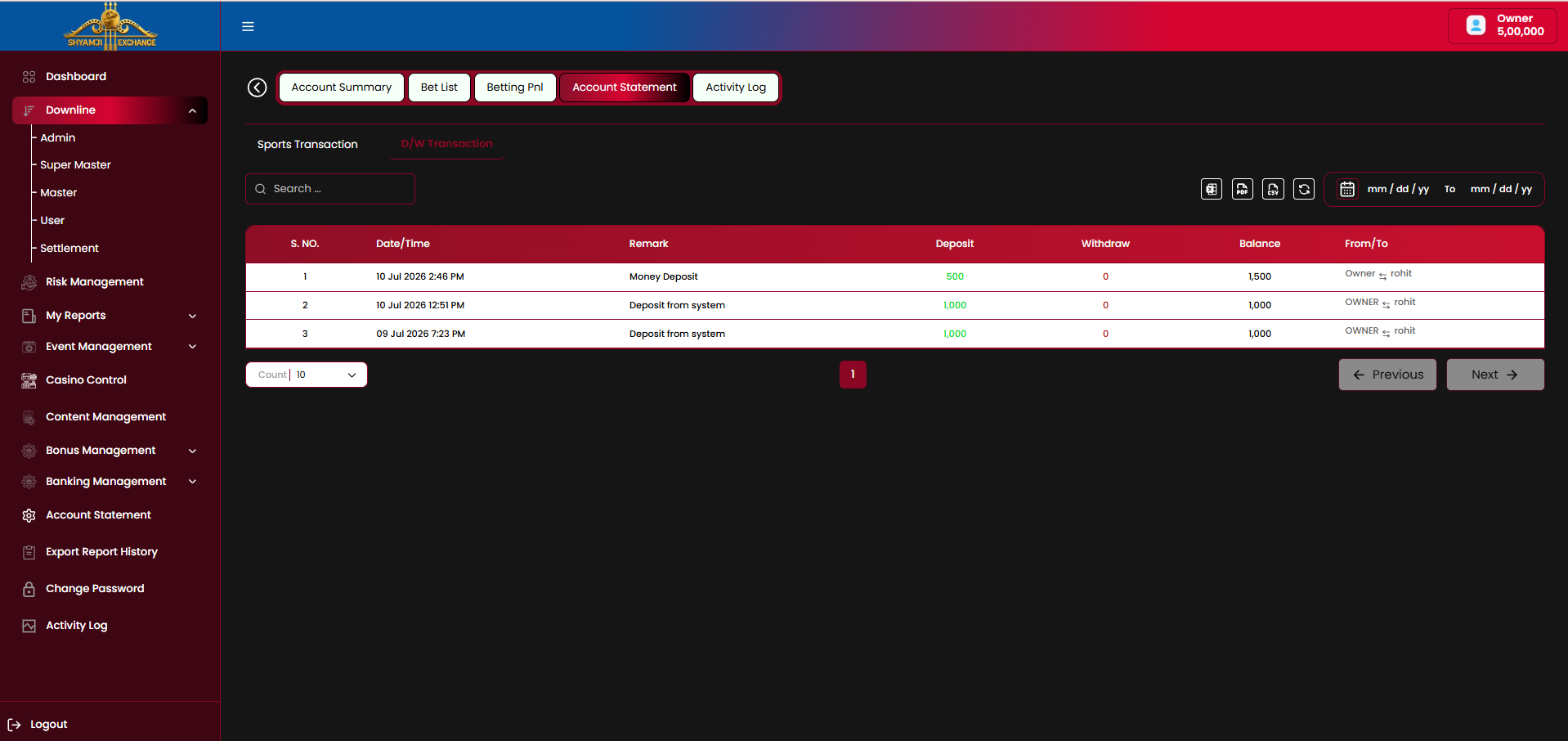
Full ledger for this User, split into two sub-tabs: Sports Transaction (every bet-settlement entry — S. No., Date/Time, Type Debit/Credit, Remark naming the event/market, Credit, Debit, Balance) and D/W Transaction (deposits and withdrawals — S. No., Date/Time, Remark, Deposit, Withdraw, Balance, From/To). Both share Search, a Type filter (All/Debit/Credit), date range, export and pagination controls.
Activity Log
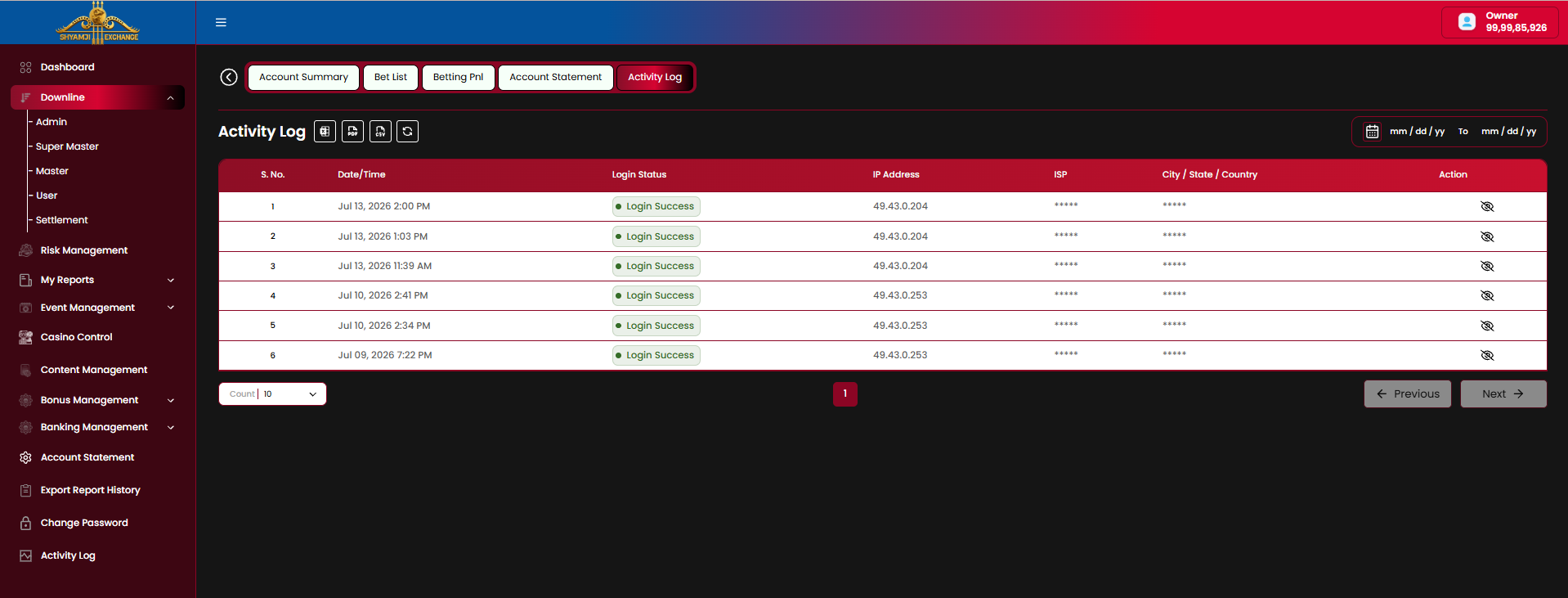
Same structure as the Downline Activity Log in §4.5: Date/Time, Login Status, IP Address, masked ISP / City-State-Country with a reveal icon.
4.7 Settlement
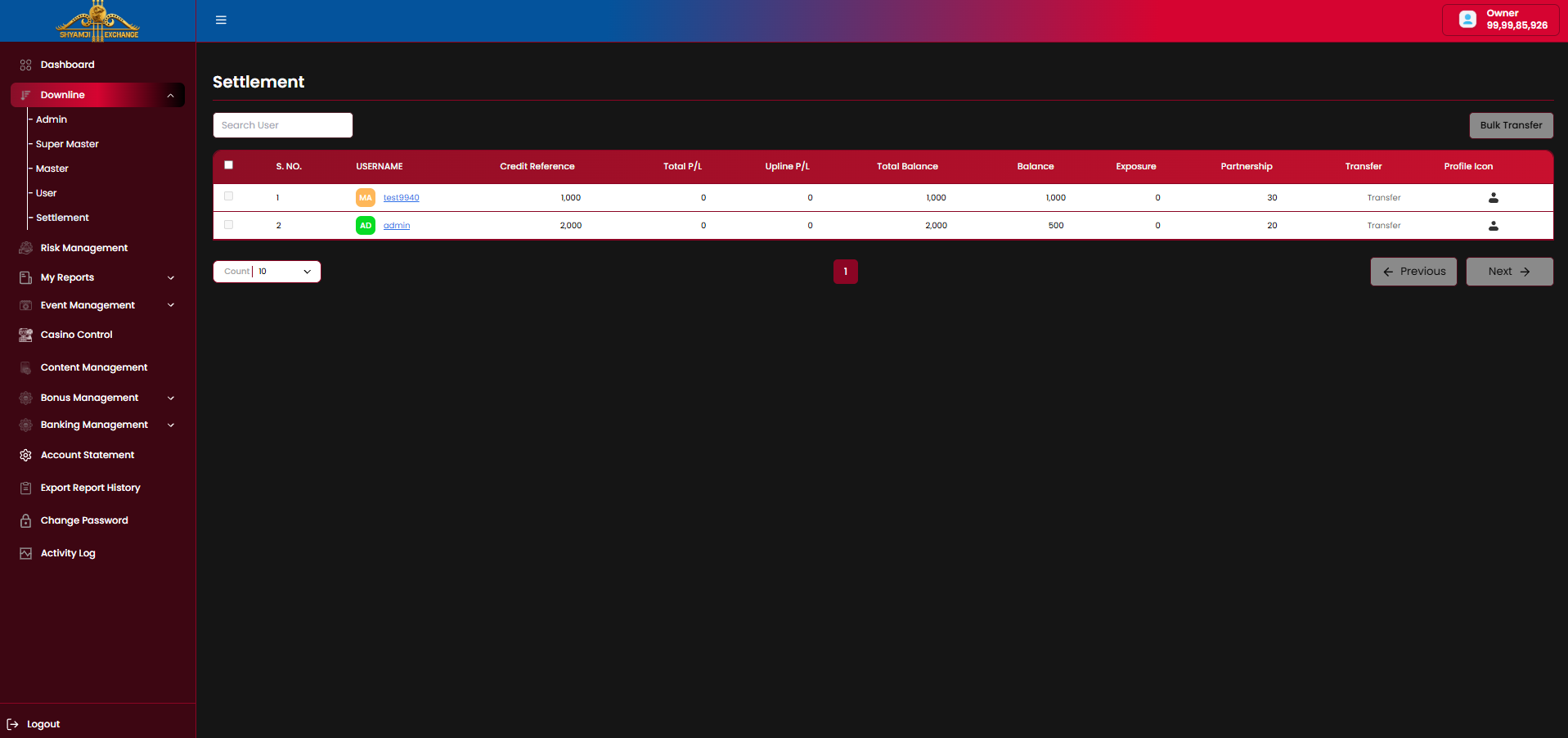
Purpose
Gives the logged-in account a single view of balance, exposure and P/L across its immediate downline, for reviewing and transferring funds without opening each profile individually.
Table columns
| Column | Description |
|---|---|
| Checkbox / S. No. | Row selector for bulk actions |
| Username | Downline account, with role badge |
| Credit Reference | Assigned credit line |
| Total P/L / Upline P/L | Profit/loss figures |
| Total Balance / Balance / Exposure | Balance figures |
| Partnership | Revenue share percentage |
| Transfer | Per-row link to open a settlement transfer for this account |
| Profile Icon | Jumps to the account's Profile Detail (§4.5 / §4.6) |
Controls
- Search User field to filter the list.
- "Bulk Transfer" button, top right, acts on all checked rows.
- Count-per-page selector with Previous / Next pagination.
Module 05
Risk Management
›
Risk Management surfaces live platform-wide exposure per market, so the operator can spot lopsided books and lock or hedge a market before it settles. It drills from a cross-sport summary down to a single event's odds ladder, matched-bet list, and per-user liability.
5.1 Risk Management Summary
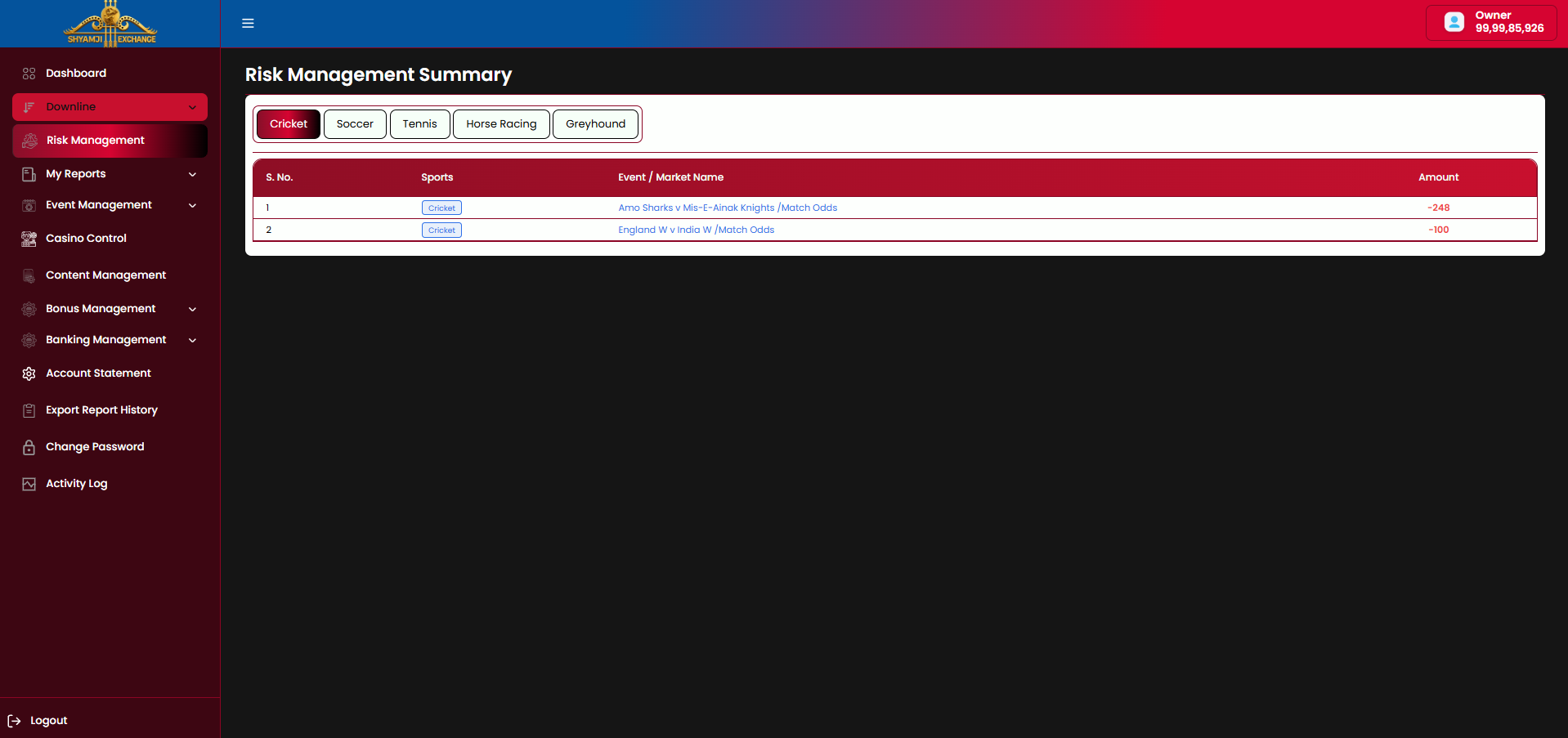
| Sport tabs (Cricket / Soccer / Tennis / Horse Racing / Greyhound) | Included |
| S. No / Sports / Event / Market Name / Amount table | Included |
- Only markets currently carrying exposure are listed; the Amount column shows the platform's net liability for that market, negative in red.
- Sports tabs filter the list to that sport only; Cricket is the default.
- Clicking an Event / Market Name row opens the Event Risk Detail (§5.2) for that match.
5.2 Event Risk Detail — Market Ladder
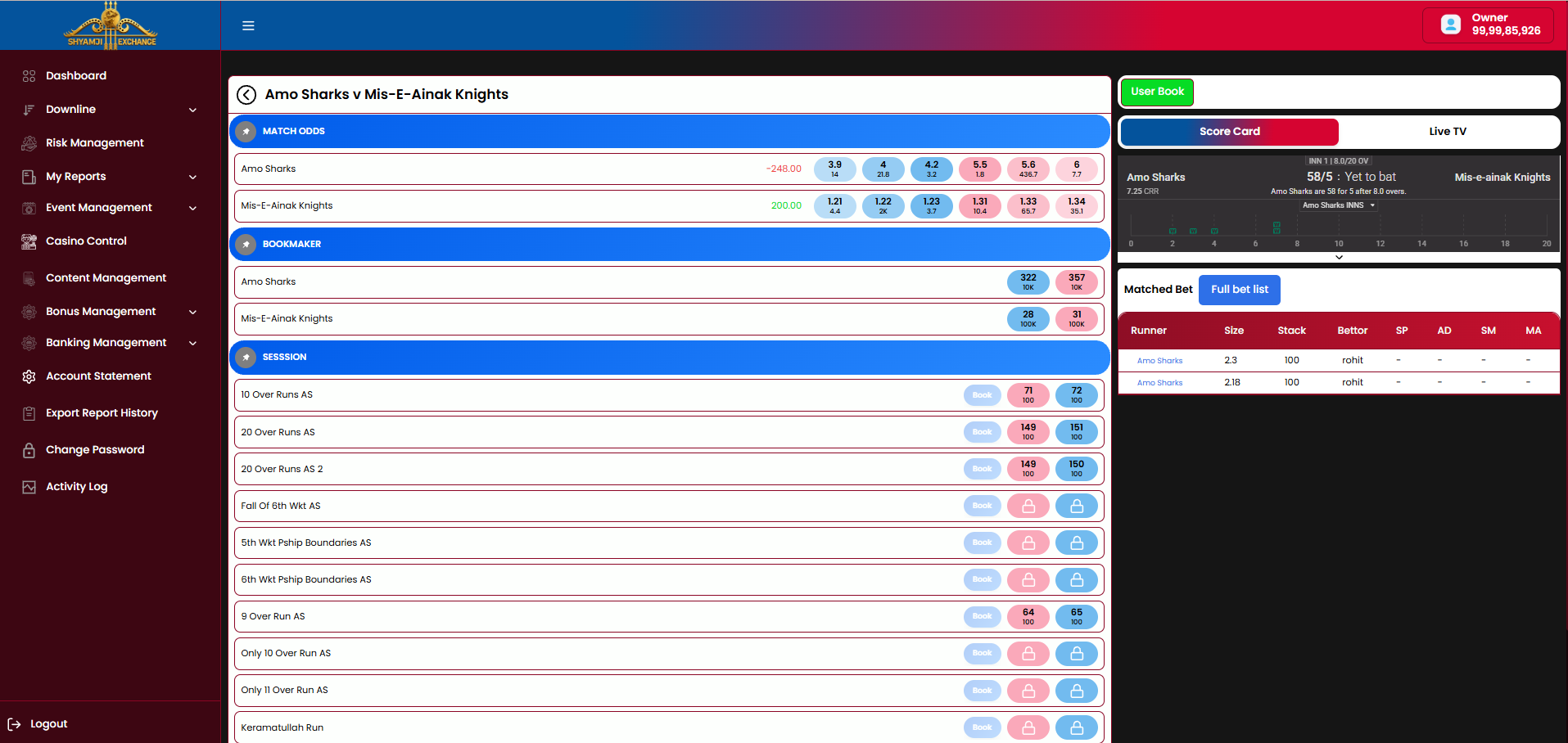
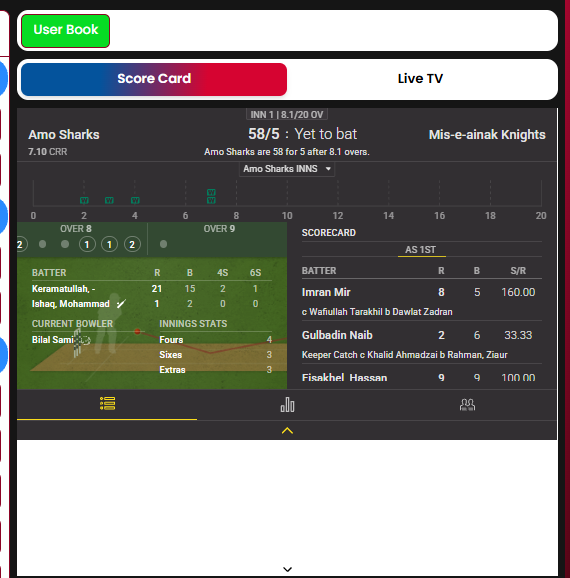
Layout
| Area | Description |
|---|---|
| Market ladder (left) | Each market (Match Odds, Bookmaker, Session / Fancy) lists its runners with live back/lay price ladder and the platform's current P/L per runner |
| User Book button | Opens the User Book pop-up (§5.4) scoped to the market currently in focus |
| Score Card / Live TV tabs (right) | Score Card shows ball-by-ball commentary, current batters, bowler and innings scorecard; Live TV streams the match feed |
| Matched Bet / Full bet list tabs (right, below score) | Matched Bet lists recent matched bets inline (Runner, Size, Stack, Bettor, AD, SM, MA); Full bet list opens the complete list in a modal (§5.3) |
Business rules
- Fancy / Session markets not yet opened for booking show locked back/lay pills.
- AD / SM / MA columns identify which downline level (Admin / Super Master / Master) placed each matched bet.
- A back-arrow returns to the Risk Management Summary (§5.1).
5.3 Full Bet List

Lists every matched bet for the market in focus: Runner, Size, Stake, Bettor, AD, SM, MA columns, with a Count-per-page selector and Previous / Next pagination.
5.4 User Book
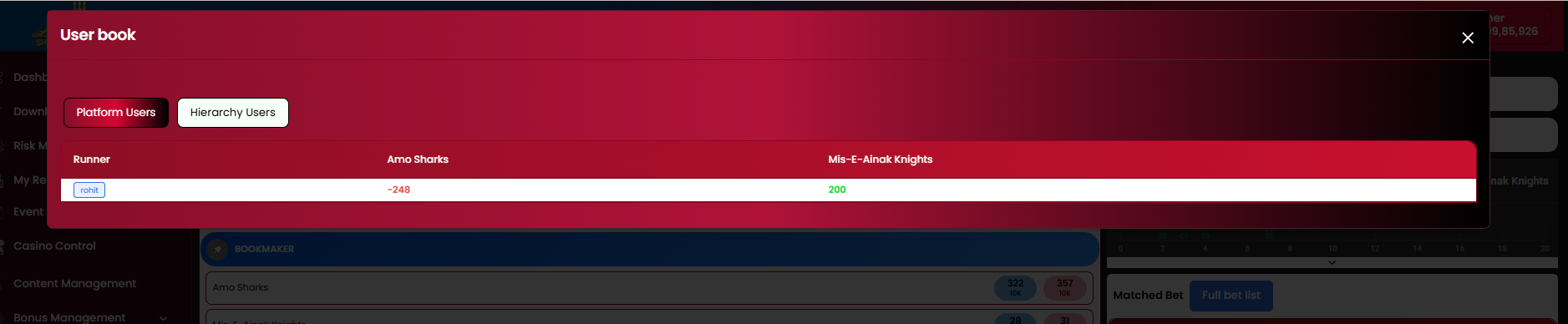
- Platform Users / Hierarchy Users toggle switches the scope of the liability breakdown.
- Table lists each bettor against a column per runner, showing that user's net P/L on each outcome (negative in red, positive in green).
5.5 Market Book List
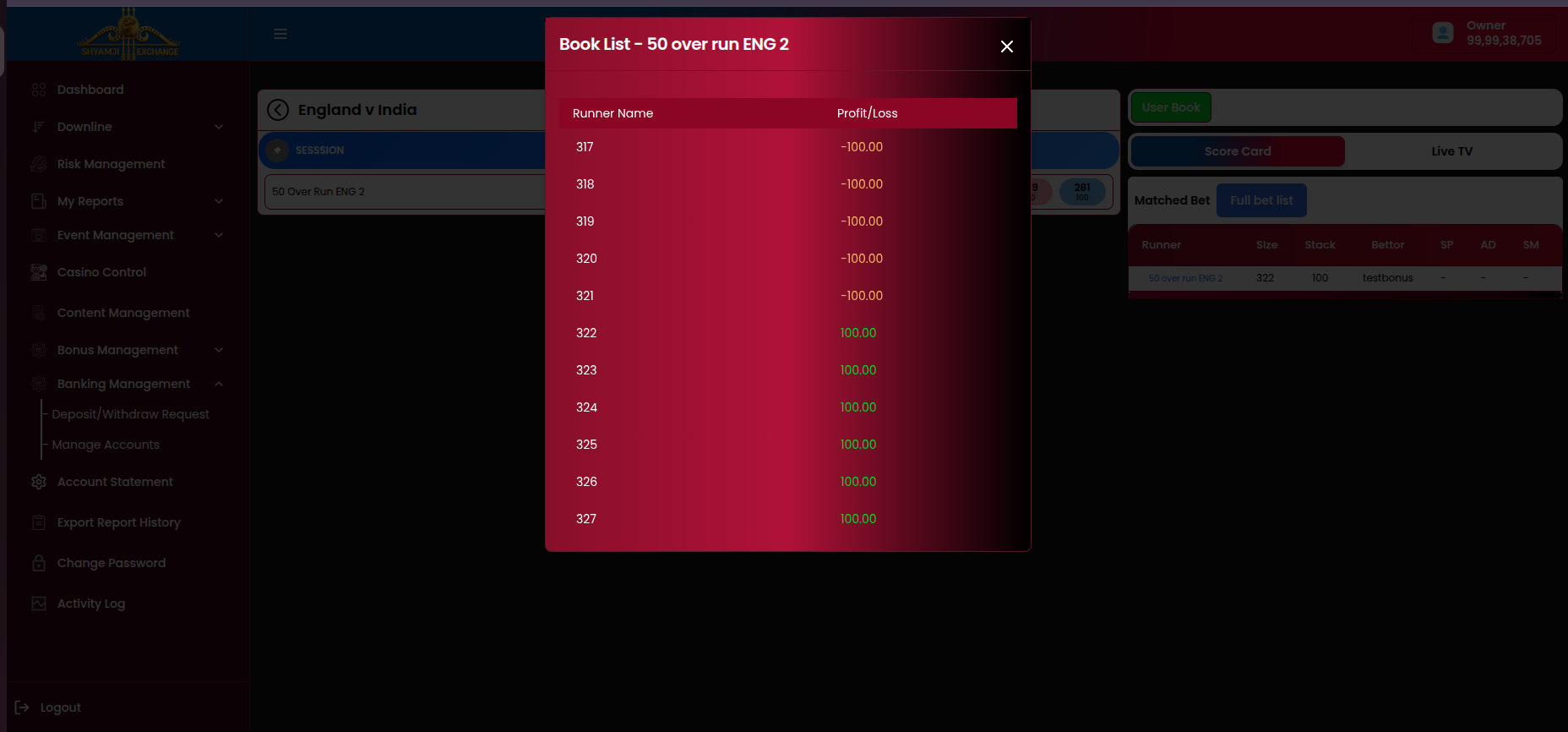
Clicking "Book" on an individual Session / Fancy line (from the market ladder, §5.2) opens this modal showing Runner Name and Profit/Loss for every possible outcome of that specific line — e.g. each run-count outcome for "50 Over Run ENG 2", with the platform's resulting P/L (green positive, amber/red negative) if that outcome settles.
Not included
Manual market lock/unlock from this screen Bulk risk alerts / thresholds
Module 06
Reports
›
My Reports is the reporting hub: sports and casino bet lists, five profit/loss breakdowns (by downline, event, player, casino downline, casino players), and a multi-category Business Report. Every report shares a common pair of scope toggles — Platform Users (everyone under the logged-in node) and Hierarchy Users (grouped by the immediate downline chain, drillable) — plus a date range filter and Excel / PDF / CSV export icons.
6.1 Bet List
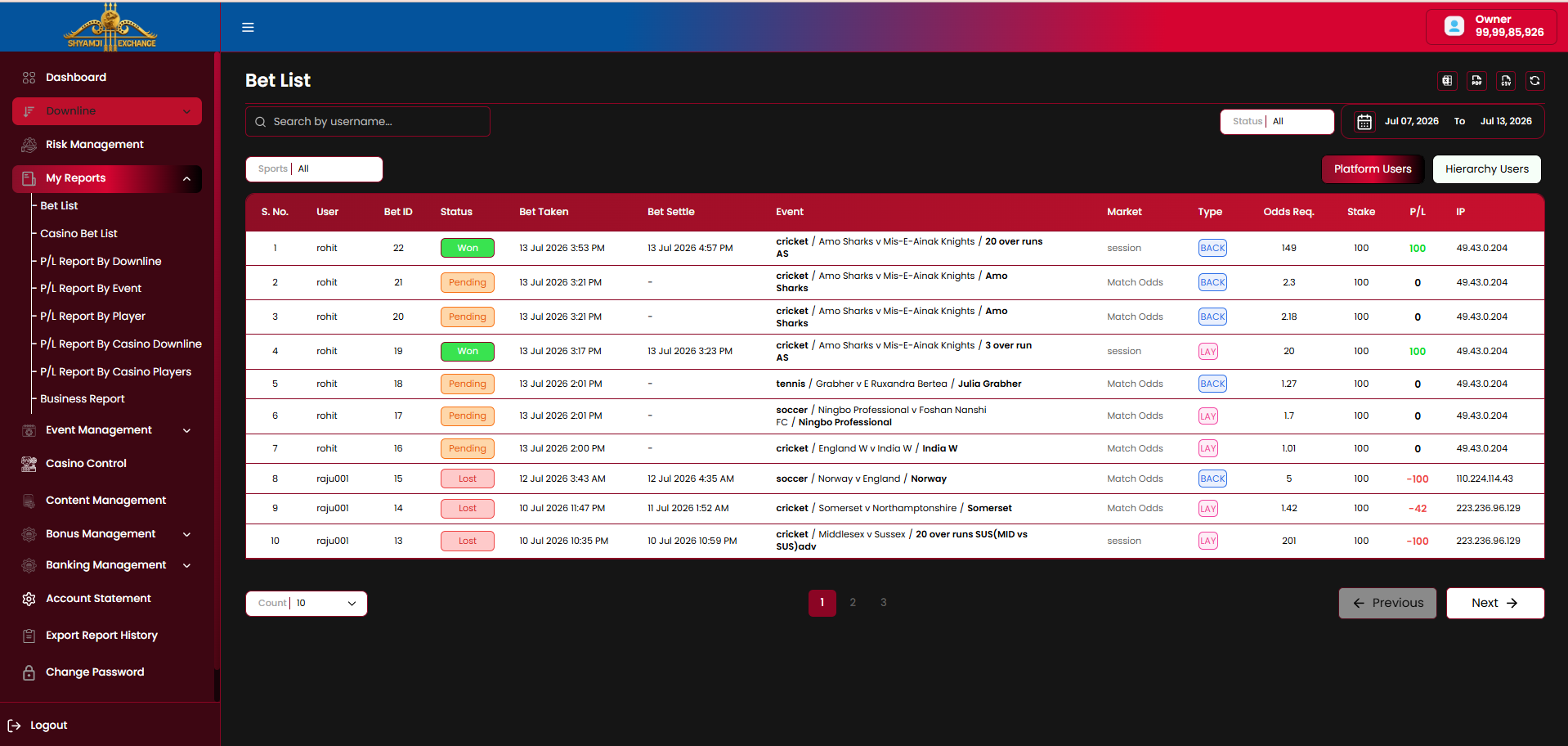
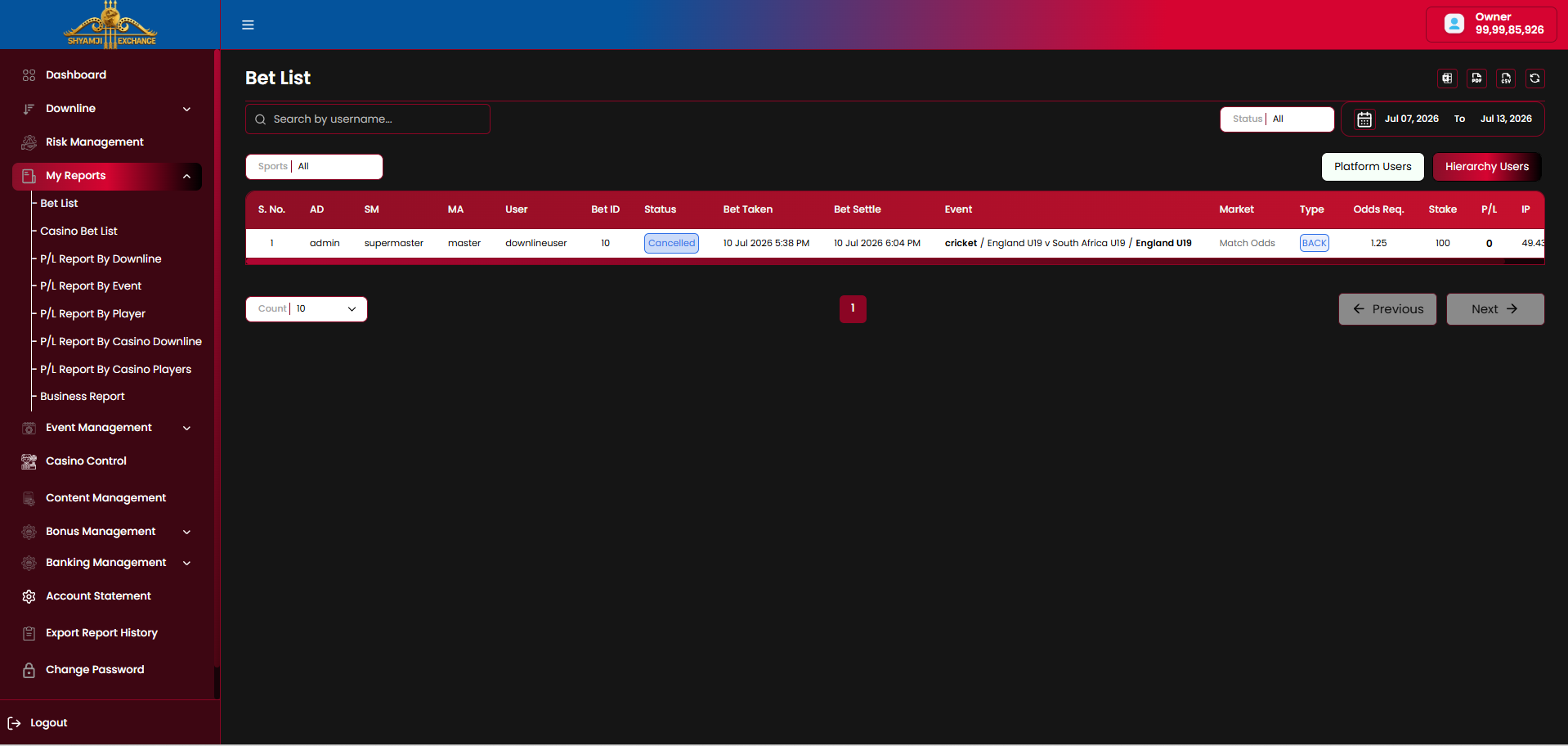
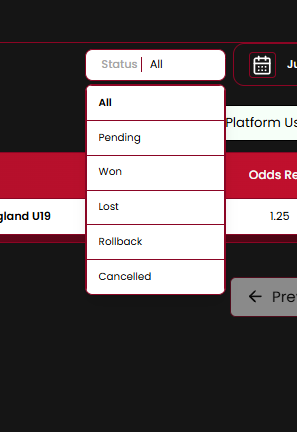
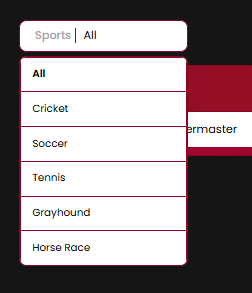
Table columns
| Column | Description |
|---|---|
| S. No / User (or AD, SM, MA, User in Hierarchy view) | Platform Users shows the bettor's username directly; Hierarchy Users additionally shows the Admin / Super Master / Master chain above that bettor |
| Bet ID / Status | Pending, Won, Lost, Rollback or Cancelled pill |
| Bet Taken / Bet Settle | Placed and settled timestamps |
| Event / Market / Type | Sport and match, market name, back (blue) / lay (pink) |
| Odds Req. / Stake / P/L | Requested odds, amount staked, resulting profit/loss |
| IP | IP address the bet was placed from |
Controls
- Search by username, Status filter, Sports filter, date range (defaults to the last 7 days).
- Platform Users / Hierarchy Users toggle, top right.
- Export to Excel / PDF / CSV, refresh, Count-per-page and Previous / Next pagination.
6.2 Casino Bet List
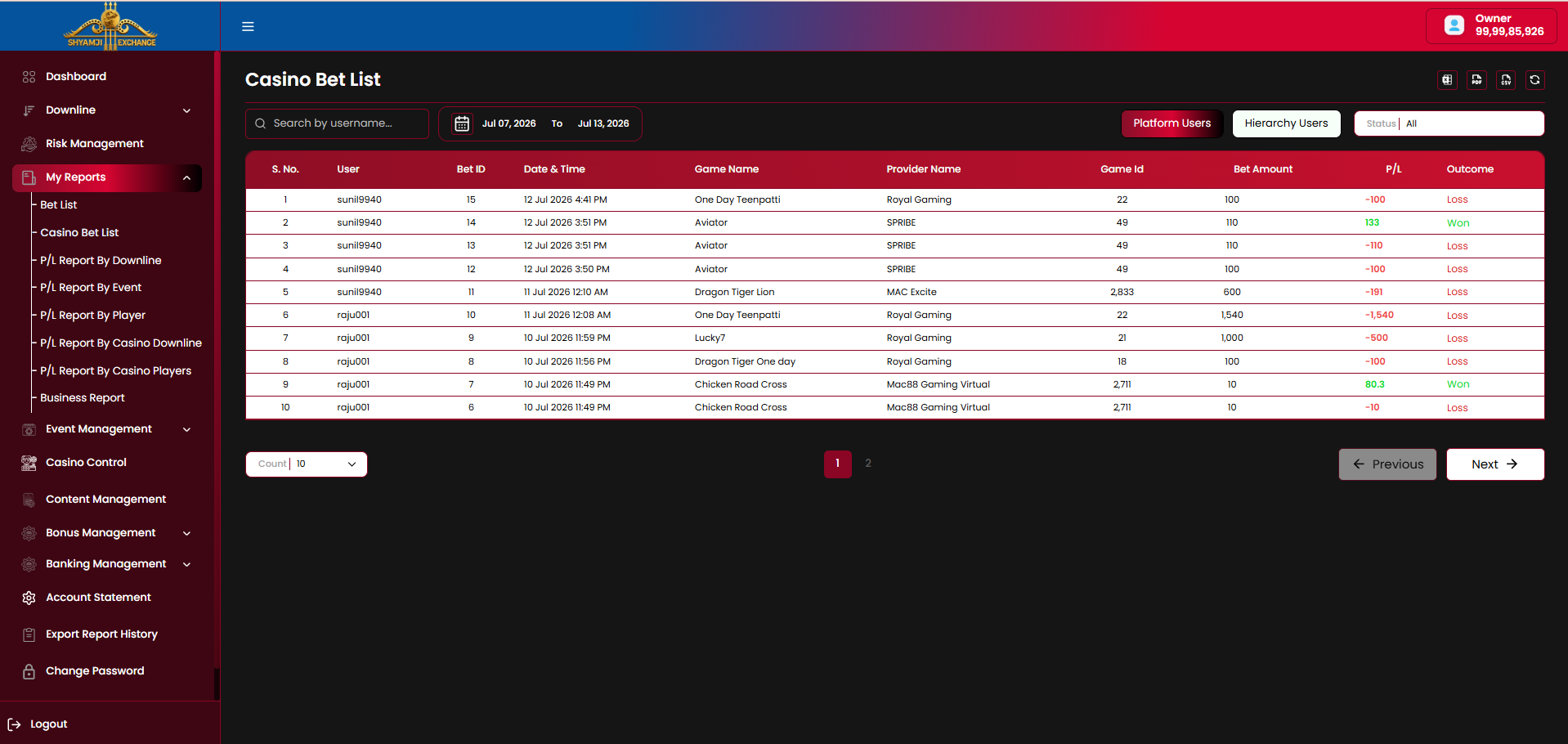
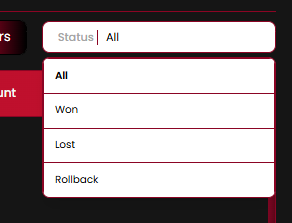
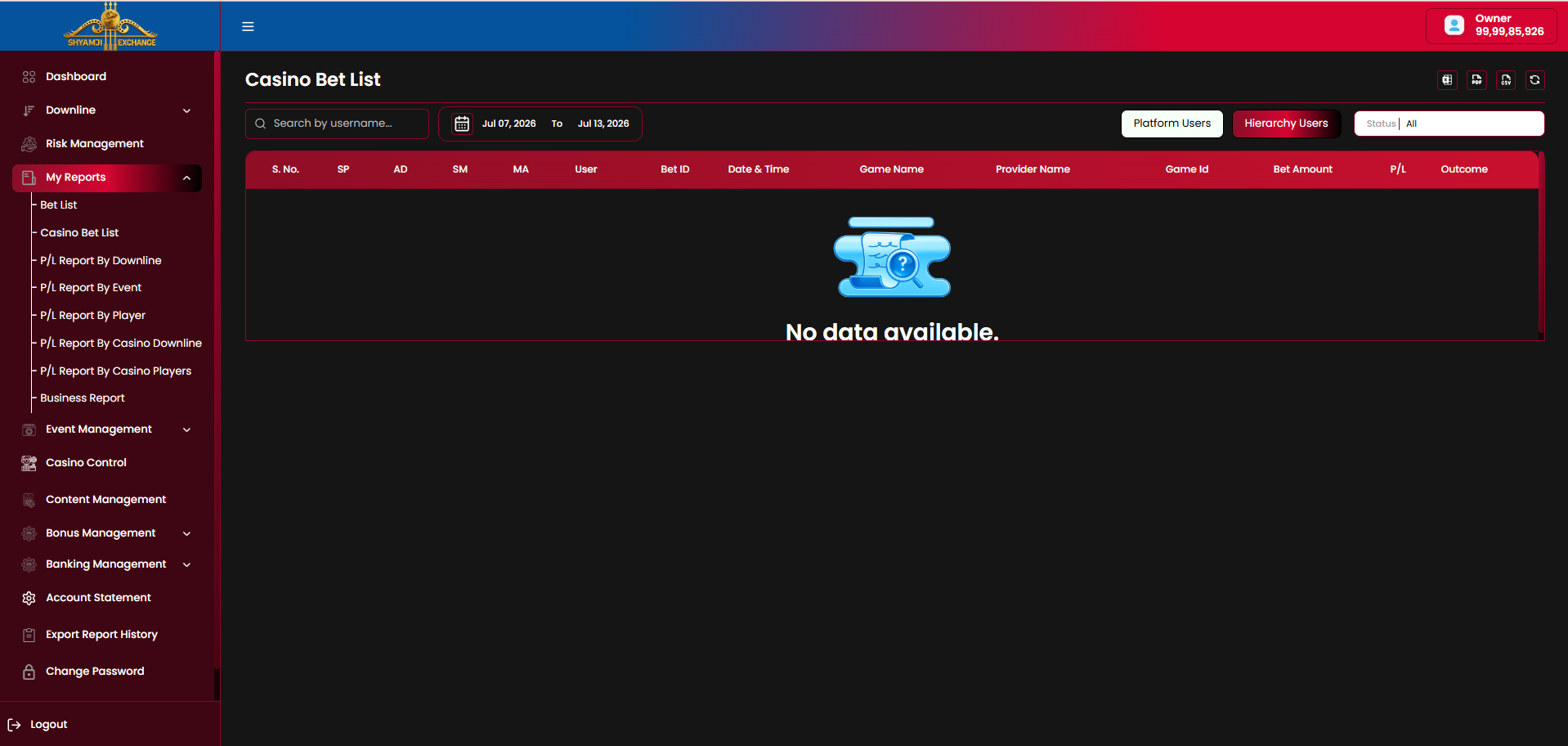
Table columns
| Column | Description |
|---|---|
| S. No / User (or AD, SM, MA, User in Hierarchy view) | Bettor, with hierarchy chain in Hierarchy Users mode |
| Bet ID / Date & Time | Bet identifier and placed timestamp |
| Game Name / Provider Name / Game Id | e.g. "Aviator" / "SPRIBE" / 49 |
| Bet Amount / P/L / Outcome | Stake, resulting profit/loss, Won / Loss label |
Search by username, date range, Status filter, Platform Users / Hierarchy Users toggle, export and pagination — same pattern as Bet List.
6.3 P/L Report By Downline
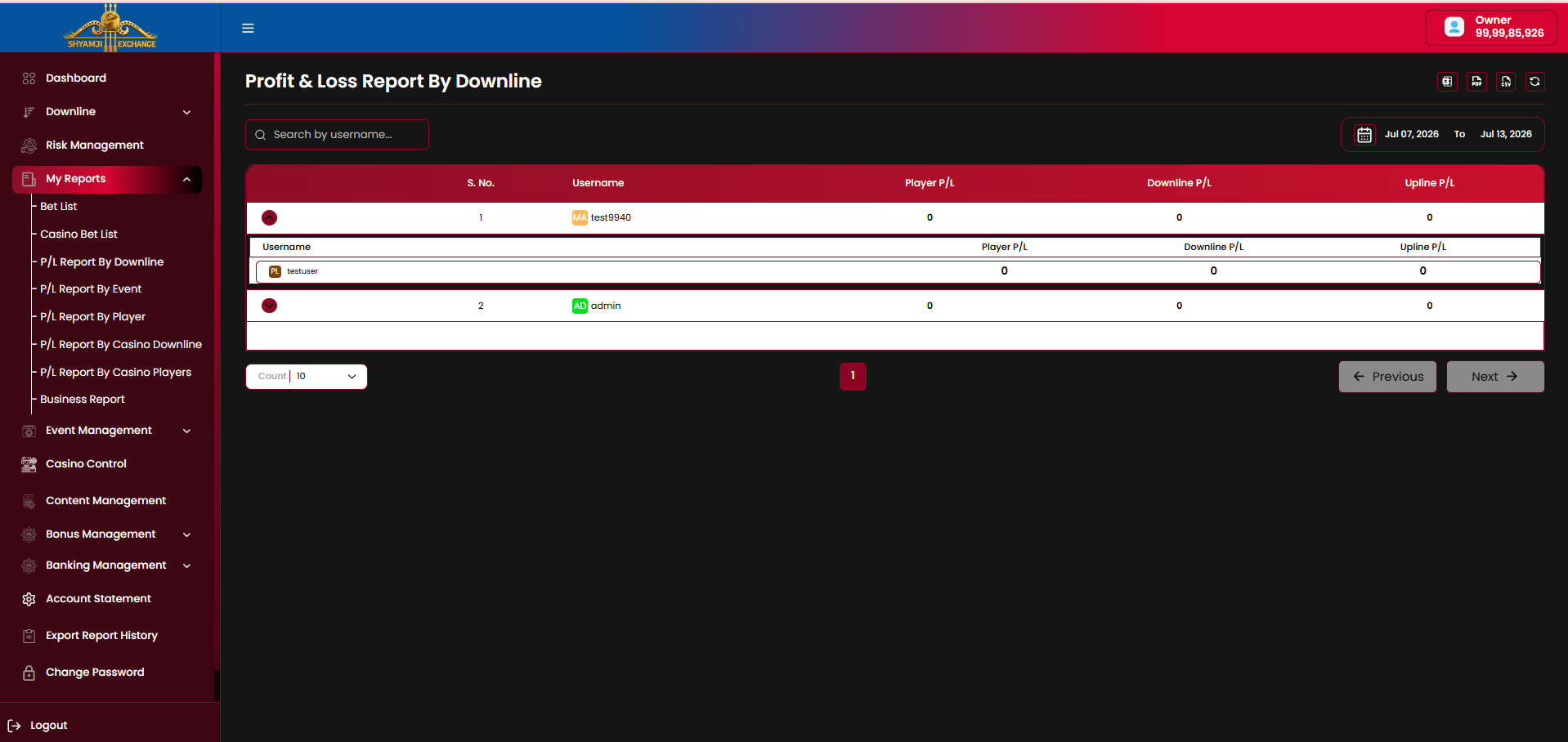
Table columns
| Column | Description |
|---|---|
| S. No / Username | Immediate downline account, with role badge (e.g. "MA" Master, "AD" Admin) |
| Player P/L | Profit/loss generated directly by that account's own player activity |
| Downline P/L | Profit/loss rolled up from everyone beneath that account |
| Upline P/L | Profit/loss passed up to this account's own upline |
- Each row expands (chevron) to reveal the next level down — e.g. expanding "test9940" (Master) reveals "testuser" beneath it — with the same three P/L columns.
- Search by username, date range, export and pagination.
6.4 P/L Report By Event
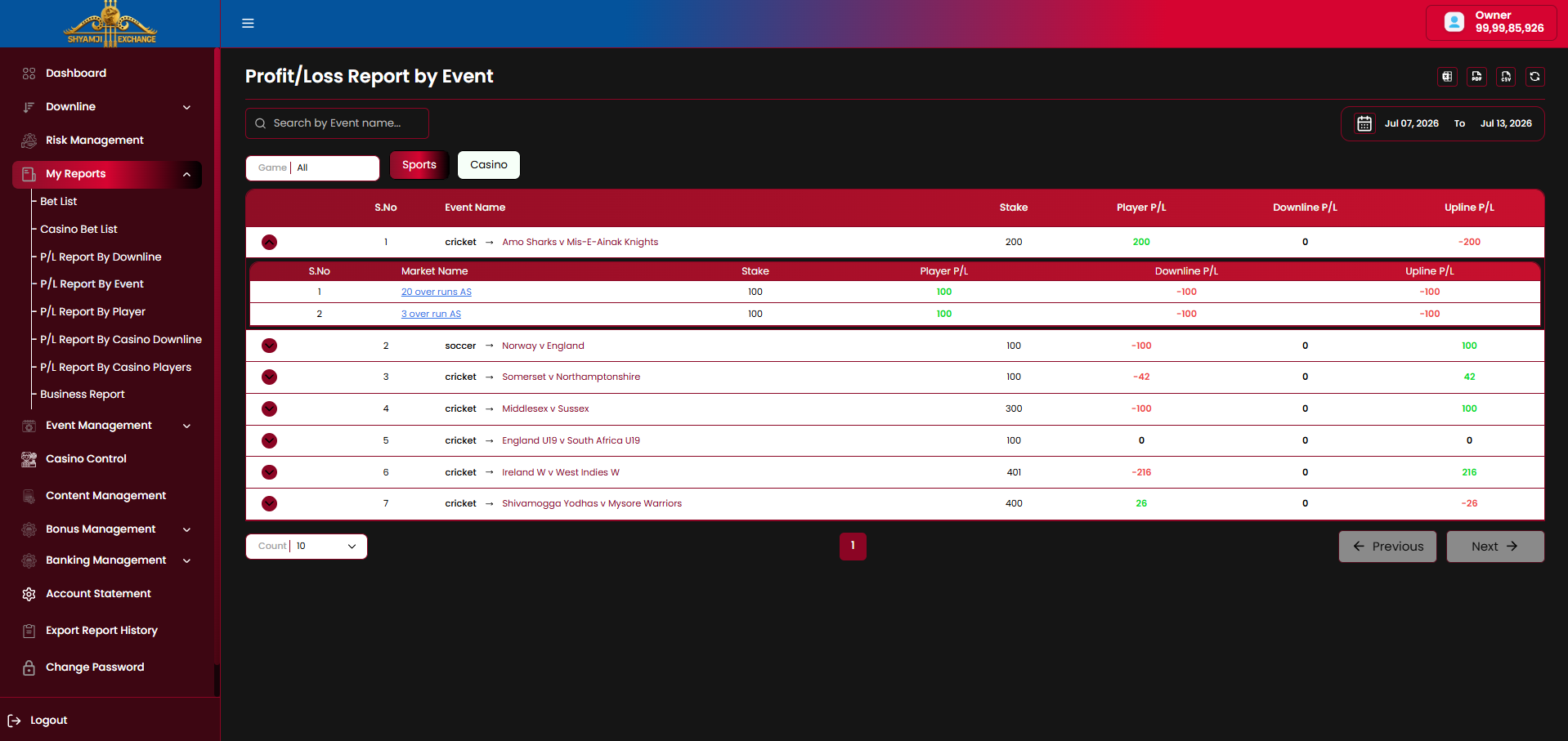
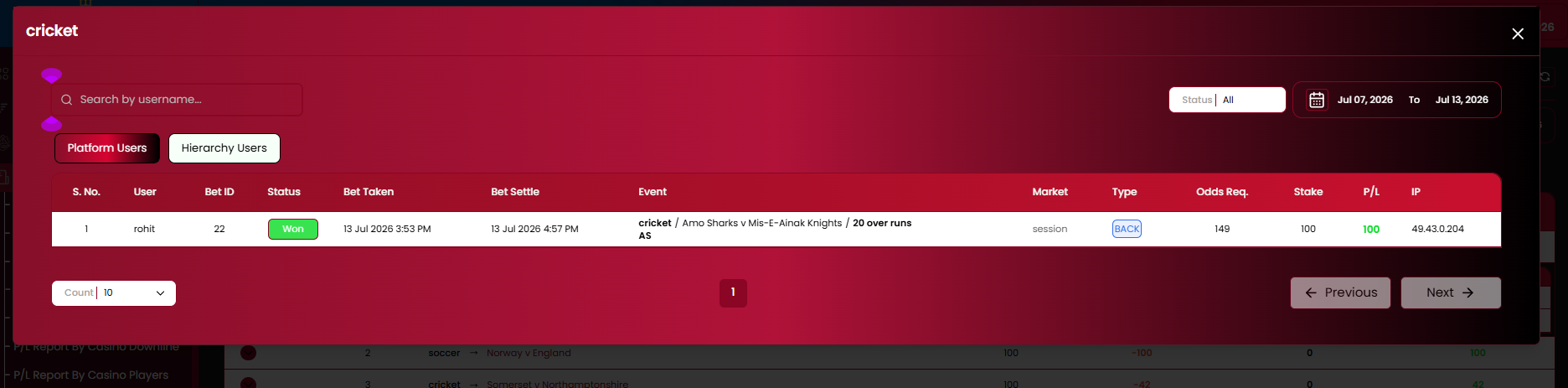
Table columns
| Column | Description |
|---|---|
| S.No / Event Name | Sport and fixture, e.g. "cricket → Amo Sharks v Mis-E-Ainak Knights" |
| Stake / Player P/L / Downline P/L / Upline P/L | Totals for the event |
- Sports / Casino toggle, Game filter, search by event name, date range.
- Expanding an event reveals its Market Name breakdown (S.No, Market Name, Stake, Player/Downline/Upline P/L); clicking a market name opens the individual bet list for that market in a modal (Platform Users / Hierarchy Users, Status filter, date range, pagination).
6.5 P/L Report By Player
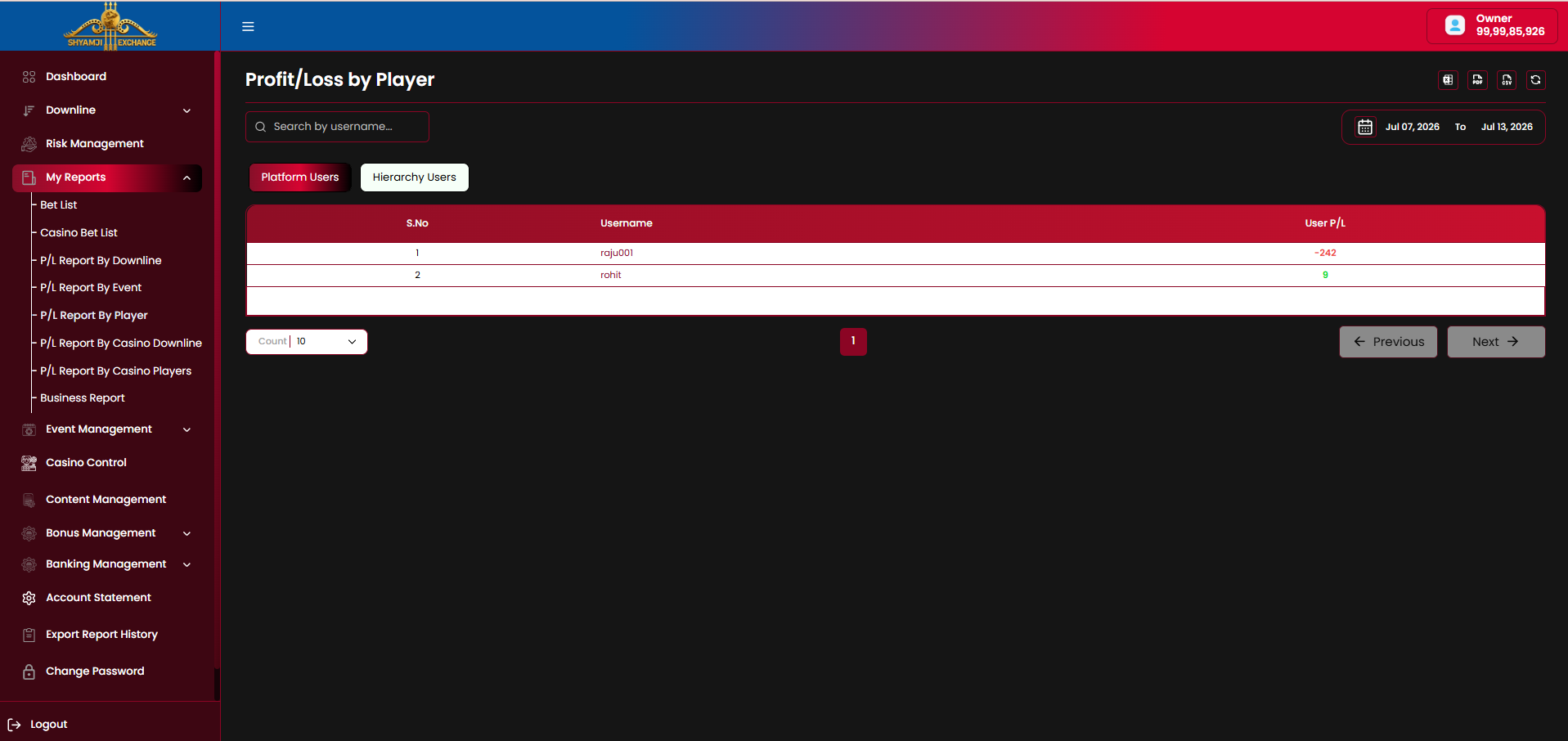
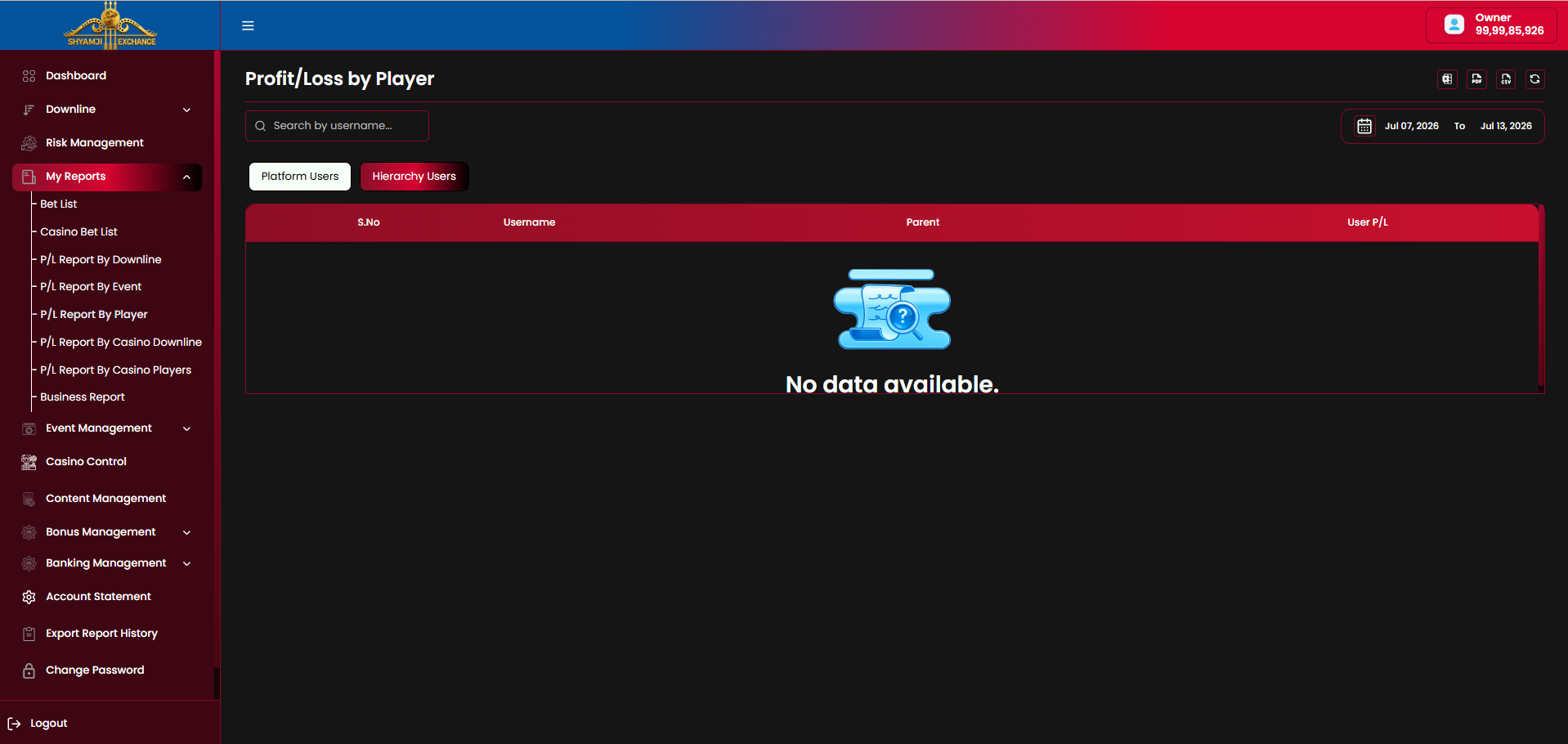
Table columns
| Column | Description |
|---|---|
| S.No / Username | Player |
| Parent Hierarchy Users only | The account's immediate upline |
| User P/L | Net profit/loss for the selected range, negative in red / positive in green |
Search by username, date range, export and pagination.
6.6 P/L Report By Casino Downline
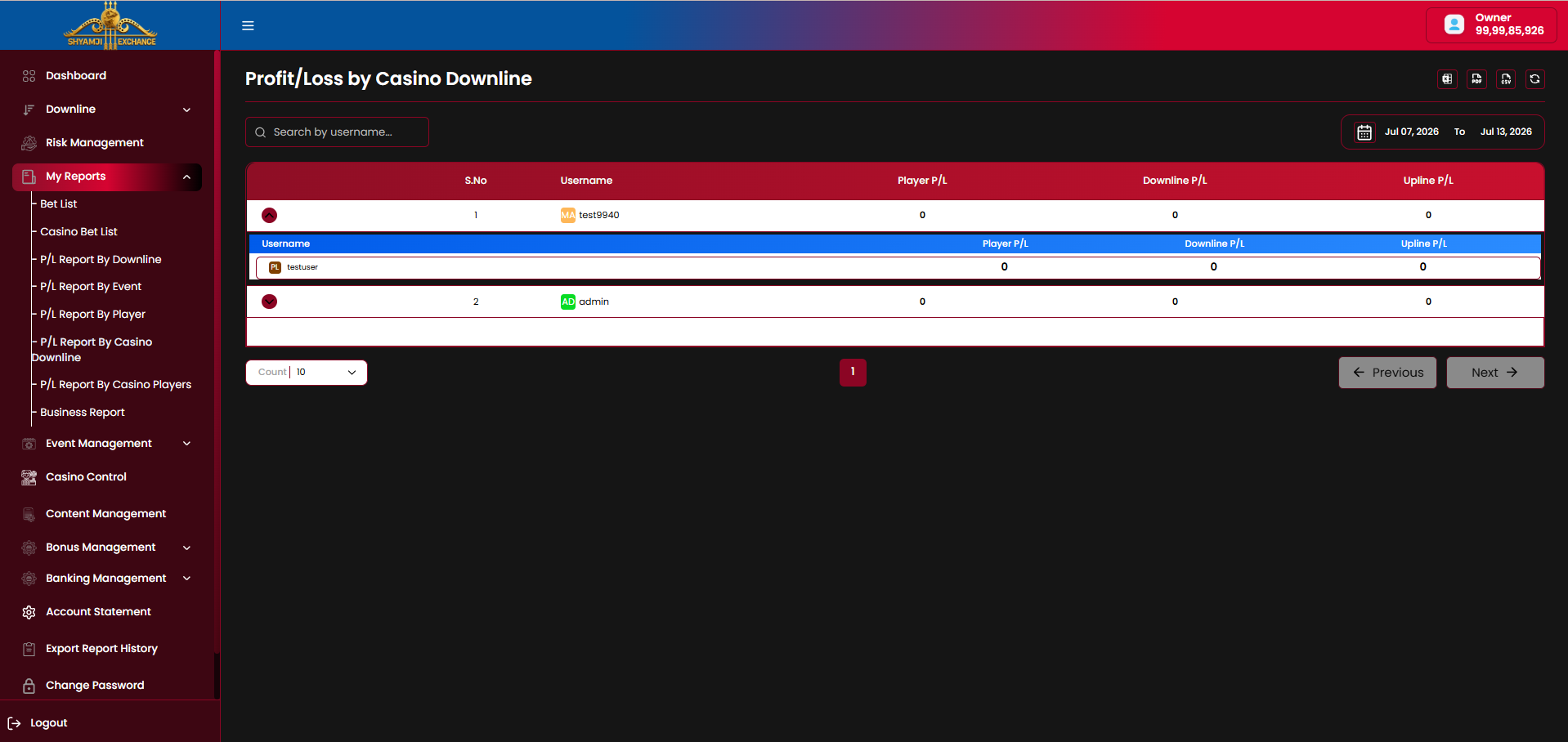
Same layout and expand-to-next-level behaviour as P/L Report By Downline (§6.3) — Username, Player P/L, Downline P/L, Upline P/L — scoped to casino activity only.
6.7 P/L Report By Casino Players
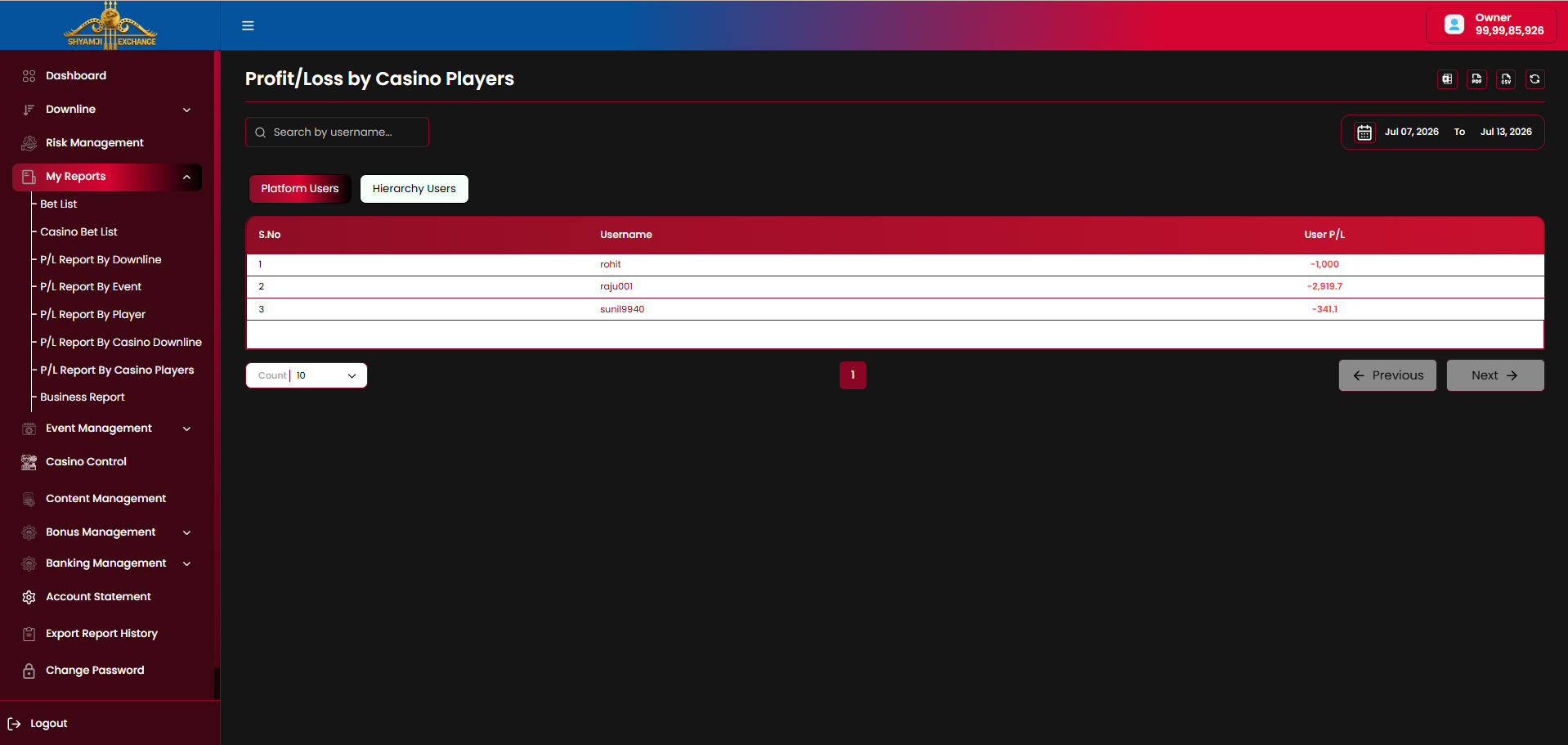
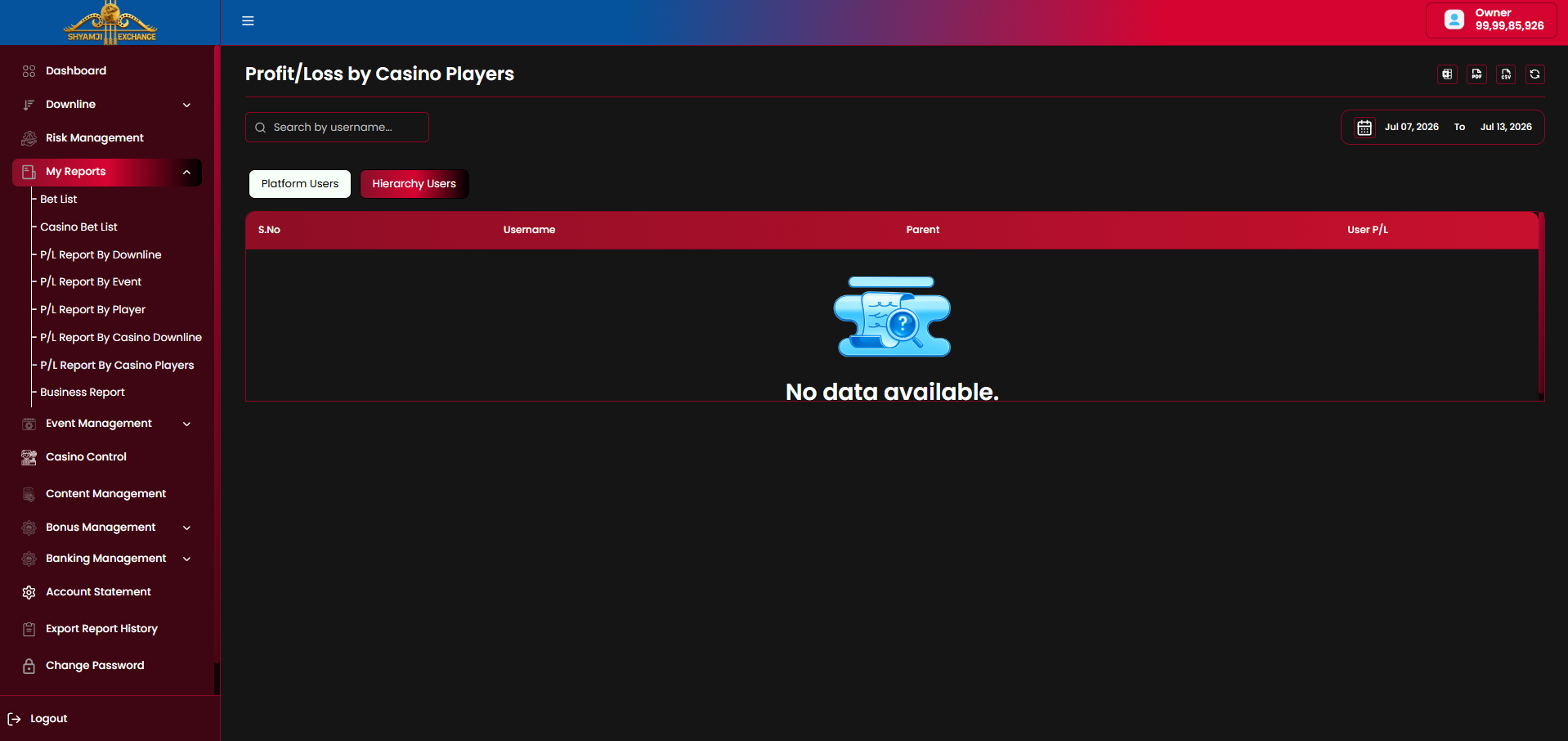
Same layout as P/L Report By Player (§6.5) — Username / Parent (Hierarchy) / User P/L — scoped to casino activity only.
6.8 Business Report
Business Report groups platform activity into categories, selected via a Category dropdown: Deposit, Withdraw, Logged in User, Active User, SignUp, Idle Users. Each category keeps the Platform Users / Hierarchy Users toggle and date range filter; Hierarchy Users adds a Parent column throughout.
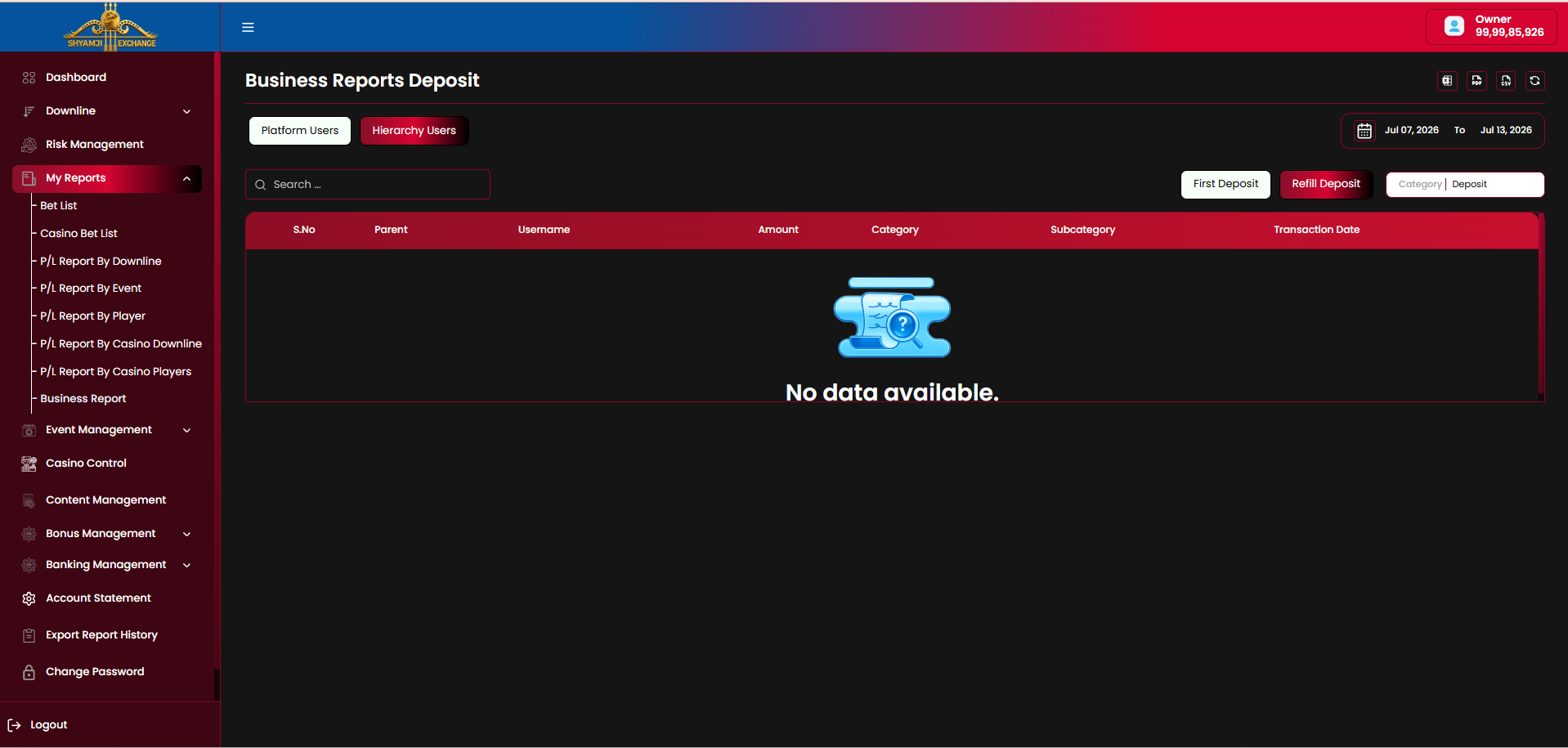
Deposit
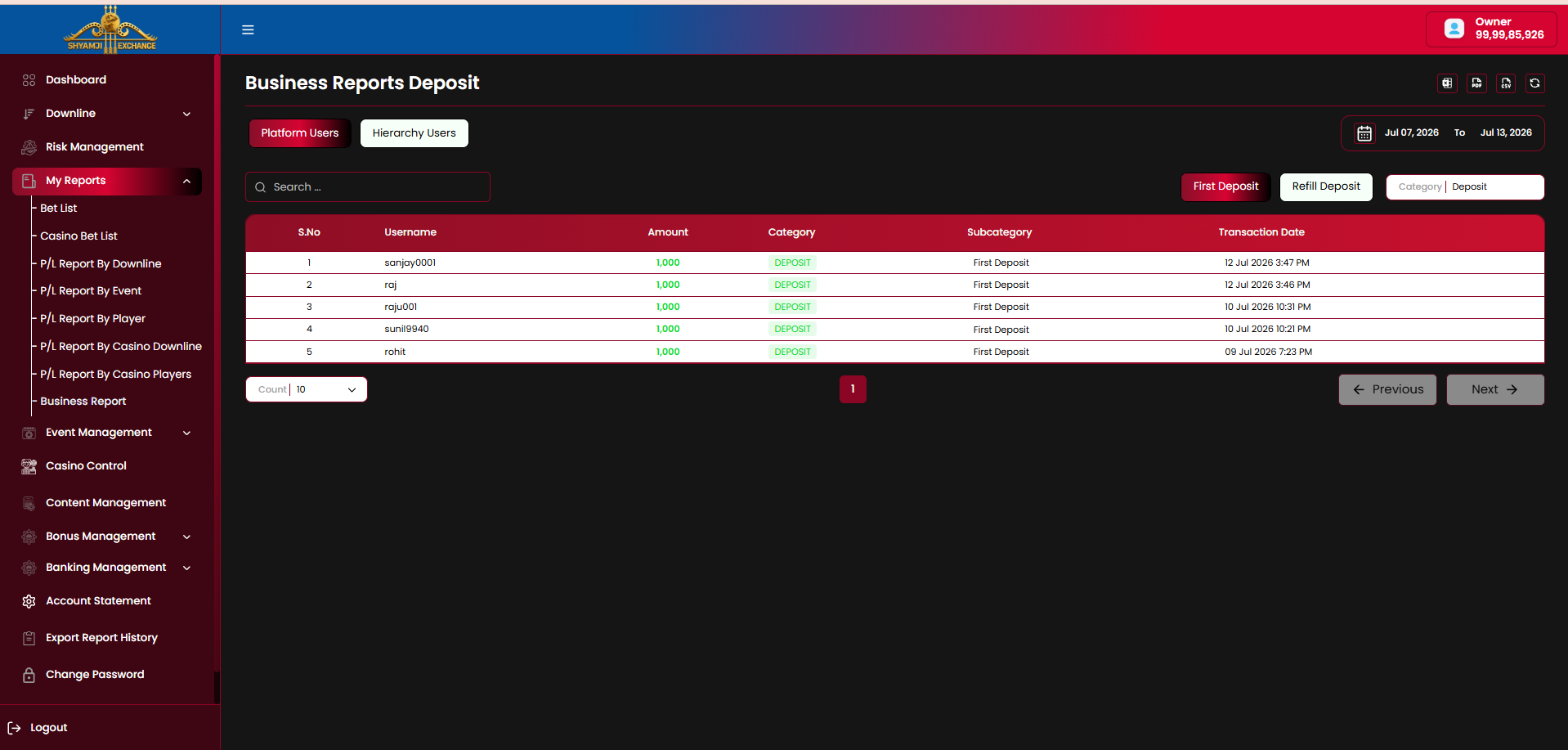
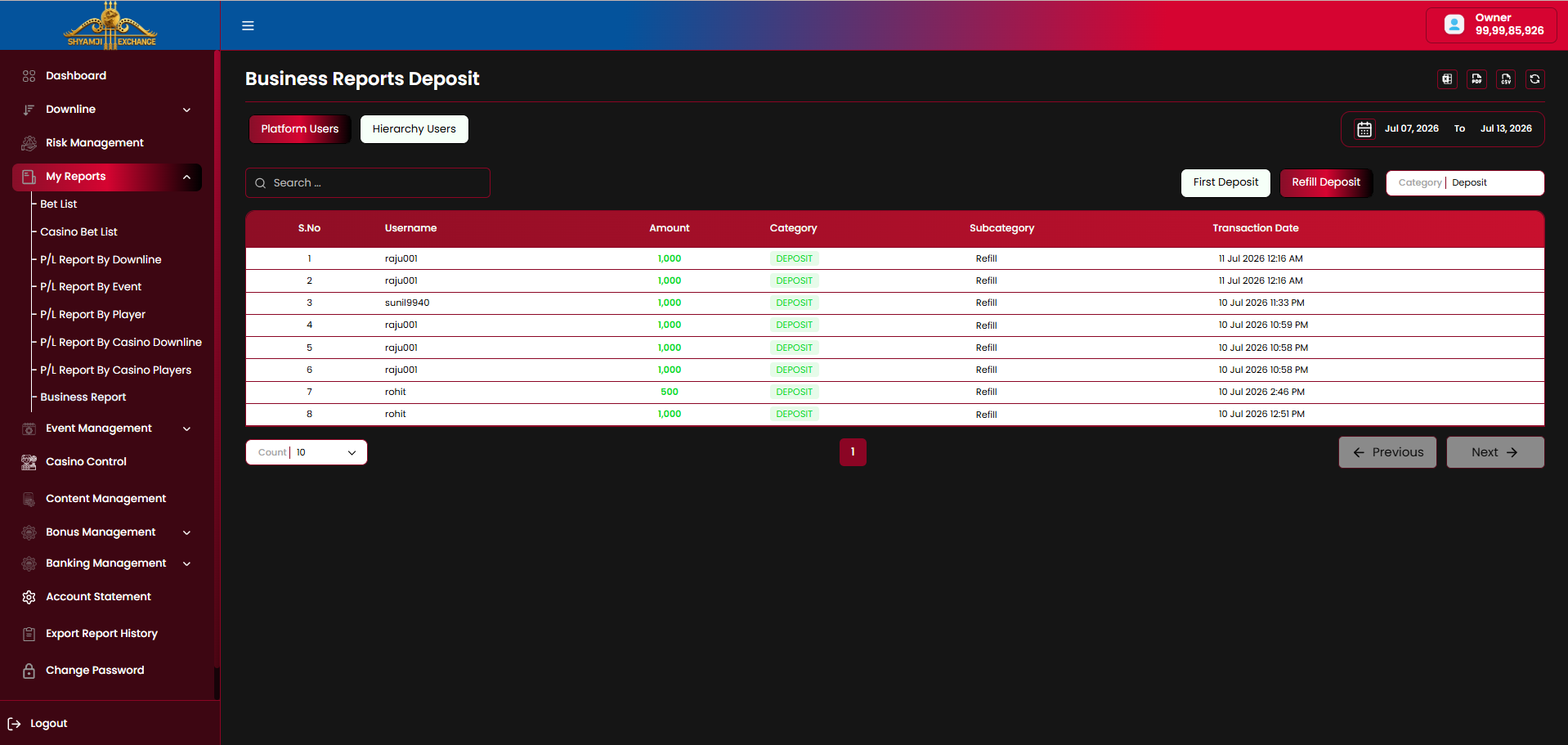
Every deposit transaction made by a user in the selected date range, split into First Deposit (a user's very first deposit) and Refill Deposit (any deposit after that).
| Column | Description |
|---|---|
| S.No / Username | Depositing user |
| Amount / Category / Subcategory | Deposit amount, "DEPOSIT" tag, "First Deposit" or "Refill" |
| Transaction Date | Timestamp |
| Column | Description |
|---|---|
| S.No / Username | Depositing user |
| Amount / Category / Subcategory | Deposit amount, "DEPOSIT" tag, "First Deposit" or "Refill" |
| Transaction Date | Timestamp |
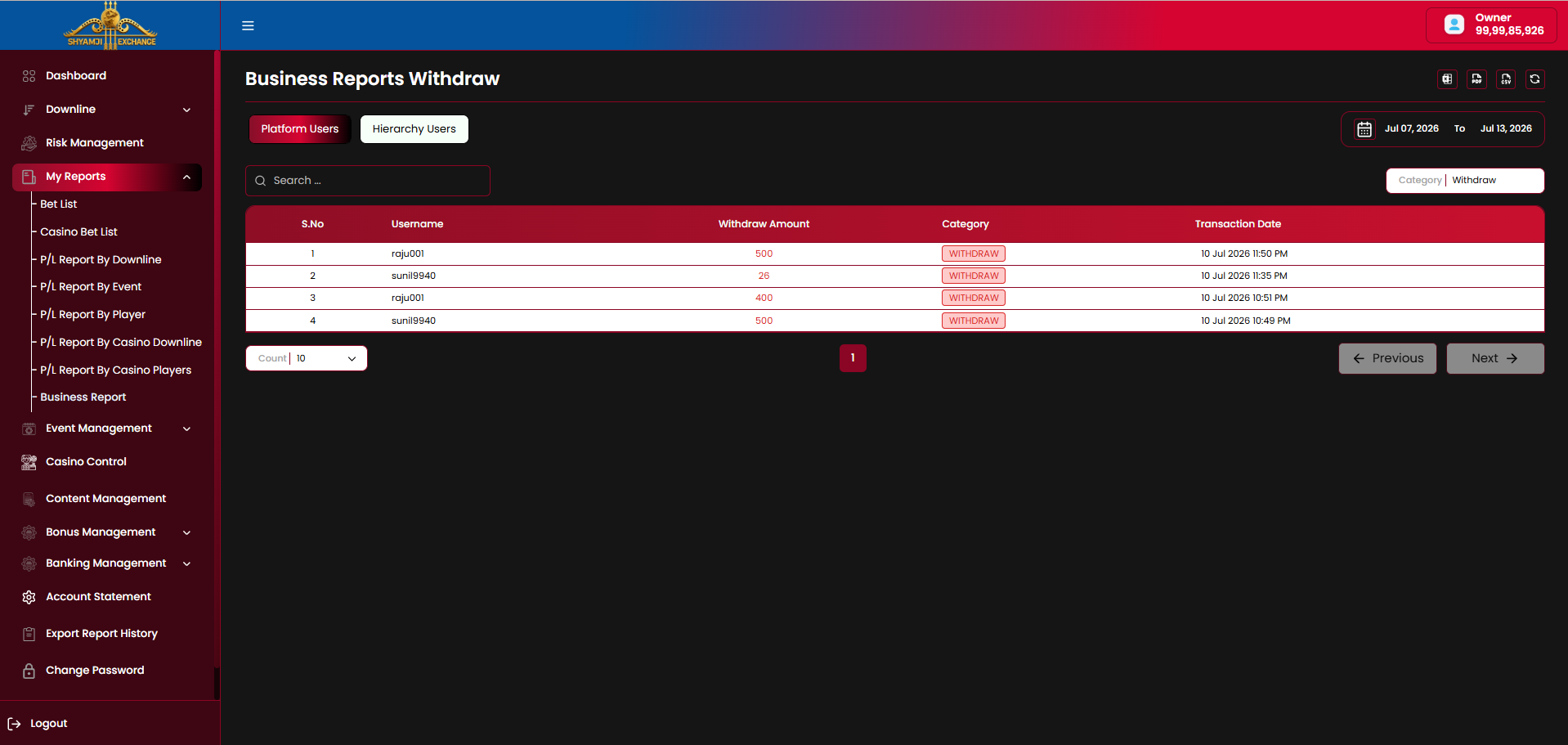
Withdraw
Every withdrawal transaction made by a user in the selected date range.
| Column | Description |
|---|---|
| S.No / Username | Withdrawing user |
| Withdraw Amount / Category | Withdrawal amount, "WITHDRAW" tag |
| Transaction Date | Timestamp |
Logged in User
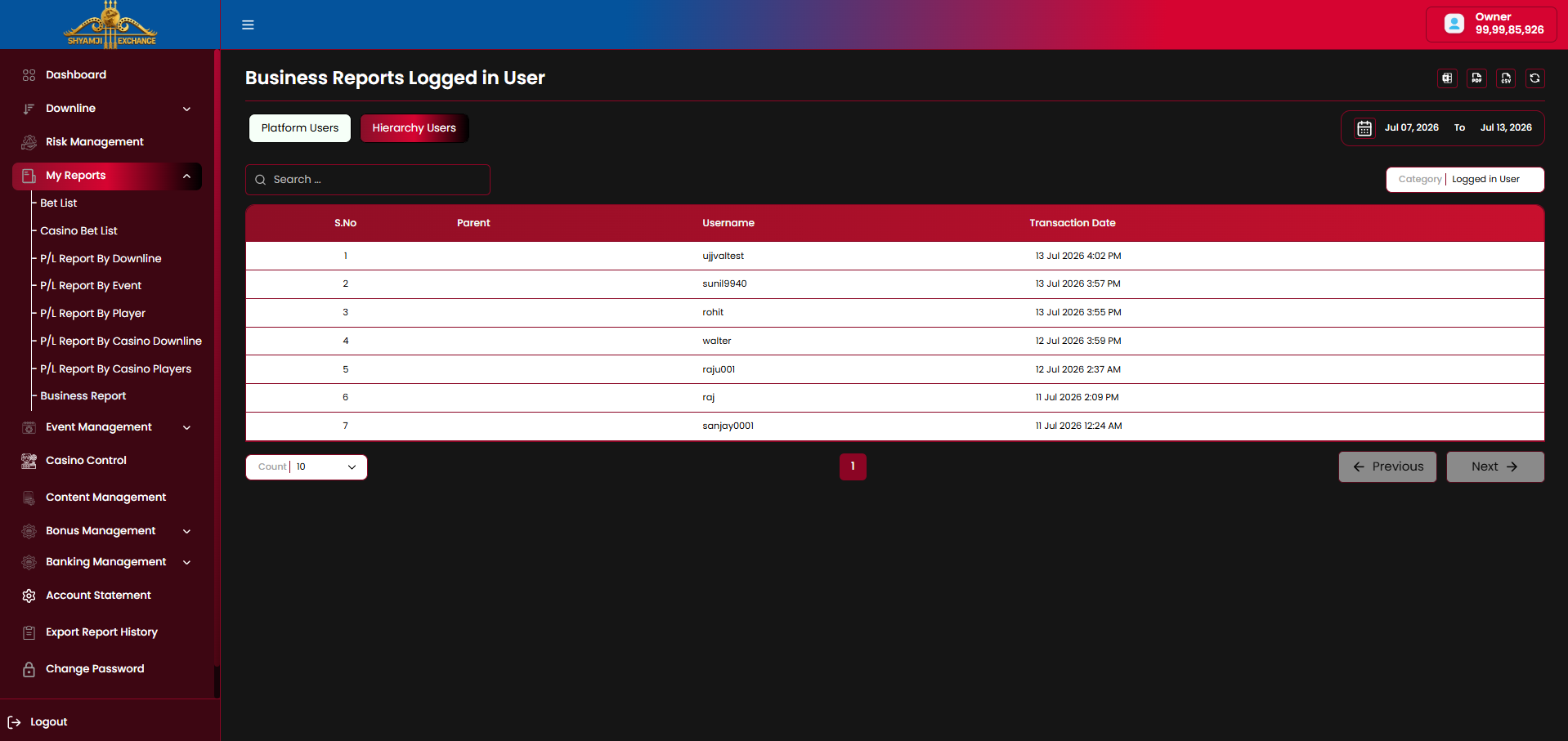
Every user who logged in during the selected date range, regardless of whether they transacted or bet.
| Column | Description |
|---|---|
| S.No / Username | User who logged in |
| Transaction Date | Login timestamp |
| Parent Hierarchy view only | Upline account (empty for direct users) |
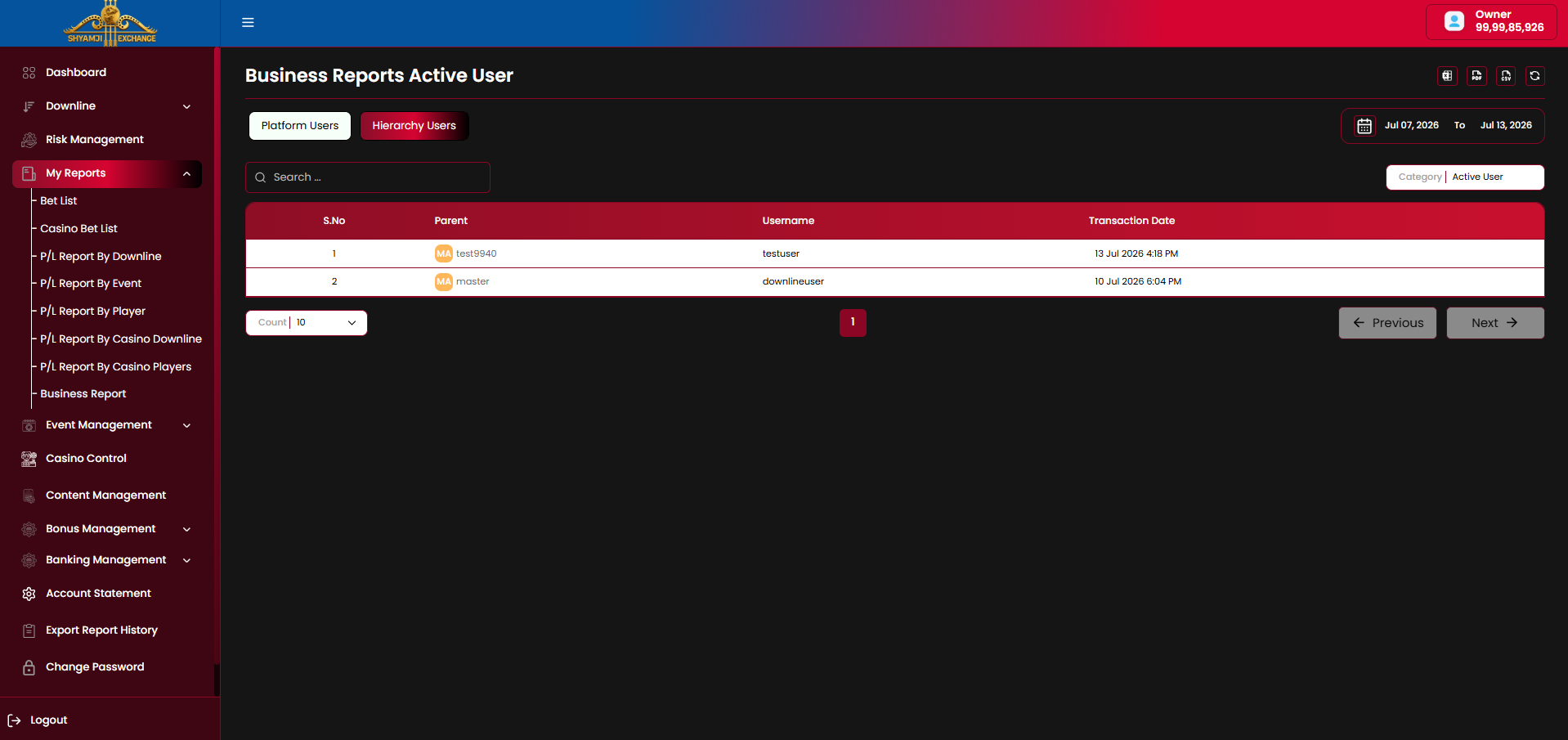
Active User
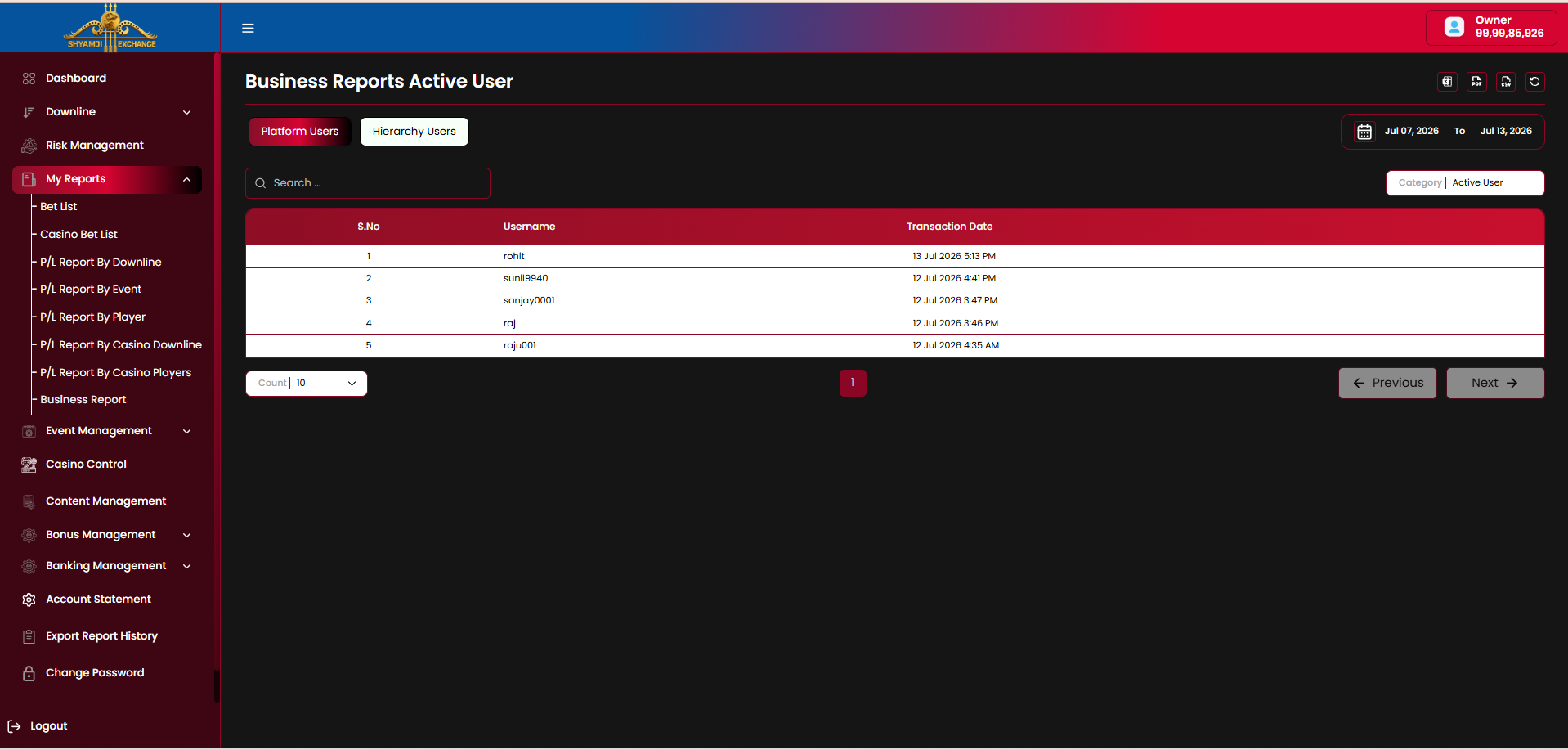
An Active User is any user who performed a deposit, withdrawal, or placed a bet that has since settled, within the selected date range.
| Column | Description |
|---|---|
| S.No / Username | User who deposited, withdrew, or had a bet settle in range |
| Transaction Date | Timestamp of the qualifying activity |
| Parent Hierarchy view only | Upline account (empty for direct users) |
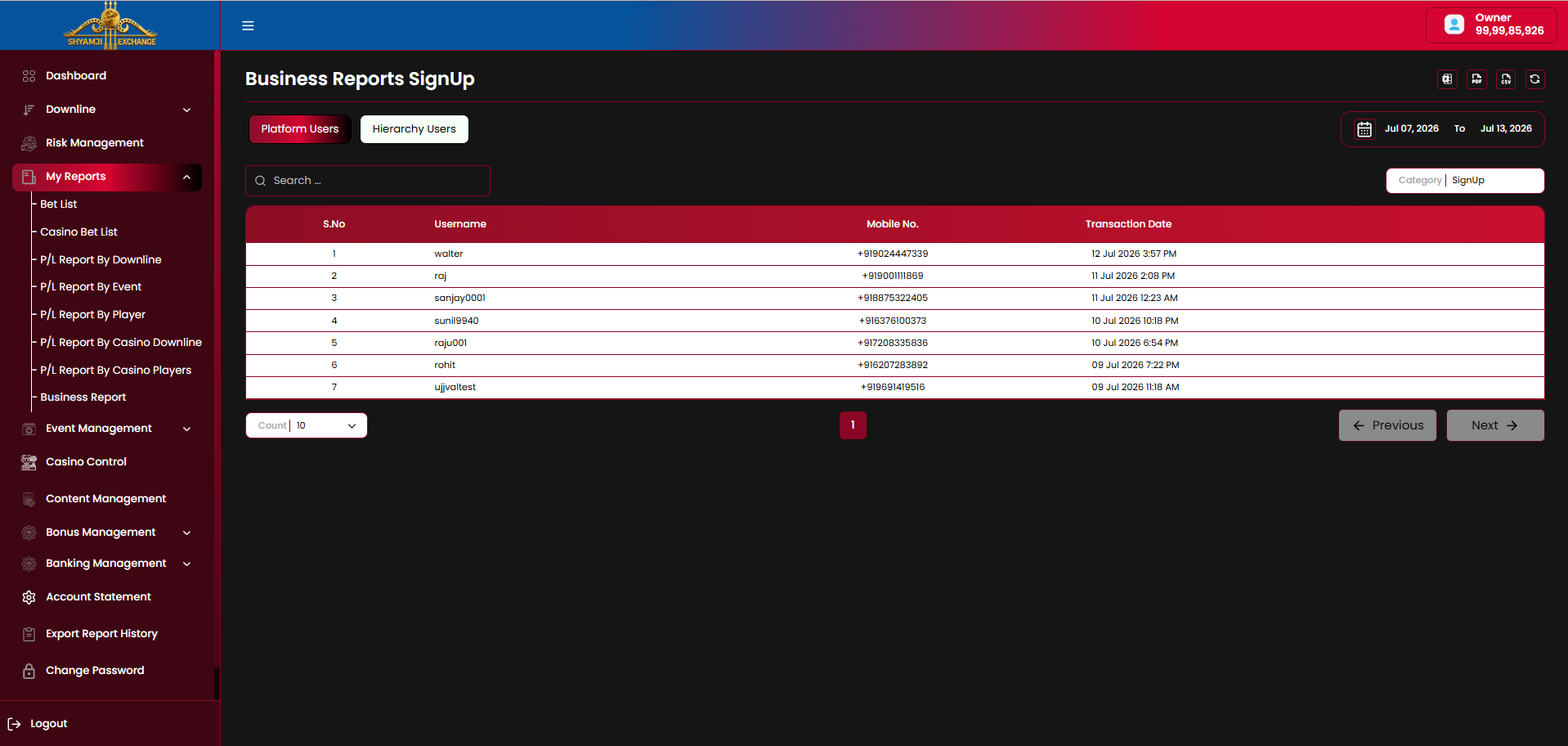
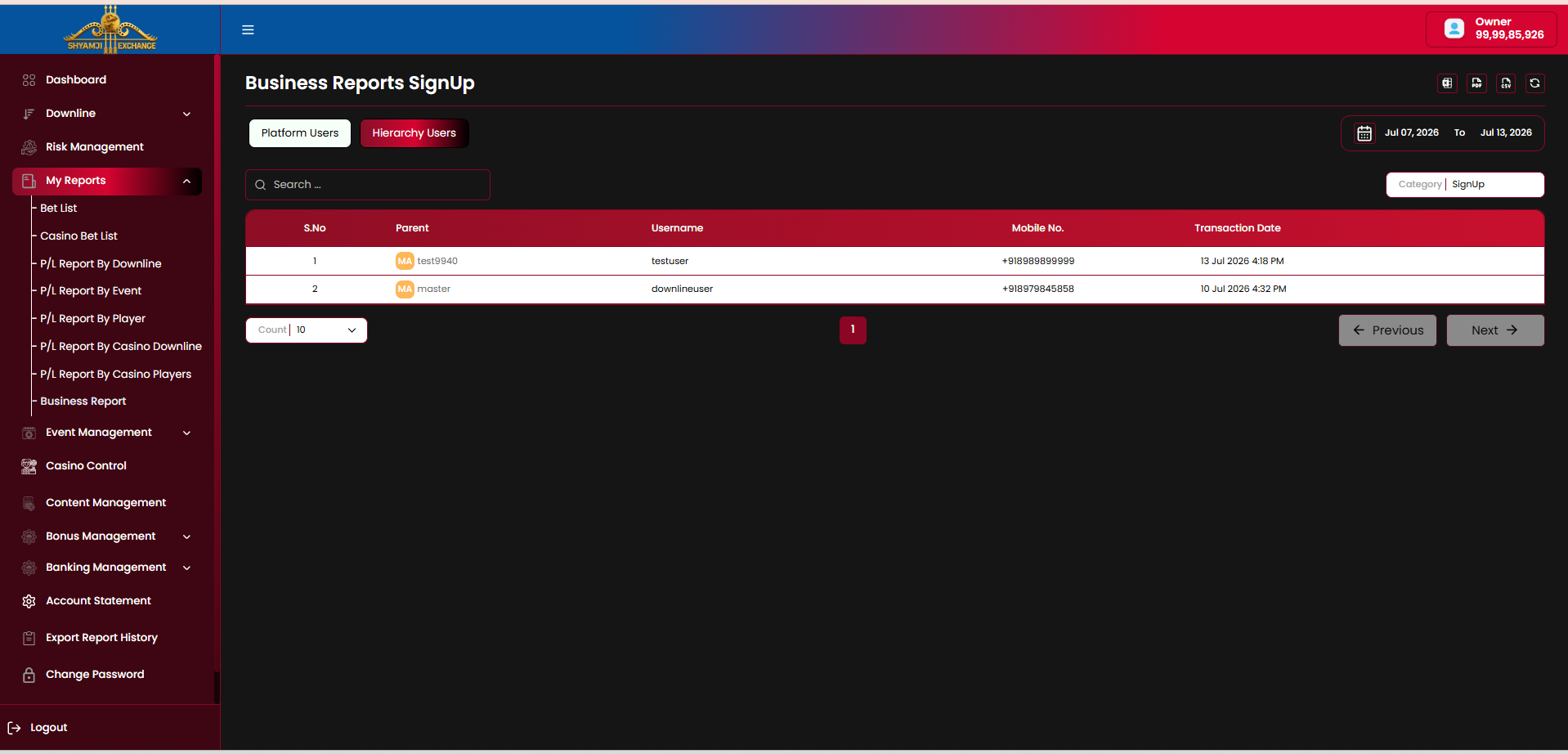
SignUp
Every new user registration completed within the selected date range.
| Column | Description |
|---|---|
| S.No / Username | Newly registered user |
| Mobile No. | Registered mobile number |
| Transaction Date | Registration timestamp |
| Parent Hierarchy view only | Upline account (empty for direct users) |
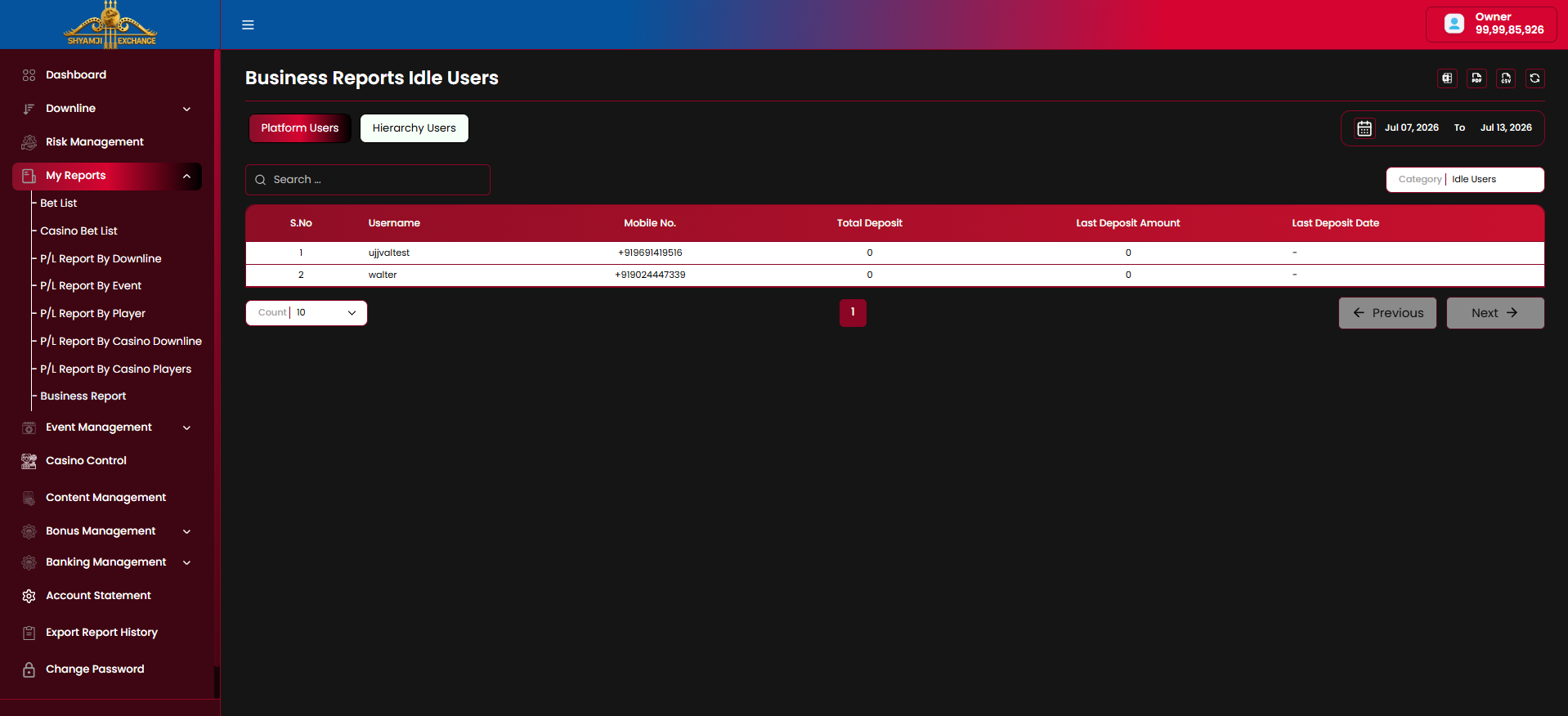
Idle Users
Users who deposited at some point but have shown no deposit, withdrawal or settled-bet activity within the selected date range.
| Column | Description |
|---|---|
| S.No / Username | Idle user |
| Mobile No. | Registered mobile number |
| Total Deposit | Lifetime deposit sum |
| Last Deposit Amount / Date | Most recent deposit and when it occurred |
Business rules
- Category dropdown fully replaces the table's column set and heading (e.g. "Business Reports Deposit", "Business Reports Idle Users") — it is not a filter on one shared table.
- Platform Users / Hierarchy Users, date range, search, export and pagination controls persist across every category.
Not included (across §6.1–6.8)
Scheduled / emailed reports Saved custom report views Cross-report comparison charts
Module 07
Event Management
›
Event Management is where the operator turns matches on/off for betting, marks them Popular/Inplay, and tunes stake/rate limits per market — either per event (Bet Config) or platform-wide (Bet Config / Default Setting).
7.1 Events
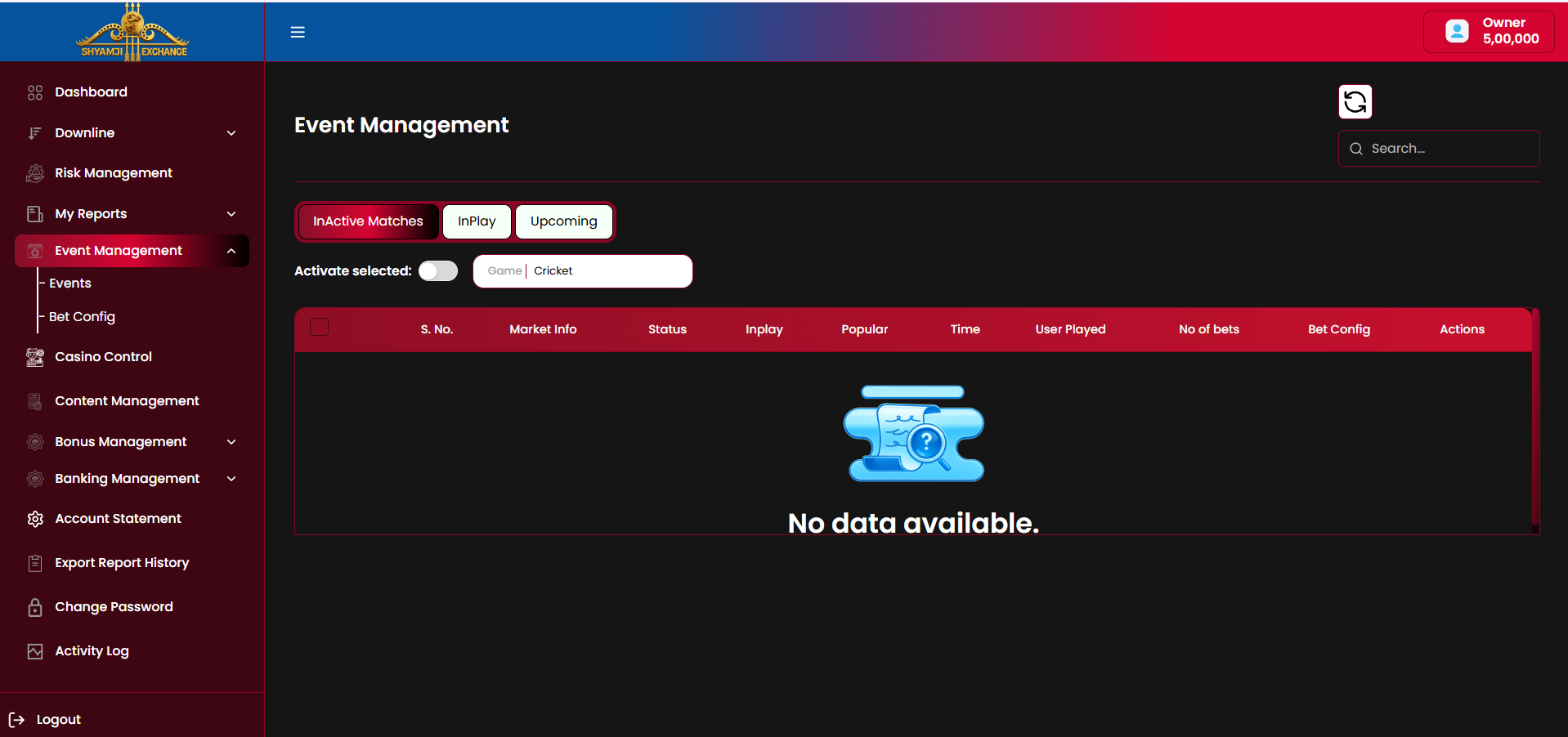
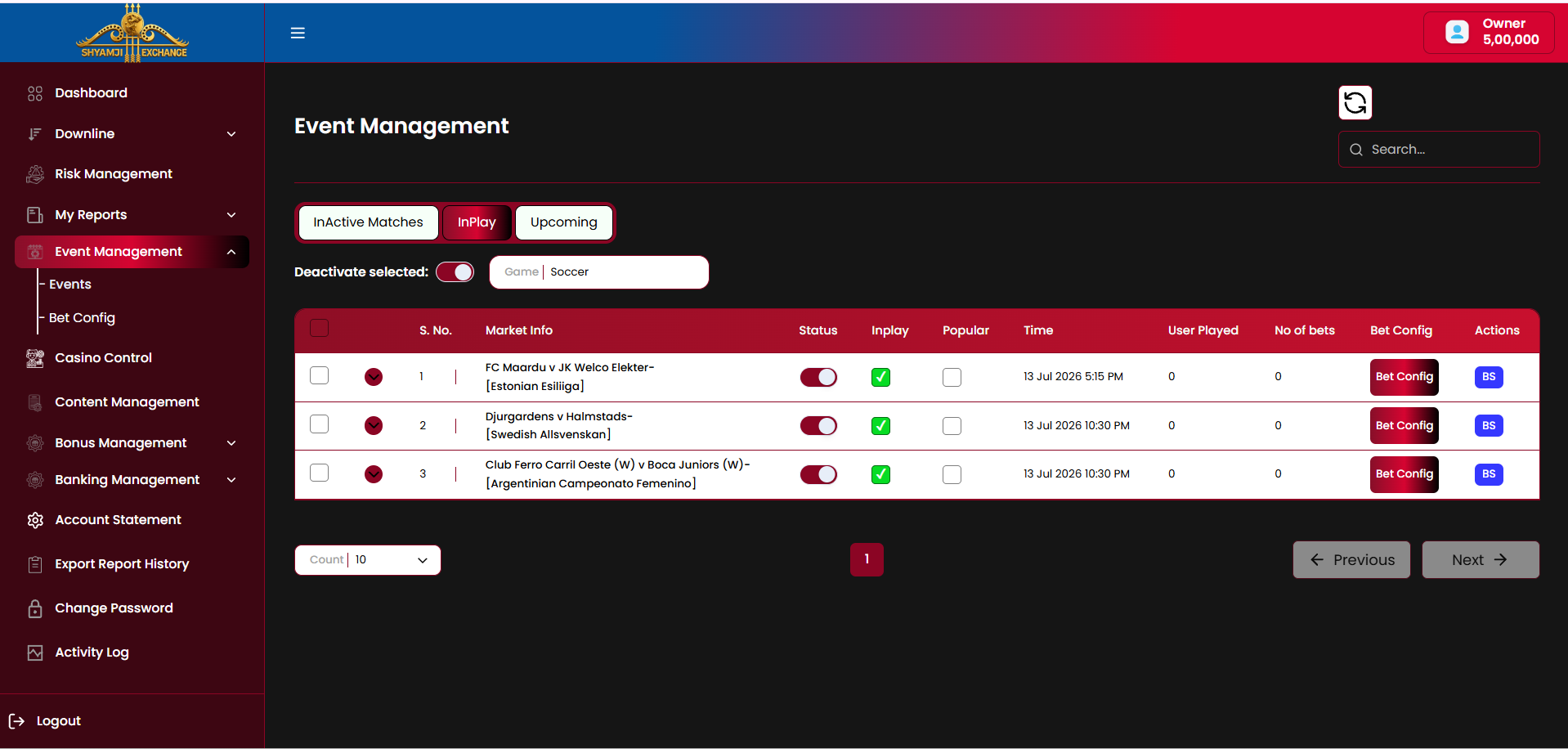
Tabs & filters
| InActive Matches / InPlay / Upcoming tabs | Included |
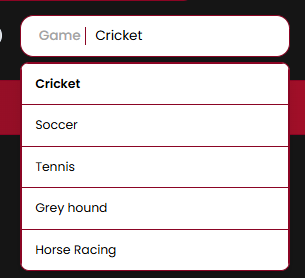
| Game filter (Cricket default, Soccer, Tennis, Grey hound, Horse Racing) | Included |
| Search box | Included |
| Activate/Deactivate selected — bulk toggle for checked rows | Included |
| Refresh icon | Included |
Table columns
| Column | Description |
|---|---|
| Checkbox / S. No. / expand chevron | Row selector, index, and expand toggle for the market list (see below) |
| Market Info | Fixture name and competition, e.g. "FC Maardu v JK Welco Elekter — [Estonian Esiliiga]" |
| Status | Per-event on/off toggle — enables or disables betting on the whole event |
| Inplay | Checkbox marking the event as currently in-play |
| Popular | Checkbox marking the event as Popular (surfaced to end users) |
| Time | Kickoff/start date and time |
| User Played / No of bets | Count of users who have bet, and total bet count, on this event |
| Bet Config | Opens the per-event Bet Setting modal (below) |
| Actions (BS) | Opens the Bet Suspended confirmation for this event |
Market row expansion
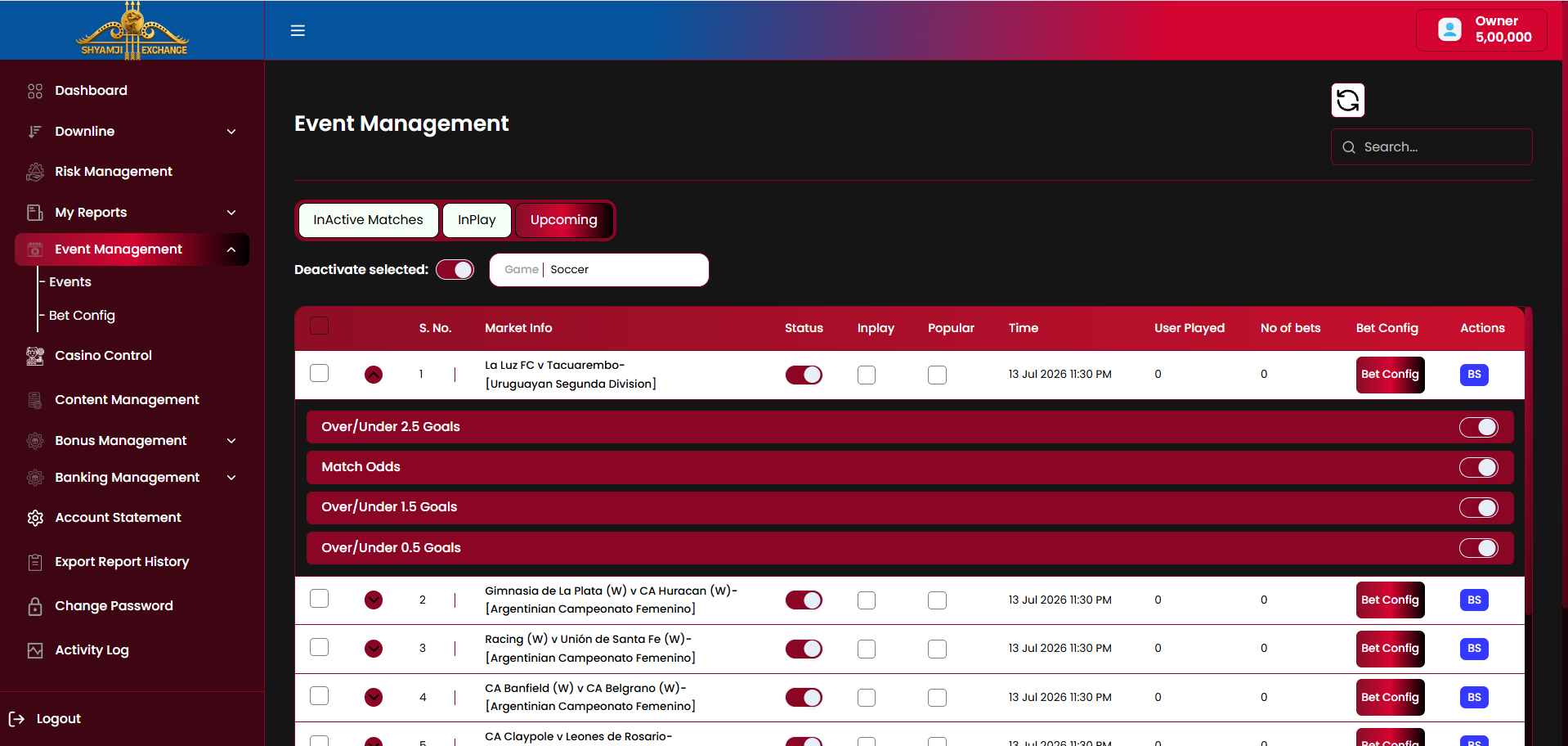
Expanding an event's chevron reveals its individual markets (e.g. "Over/Under 2.5 Goals", "Match Odds", "Over/Under 1.5 Goals", "Over/Under 0.5 Goals"), each with its own on/off status toggle independent of the event-level Status column.
Bet Setting modal (per event)
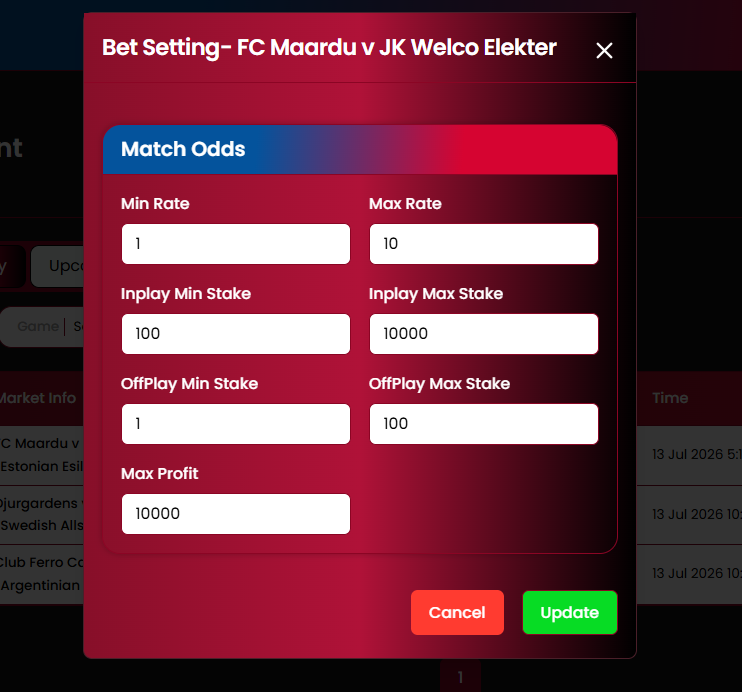
| Min Rate / Max Rate | Editable |
| Inplay Min Stake / Inplay Max Stake | Editable |
| OffPlay Min Stake / OffPlay Max Stake | Editable |
| Max Profit | Editable |
| Cancel / Update buttons | Included |
This modal overrides the platform-wide Match Odds defaults (§7.2) for this specific event only.
Bet Suspended confirmation
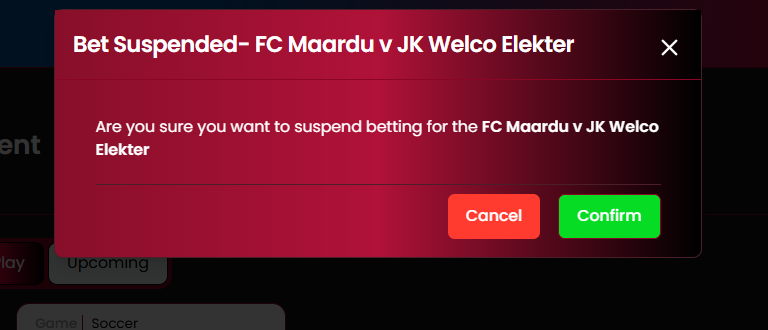
Confirms before suspending betting on the named event: "Are you sure you want to suspend betting for the [Event Name]" — Cancel / Confirm.
Upcoming tab
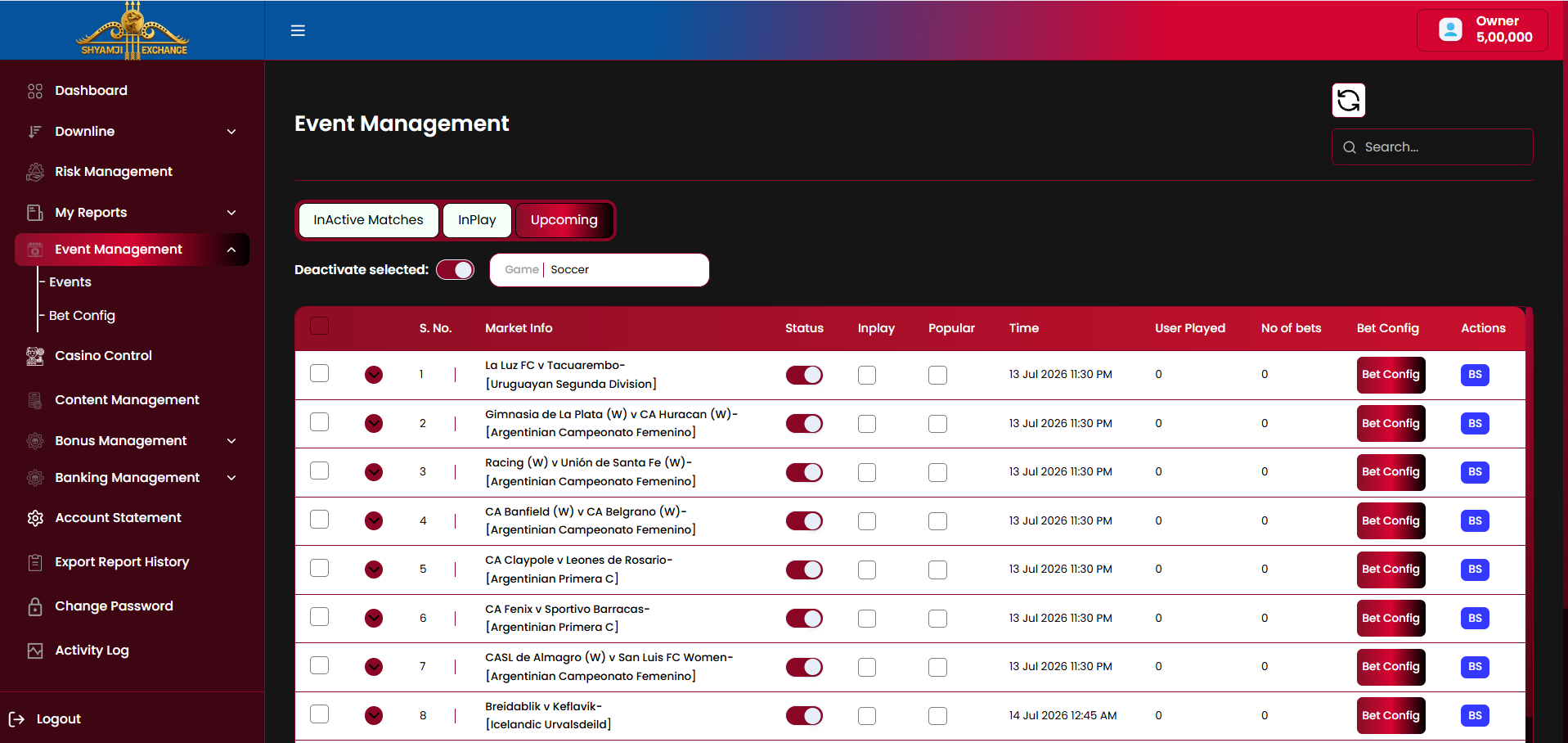
Same table layout as InPlay/InActive Matches, scoped to fixtures that have not yet started.
Business rules
- InActive Matches / InPlay / Upcoming are mutually exclusive tabs based on match state; only one is active at a time.
- Deactivating an event's Status toggle blocks new bet placement on that event and all its markets.
- Deactivating a market's own toggle (inside the expanded row) blocks betting on that market only, leaving sibling markets and the event itself active.
- The bulk Activate/Deactivate control applies the selected action to every checked row at once.
- Per-event Bet Setting (via the modal) overrides the platform default for that market type (§7.2) only for that specific event.
7.2 Bet Config (Default Setting)
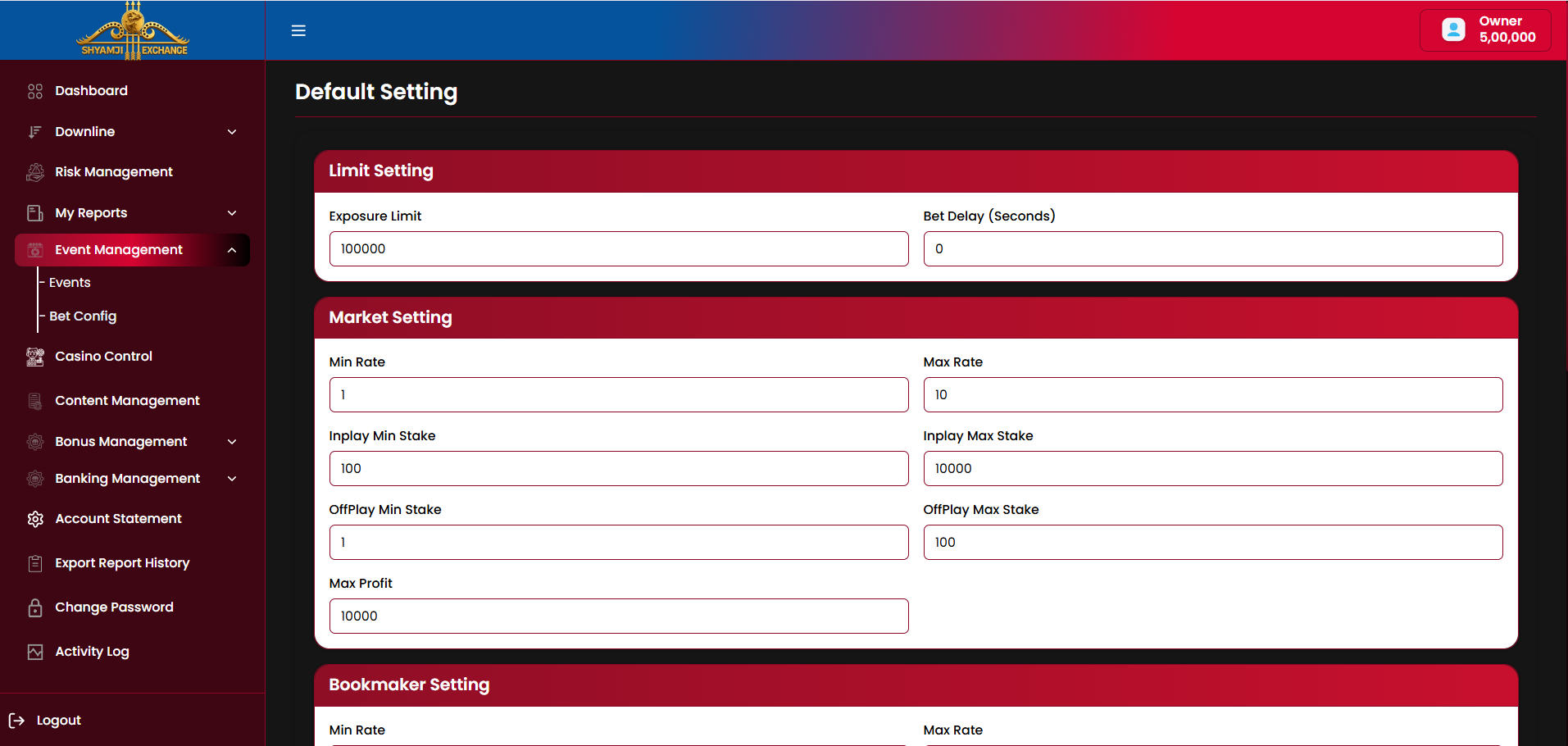
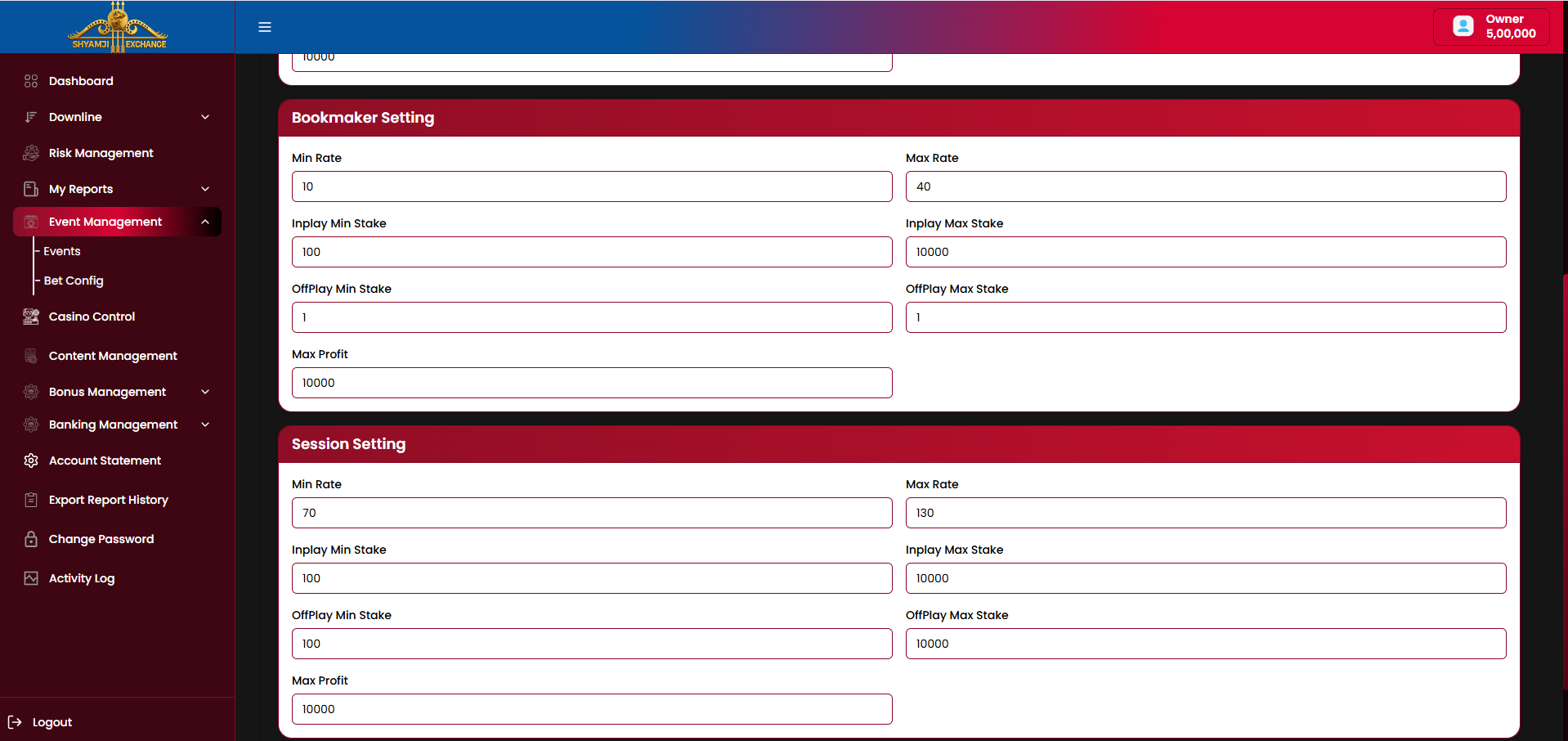
Bet Config sets the platform-wide default stake/rate limits applied to every event unless overridden per event (§7.1).
Sections
| Section | Fields |
|---|---|
| Limit Setting | Exposure Limit · Bet Delay (Seconds) |
| Market Setting (Match Odds) | Min Rate · Max Rate · Inplay Min/Max Stake · OffPlay Min/Max Stake · Max Profit |
| Bookmaker Setting | Min Rate · Max Rate · Inplay Min/Max Stake · OffPlay Min/Max Stake · Max Profit |
| Session Setting | Min Rate · Max Rate · Inplay Min/Max Stake · OffPlay Min/Max Stake · Max Profit |
Business rules
- Each of the three market types (Match Odds, Bookmaker, Session) carries its own independent set of limits.
- These values are the fallback applied to newly created events; a per-event override (§7.1 Bet Setting modal) takes precedence once set.
- Bet Delay staggers odds acceptance to reduce timing-arbitrage risk on fast-moving markets.
Not included
Per-sport default overrides Casino-specific limits (see Module 08)
Module 08
Casino Control
›
Casino Control turns casino inventory on/off at three levels of granularity — category, provider, and individual game — and lets the operator edit a game's metadata. Three tabs (Category Level / Provider Level / Game Control) switch between them; the tab selection persists as the operator drills in and back out.
8.1 Category Level
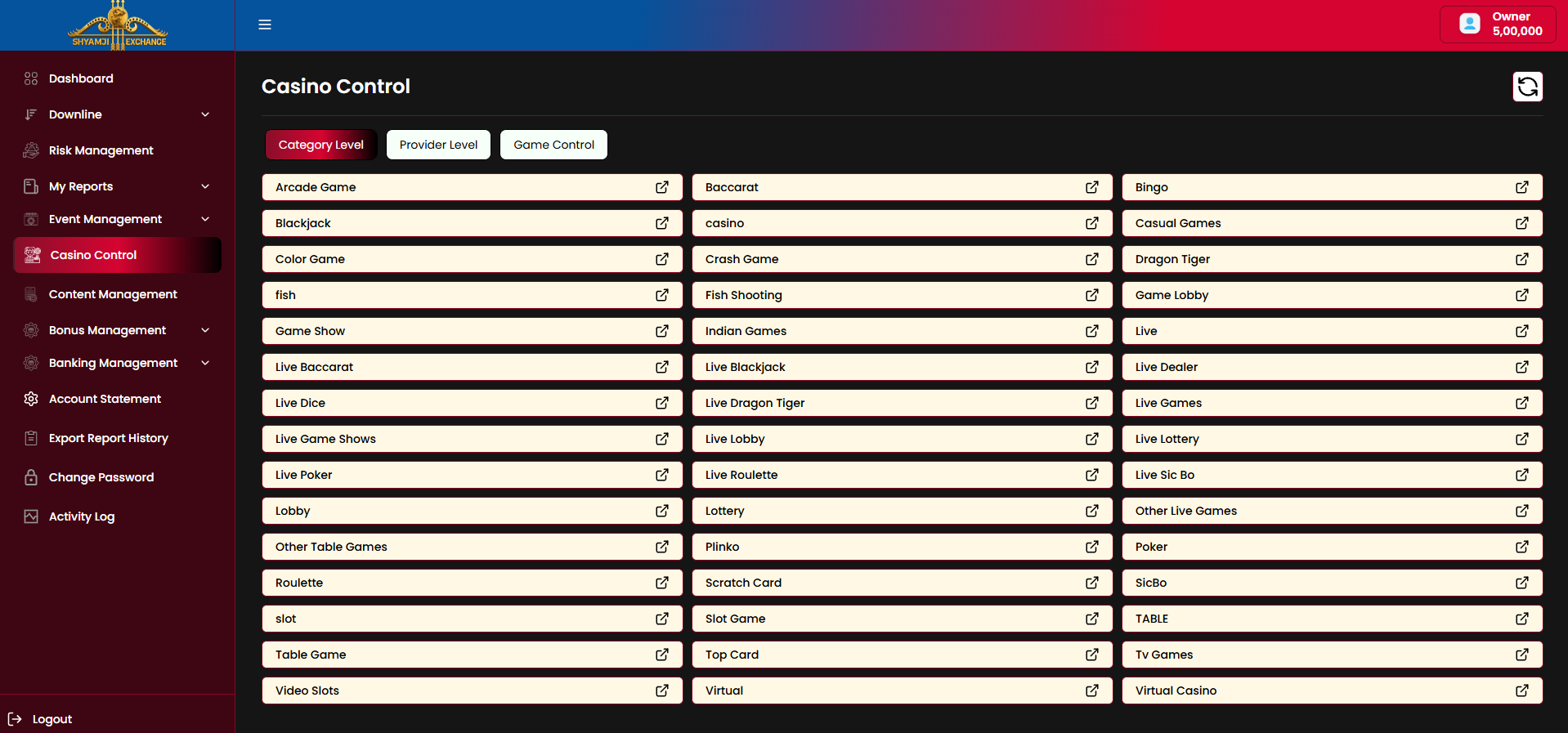
Every casino game category is listed as a tile with an external-link icon; clicking a tile drills into that category's game list.
Category drill-down
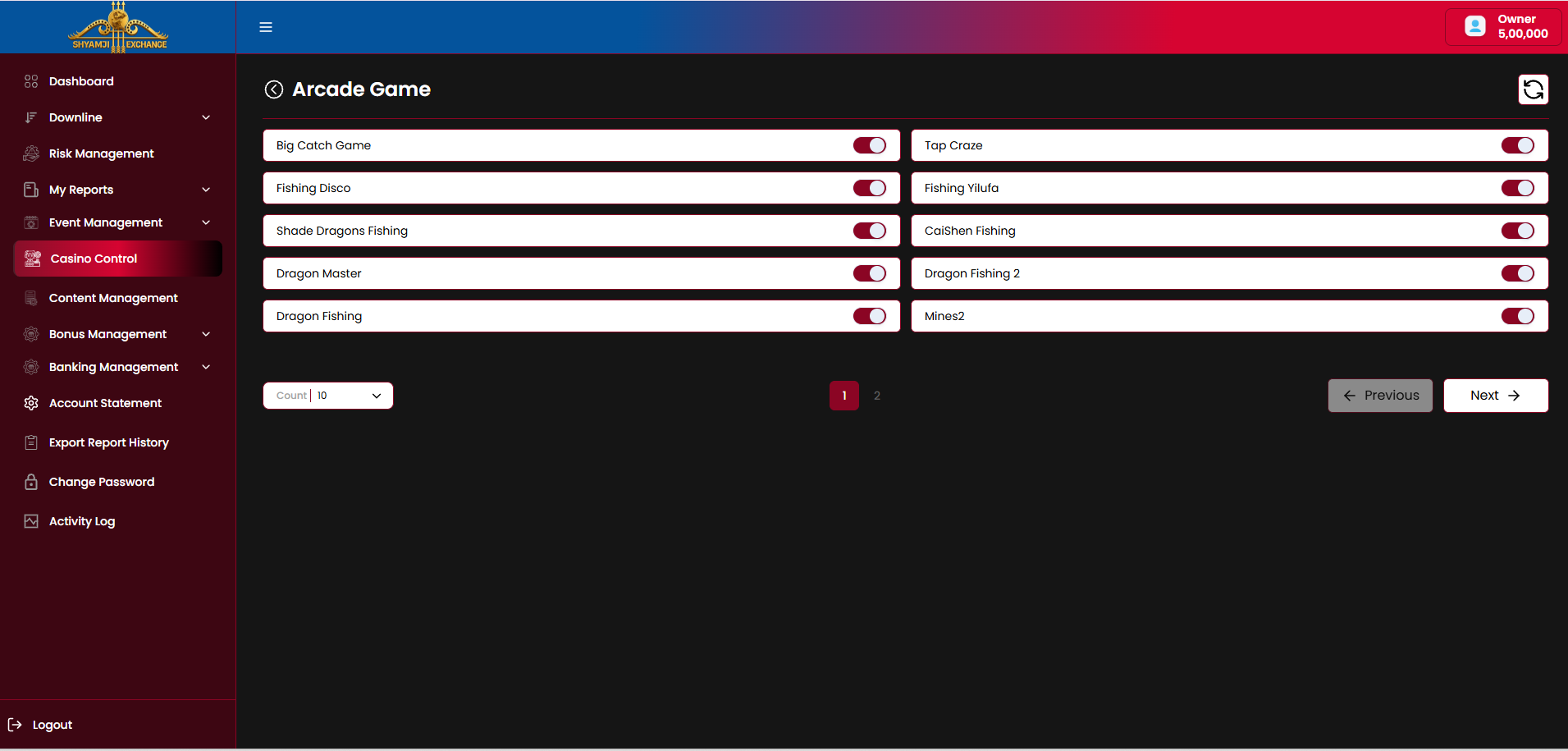
Flow
Business rules
- The back-arrow (‹) beside the category name returns to the Category Level tile grid.
- Toggling a game off inside a category hides it from end users platform-wide, independent of the Game Control listing (§8.3) — same underlying Status flag.
- Count-per-page selector and Previous/Next pagination apply within a category's game list.
8.2 Provider Level
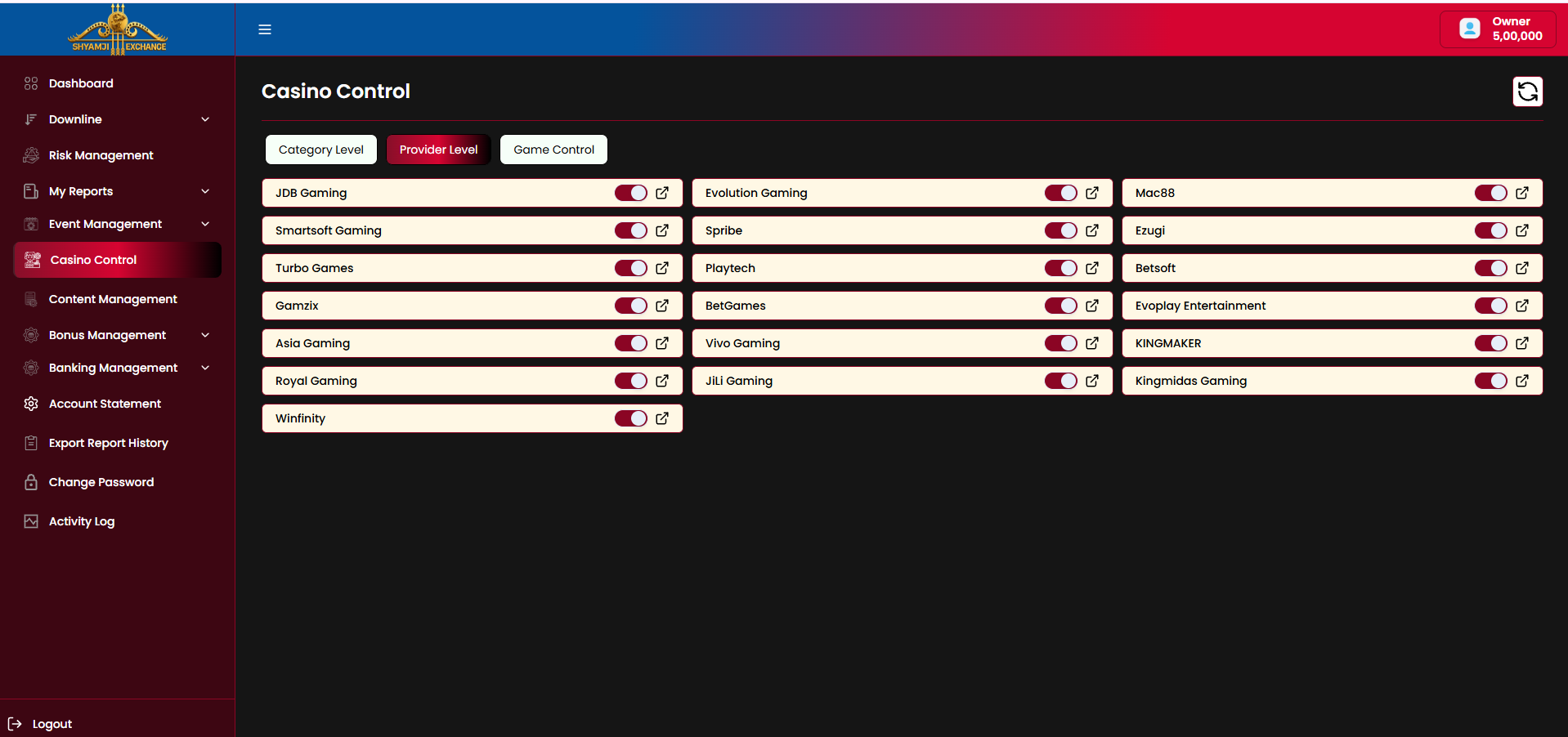
Unlike Category Level, each provider row carries a Status toggle directly in the grid — a provider can be switched off without drilling in.
Provider drill-down
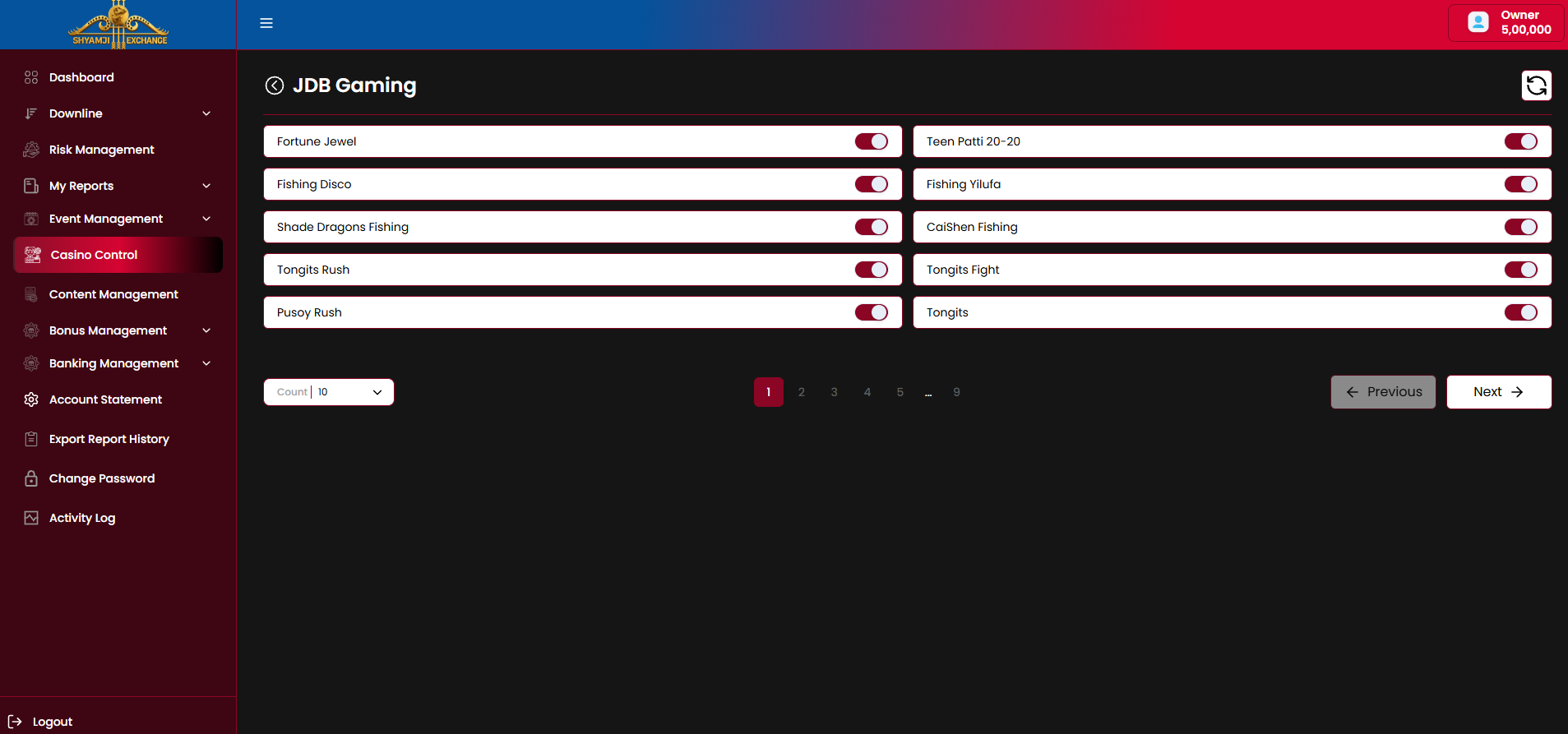
Flow
Business rules
- Switching a provider's top-level Status off disables every game from that provider platform-wide, regardless of each game's individual toggle.
- Drilling into a provider allows finer control — disabling specific games from that provider while the provider itself stays active.
- Providers with large catalogs (e.g. JDB Gaming) paginate their game list (Count selector, Previous/Next, numbered pages).
8.3 Game Control
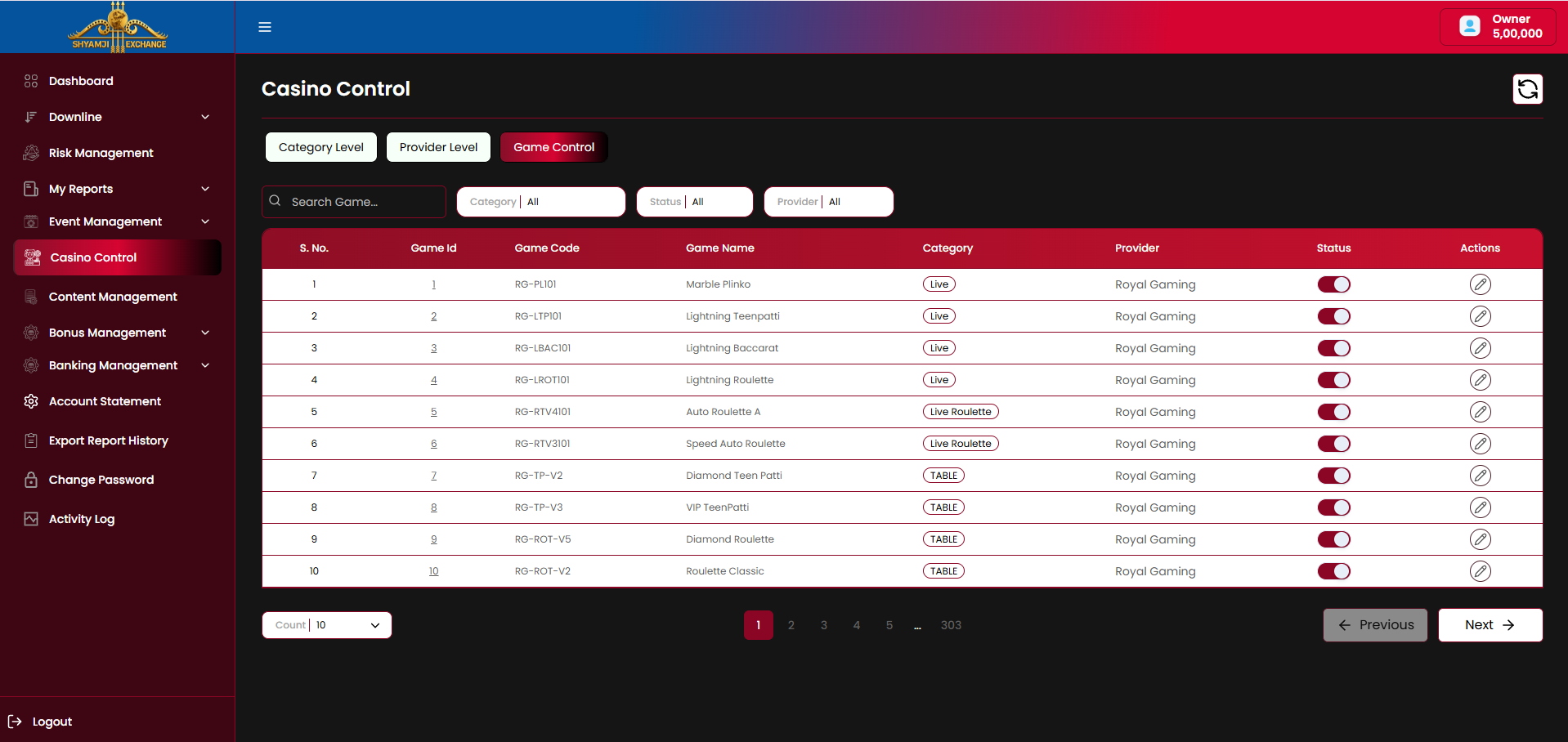
Game Control is the flat, single-table view of the entire casino catalog — the same games as §8.1/§8.2, searchable and filterable in one place, with per-game edit access.
Controls
| Search Game (by name) | Included |
| Category filter (default "All") | Included |
| Status filter (All / Active / InActive) | Included |
| Provider filter (default "All") | Included |
| Refresh icon | Included |
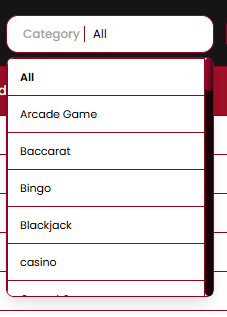
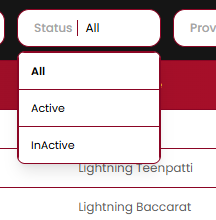
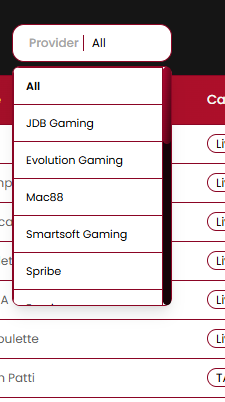
Table columns
| Column | Description |
|---|---|
| S. No. | Row index |
| Game Id | Internal numeric ID, linked |
| Game Code | Provider-side code, e.g. "RG-PLI01" |
| Game Name | Display name, e.g. "Marble Plinko" |
| Category | Category pill, e.g. "Live", "Live Roulette", "TABLE" |
| Provider | Supplying provider, e.g. "Royal Gaming" |
| Status | On/off toggle — same flag as §8.1/§8.2 |
| Actions | Edit (pencil) icon opens the Edit Game modal |
Edit Game modal
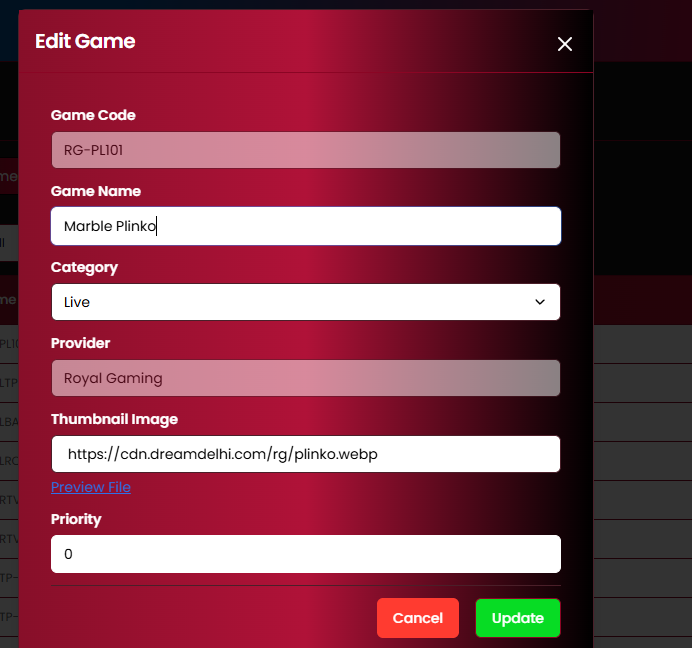
| Game Code | Read-only |
| Game Name | Editable |
| Category (dropdown) | Editable |
| Provider | Read-only |
| Thumbnail Image (URL) + Preview File link | Editable |
| Priority (display order weight) | Editable |
| Cancel / Update buttons | Included |
Business rules
- Game Code and Provider are fixed at import time from the provider feed and cannot be edited here.
- Game Name, Category and Thumbnail Image can be corrected/localized without affecting the underlying provider mapping.
- Priority controls the game's sort order within its category/lobby placement — lower number surfaces first (exact ordering direction to be confirmed).
- The Status toggle in this table is the same underlying flag toggled from §8.1 (Category Level) and §8.2 (Provider Level) — changing it in one place is reflected in all three.
Not included
Bulk edit / bulk category reassignment New game creation from this screen (provider feed driven) Game-level RTP / demo mode configuration
Module 09
Content Management
›
Content Management controls the marketing surfaces shown to end users — site/app banners, promotional banners, alert notifications and the support contact block — via three tabs: Banner Management, Notification Management, Support Contact Management.
9.1 Banner Management
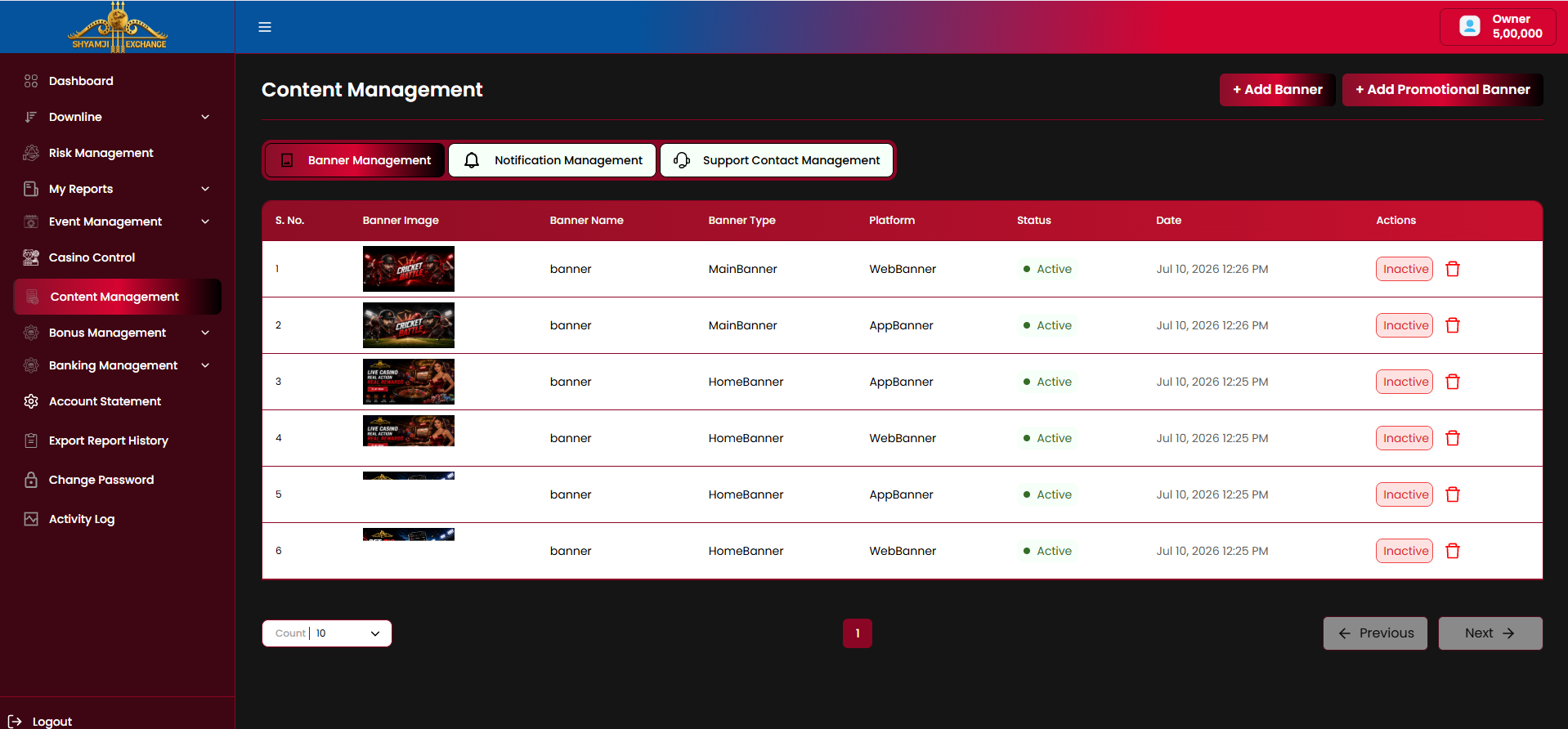
Table columns
| Column | Description |
|---|---|
| S. No. / Banner Image | Row index and a thumbnail preview of the uploaded banner |
| Banner Name | Internal label for the banner |
| Banner Type | Placement, e.g. "MainBanner", "HomeBanner" |
| Platform | "WebBanner" or "AppBanner" — which surface the banner renders on |
| Status | Active / Inactive indicator dot |
| Date | Upload date/time |
| Actions | Inactive/Active toggle button, delete (trash) icon |
Add Banner modal
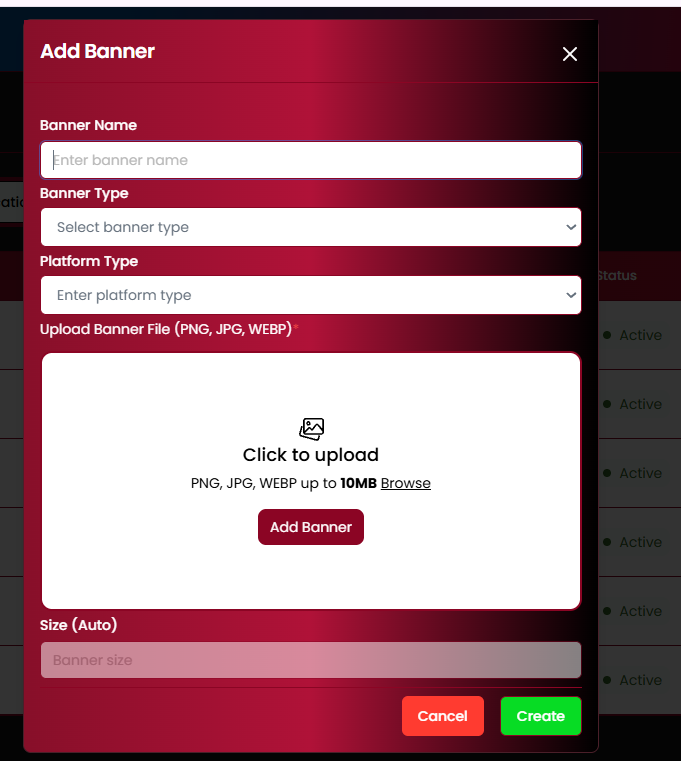
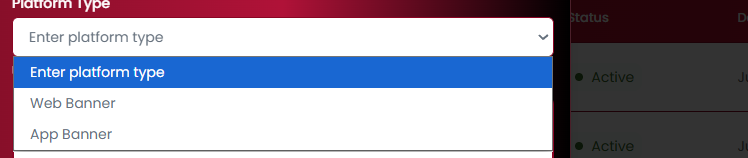
| Banner Name (text) | Required |
| Banner Type (dropdown) | Required |
| Platform Type (Web Banner / App Banner) | Required |
| Upload Banner File (PNG, JPG, WEBP, up to 10MB) | Required |
| Size (Auto) | Read-only, auto-detected |
| Cancel / Create buttons | Included |
Business rules
- A new banner is created Active by default; the row Action toggles it Inactive/Active without deleting it.
- Deleting a banner via the trash icon is expected to prompt a confirmation (per platform convention elsewhere in the admin) — to be confirmed once that dialog is shared.
- Banner Type and Platform together determine where the banner renders (e.g. MainBanner + WebBanner = top web banner; HomeBanner + AppBanner = app home screen banner).
9.2 Add Promotional Banner
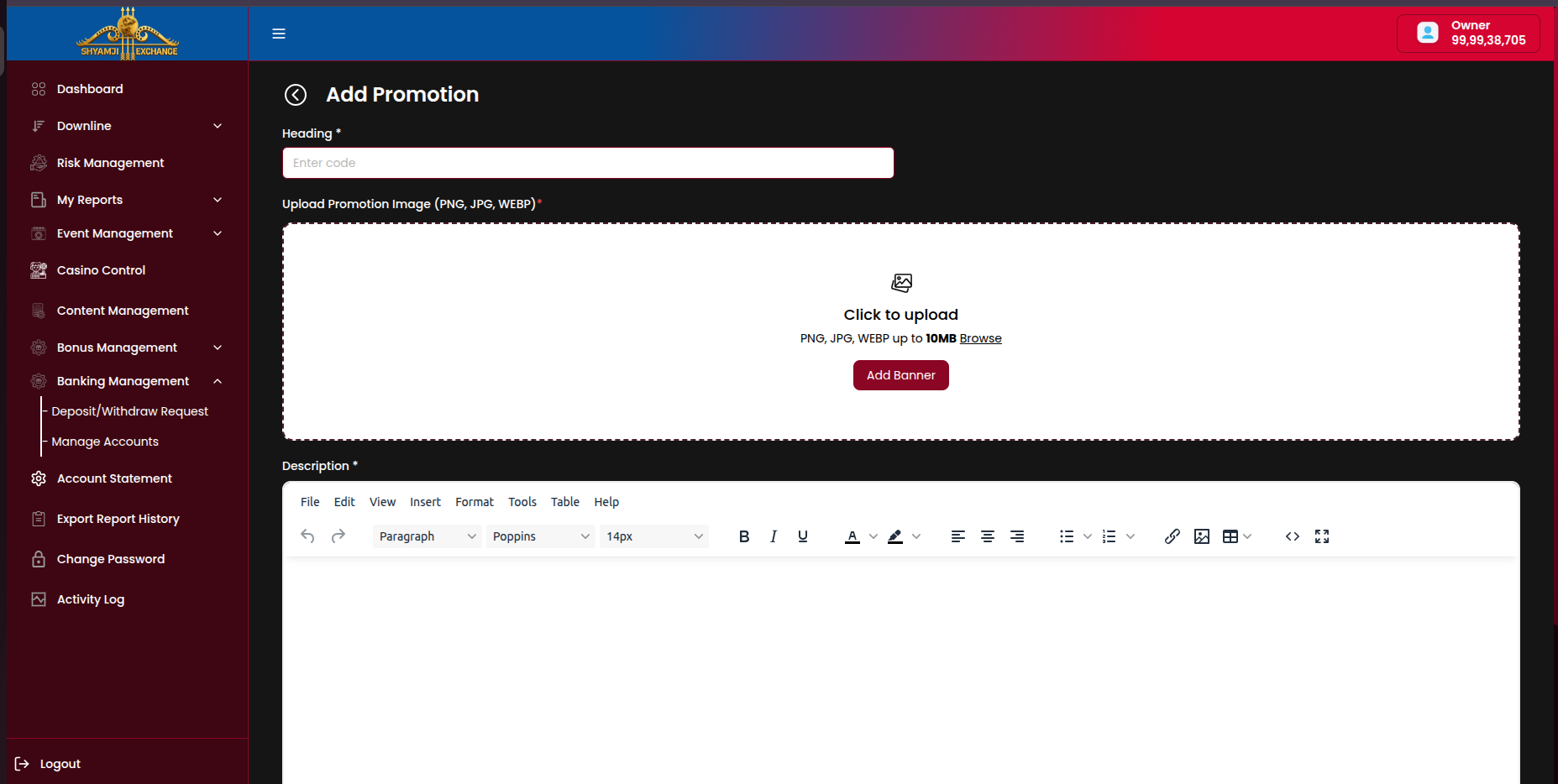
Reached via "+ Add Promotional Banner" on the Banner Management tab; opens a full-page form rather than a modal.
| Heading (text) | Required |
| Upload Promotion Image (PNG, JPG, WEBP, up to 10MB) | Required |
| Description (rich-text editor — bold/italic/underline, color, align, lists, link, image, table) | Required |
9.3 Notification Management
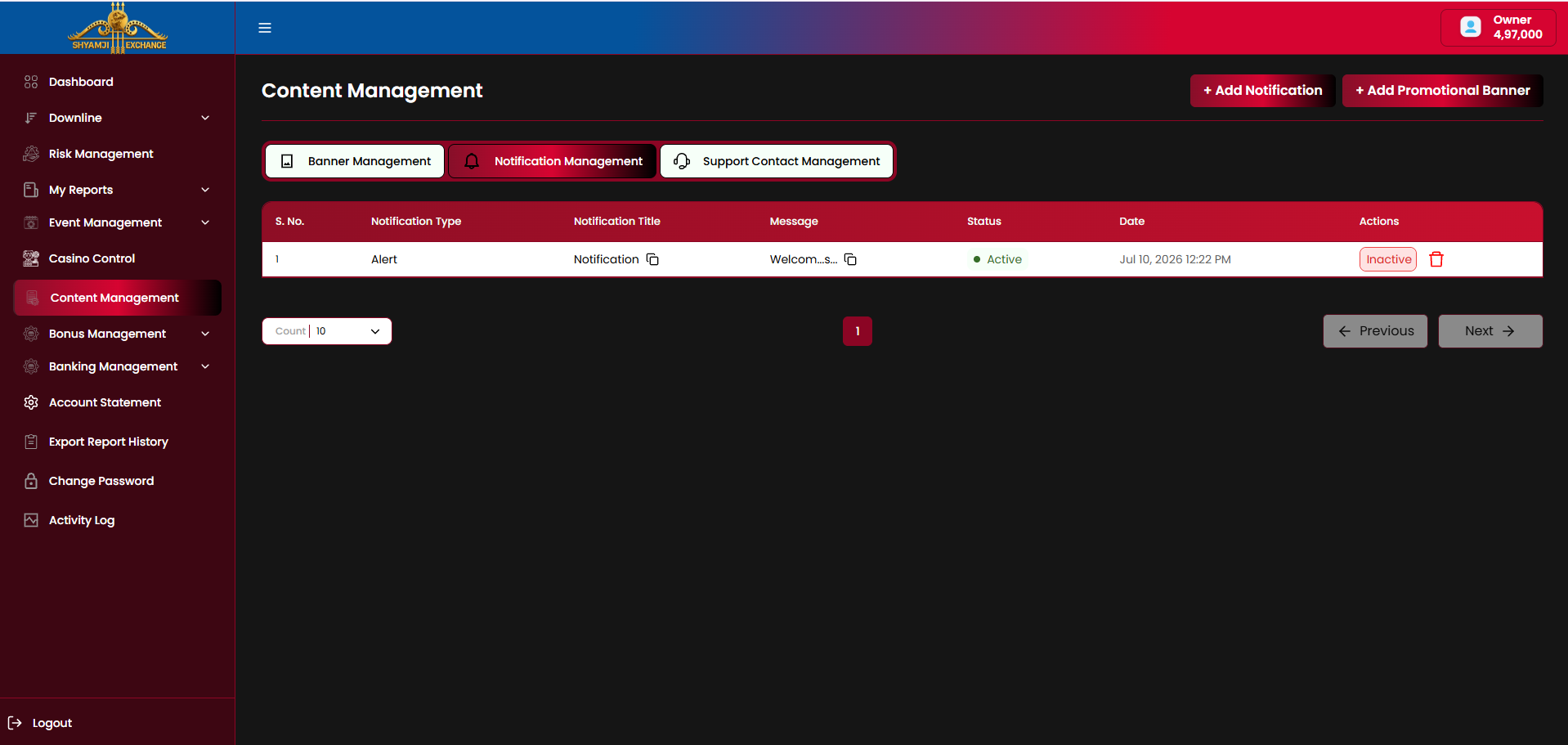
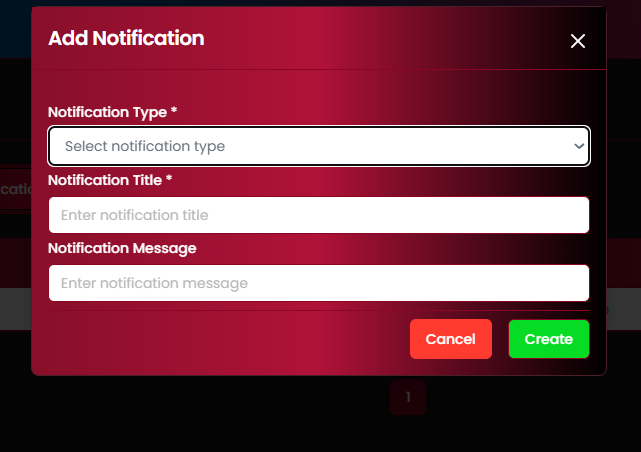
Table columns
| Column | Description |
|---|---|
| S. No. / Notification Type | Row index and category, e.g. "Alert" |
| Notification Title / Message | Headline and body text shown to end users (copy icon to duplicate message) |
| Status | Active / Inactive indicator dot |
| Date | Creation timestamp |
| Actions | Inactive/Active toggle, delete (trash) icon |
Add Notification modal
| Notification Type (dropdown) | Required |
| Notification Title | Required |
| Notification Message | Optional |
| Cancel / Create buttons | Included |
9.4 Support Contact Management
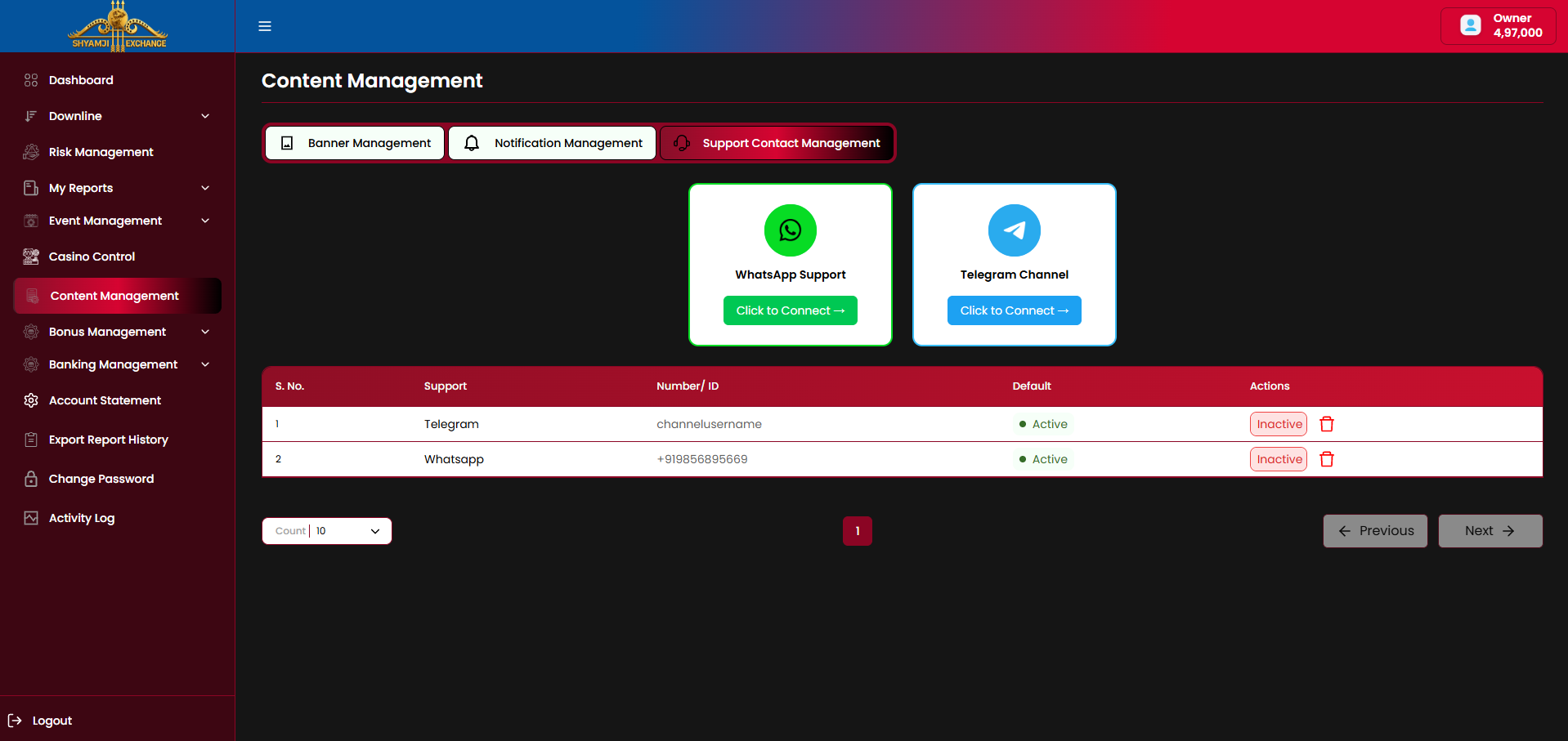
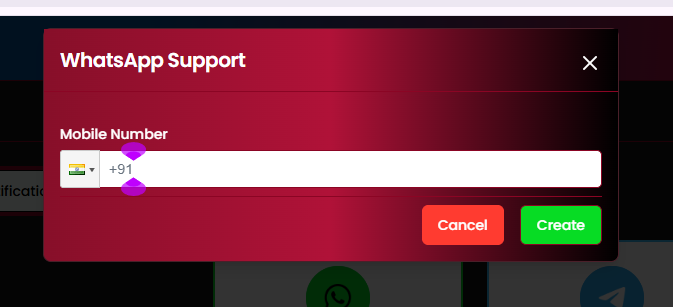
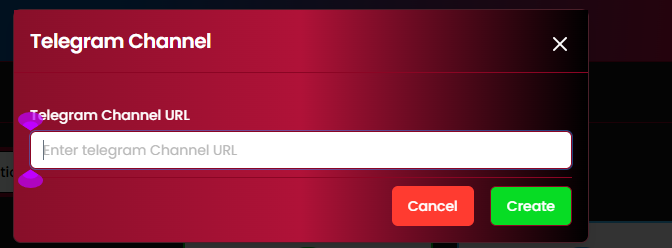
Two support channel cards — WhatsApp Support and Telegram Channel — each with a "Click to Connect" action that opens its configuration modal. Configured channels also appear in the table below.
Table columns
| Column | Description |
|---|---|
| S. No. / Support | Row index and channel, e.g. "Telegram", "Whatsapp" |
| Number/ID | Mobile number (WhatsApp, with country code) or channel username (Telegram) |
| Default | Active / Inactive status dot |
| Actions | Inactive/Active toggle, delete (trash) icon |
Configuration modals
| WhatsApp Support — Mobile Number (country code selector + number) | Required |
| Telegram Channel — Telegram Channel URL | Required |
| Cancel / Create buttons | Included |
Business rules
- Only one channel of each type (WhatsApp / Telegram) is expected to be marked Default/Active at a time — this is what end users see on the support surface.
- Both cards are always shown; the modal reached depends on which card's "Click to Connect" is clicked.
Module 10
Bonus Management
›
Bonus Management configures every promotional bonus a player can earn — Joining, Deposit and Referral — and controls how each bonus is locked, unlocked (turnover) and released. Policy Management lists and creates these bonus policies; Bonus Statement (§10.4) is the resulting player-level ledger.
10.1 Policy Management — Listing
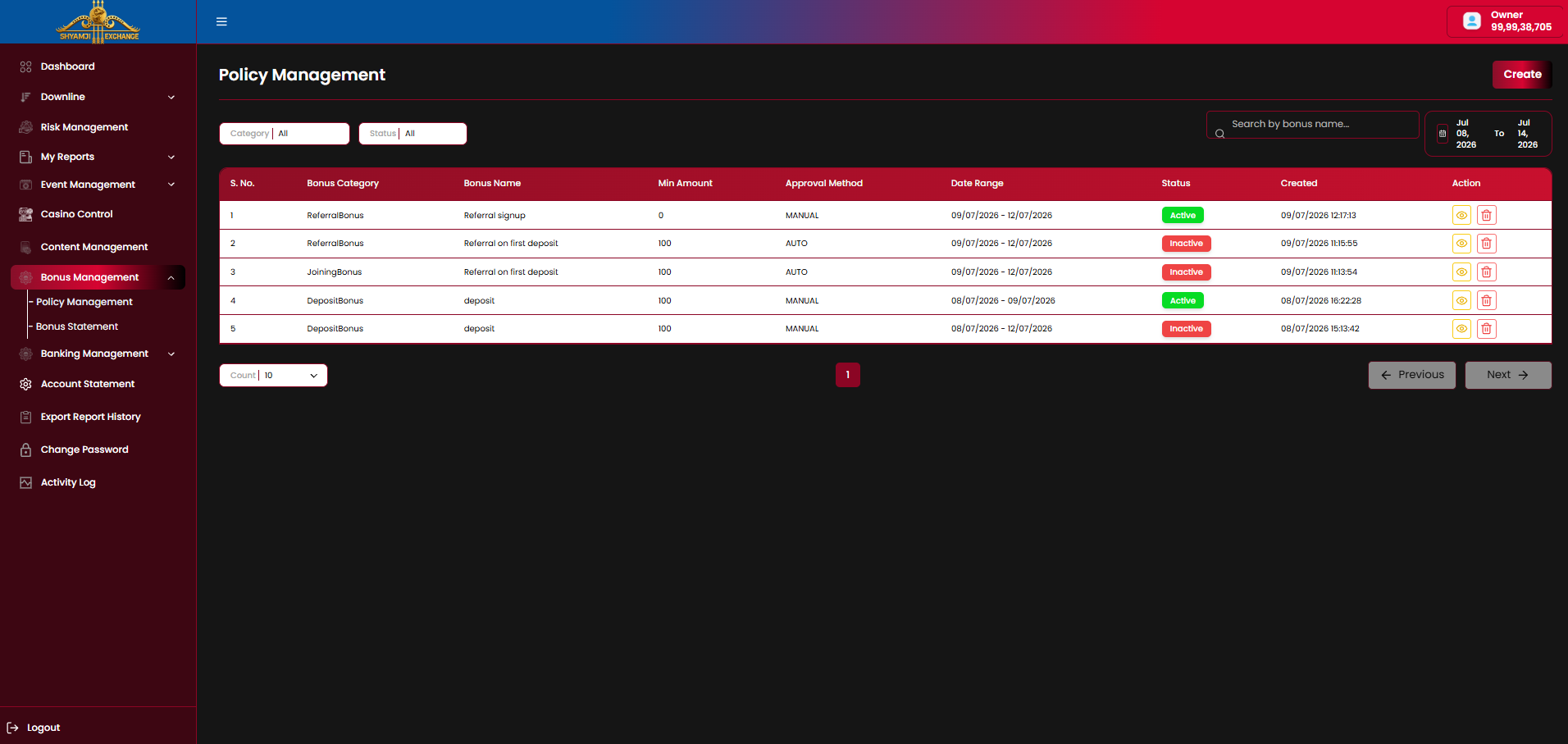
Controls
| Category filter (All / JoiningBonus / DepositBonus / ReferralBonus) | Included |
| Status filter (All / Active / Inactive) | Included |
| Search by bonus name | Included |
| Date range (defaults to last 7 days) | Included |
| "Create" button, top right | Included |
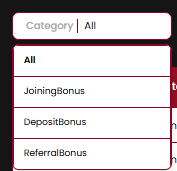
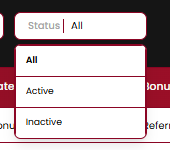
Table columns
| Column | Description |
|---|---|
| S. No. / Bonus Category | Row index and policy type — JoiningBonus, DepositBonus, ReferralBonus |
| Bonus Name | Internal label, e.g. "Referral signup", "deposit" |
| Min Amount | Minimum qualifying deposit/referral amount |
| Approval Method | MANUAL or AUTO |
| Date Range | Policy's active window |
| Status | Active / Inactive pill |
| Created | Creation timestamp |
| Action | View (eye) icon, delete (trash) icon |
Business rules
- Only one bonus policy per category is typically Active at a time within an overlapping date range (visible in the reference data — the newest Active row supersedes older Inactive ones of the same category), though multiple can coexist if date ranges don't overlap.
- Deleting a policy is expected to prompt a confirmation — to be confirmed once that dialog is shared.
10.2 Create New Bonus
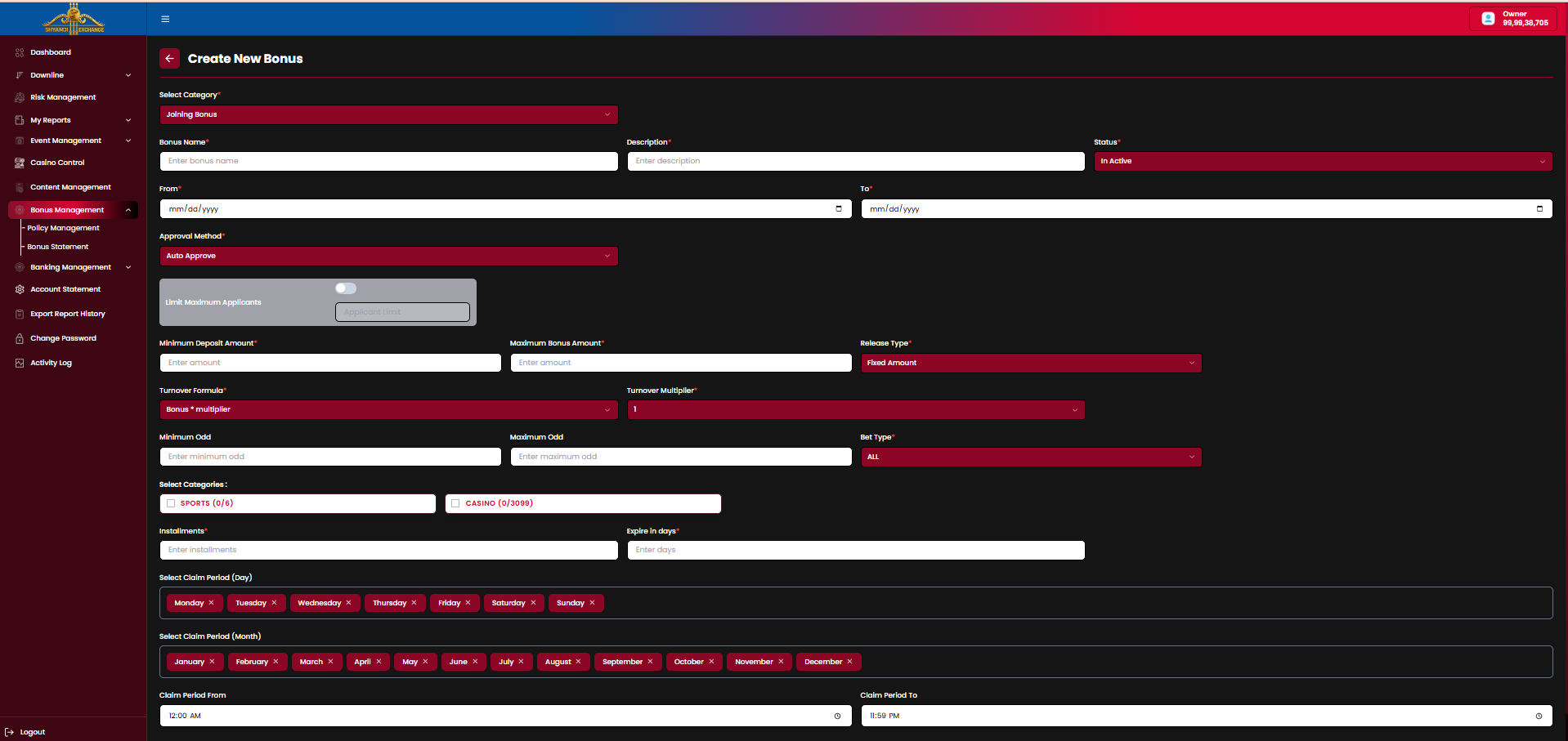
"Create" opens a category-specific form. Selecting the Category at the top reshapes the rest of the form — Joining and Deposit share most fields; Referral replaces the deposit-driven fields with referrer/referee-specific ones.
Fields common to all categories
| Select Category (Joining Bonus / Deposit Bonus / Referral Bonus) | Required |
| Bonus Name / Description | Required |
| Status (Active / In Active) | Required |
| From / To (policy active date range) | Required |
| Approval Method (Auto Approve / Manual) | Required |
| Turnover Formula (Bonus * multiplier / (Deposit + Bonus) * multiplier) | Required |
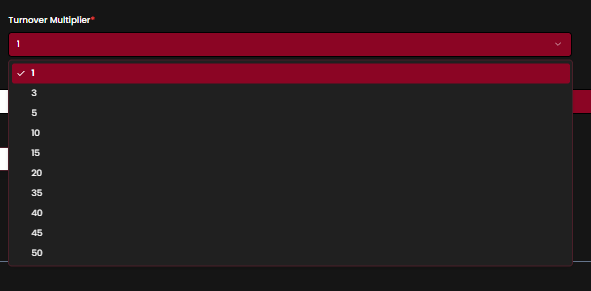
| Turnover Multiplier (1, 3, 5, 10, 15, 20, 35, 40, 45, 50) | Required |
| Minimum Odd / Maximum Odd | Optional |
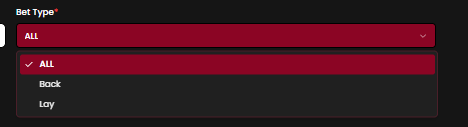
| Bet Type (ALL / Back / Lay) | Required |
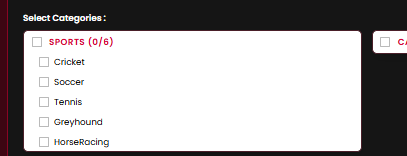
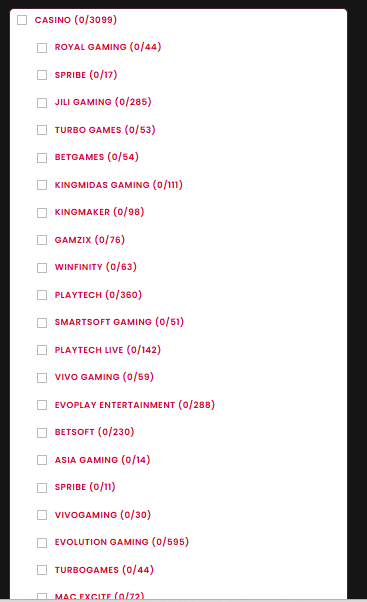
| Select Categories — Sports (Cricket, Soccer, Tennis, Greyhound, HorseRacing) / Casino (per-provider game counts) | Required |
| Installments (number of release chunks) | Required |
| Expire in days | Required |
| Select Claim Period (Day) — Mon–Sun tag picker | Required |
| Select Claim Period (Month) — Jan–Dec tag picker | Required |
| Claim Period From / To (time of day) | Required |
Joining Bonus — form
| Joining-specific field | Description |
|---|---|
| Limit Maximum Applicants (toggle + Applicant Limit) | Caps total number of users who can claim this bonus |
| Minimum Deposit Amount / Maximum Bonus Amount | The qualifying first-deposit floor and the bonus payout ceiling |
| Release Type (Fixed Amount) | How the bonus payout itself is calculated |
Per your note: Joining Bonus requires signup followed by a first deposit to trigger.
Deposit Bonus — form
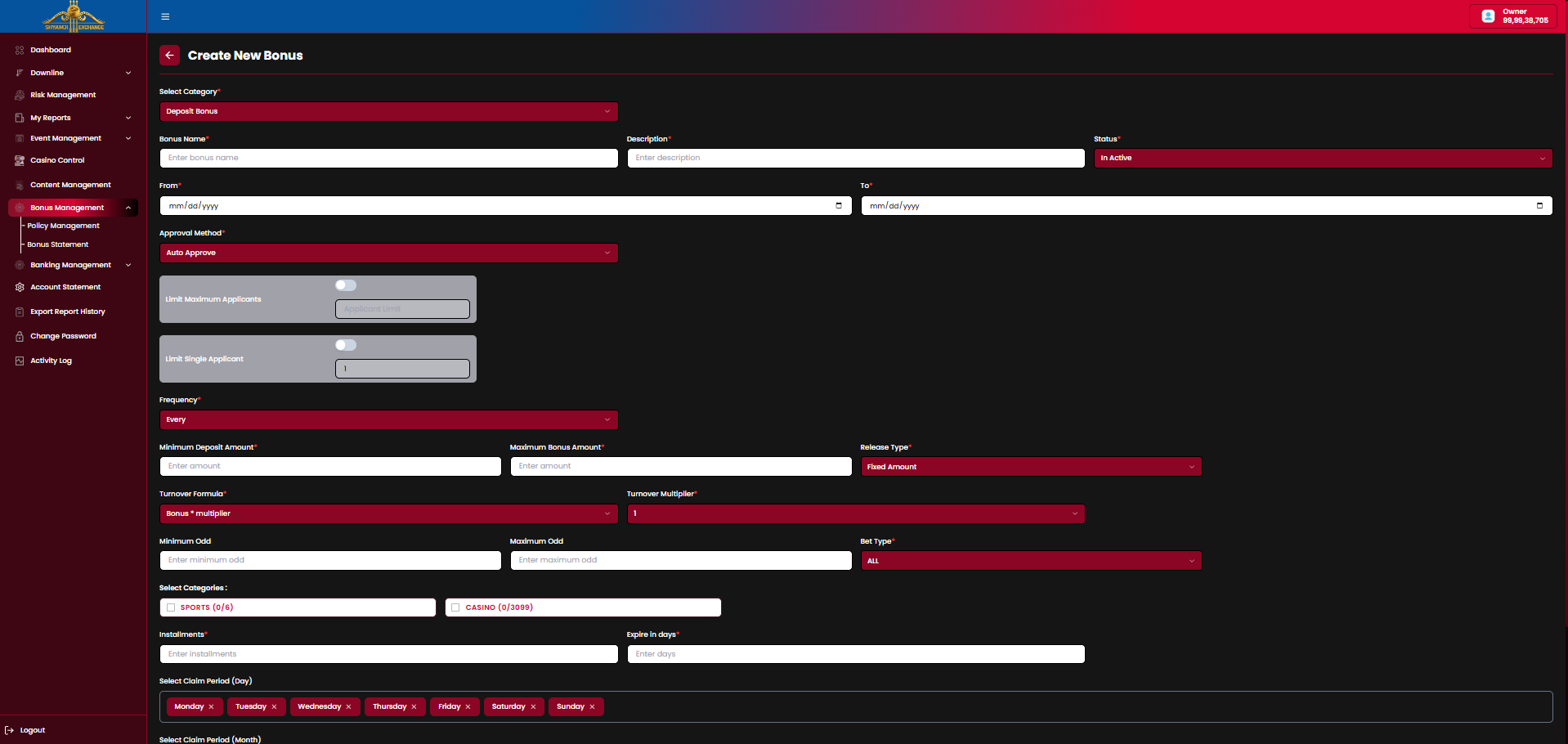
| Deposit-specific field | Description |
|---|---|
| Limit Maximum Applicants (toggle + Applicant Limit) | Caps total number of users who can claim this bonus |
| Limit Single Applicant (toggle + count) | Caps how many times one user can claim this bonus |
| Frequency (Every…) | How often the bonus re-triggers per qualifying deposit — this is the "Refill" variant of a Deposit Bonus |
| Minimum Deposit Amount / Maximum Bonus Amount / Release Type | Same as Joining Bonus |
Referral Bonus — form
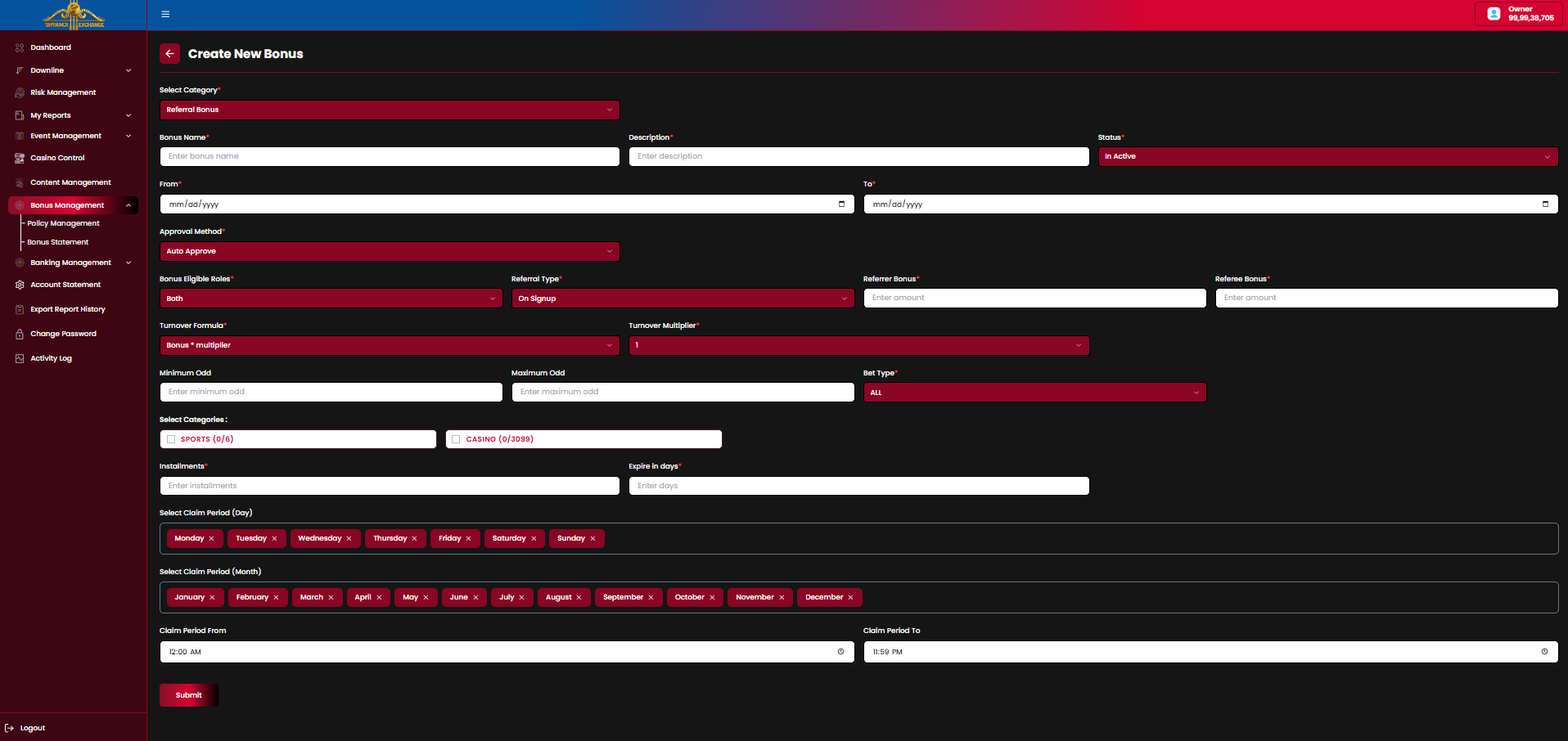
| Referral-specific field | Description |
|---|---|
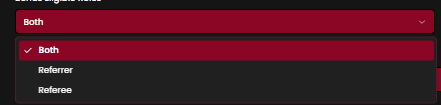
| Bonus Eligible Roles (Both / Referrer / Referee) | Whether the bonus pays the person who referred, the person referred, or both |
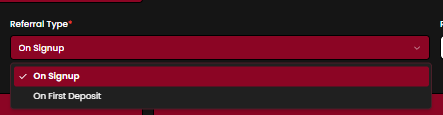
| Referral Type (On Signup / On First Deposit) | The event that triggers the referral payout |
| Referrer Bonus (amount) | Payout to the referring user, if eligible |
| Referee Bonus (amount) | Payout to the newly referred user, if eligible |
Per your note: Referral bonus can be configured to pay the referrer only, the referee only, or both, and can trigger either on signup or on the referred user's first deposit.
Dropdown reference


10.3 Turnover Formula & Multiplier — How Release Works
Worked example, as specified: a user deposits 1,000, and a 10% bonus policy is active. The user receives a 100 bonus, credited locked to their Bonus Wallet — it cannot be used for play or withdrawal until its turnover requirement is met.
Step 1 — Turnover Formula sets the required playthrough
Two formula options; the policy picks one. Multiplier (1, 3, 5, 10, 15, 20, 35, 40, 45, 50) is set per policy.
Formula A — Bonus × Multiplier
Formula B — (Deposit + Bonus) × Multiplier
Until the user's cumulative qualifying stake reaches this target, the ₹100 stays locked — visible in the wallet, unusable for play or withdrawal.
Step 2 — Installments release the bonus in chunks as turnover is completed
Set Installments = 3 against the 300 target (Formula A) — each third of turnover unlocks a third of the bonus:
Same proportional logic applies under Formula B, just against its larger target (3,300 ÷ 3 installments = 1,100 turnover per release step).
Step 3 — Approval Method decides whether release is automatic
Auto Approve
Each installment's share moves to the user's usable balance automatically the moment that installment's turnover is completed. No admin action needed.
Manual
Turnover completion alone does not release funds. An admin must review and approve the release from Bonus Statement (§10.4) — until approved, the earned share stays locked.
Business rules
- The bonus amount itself is always credited to the user's Bonus Wallet immediately and shown as locked; only the wagering requirement changes when it becomes usable.
- Turnover is accumulated from qualifying stakes only — Bet Type (ALL/Back/Lay), Minimum/Maximum Odd, and Select Categories (Sports/Casino) on the policy define which bets count toward turnover.
- Expire in days sets a deadline from the bonus grant — if turnover is not completed in time, the remaining locked bonus is expected to be forfeited (to be confirmed).
- Select Claim Period (Day / Month / time range) restricts when a user may claim this bonus in the first place, independent of the turnover/release mechanics above.
10.4 Bonus Statement
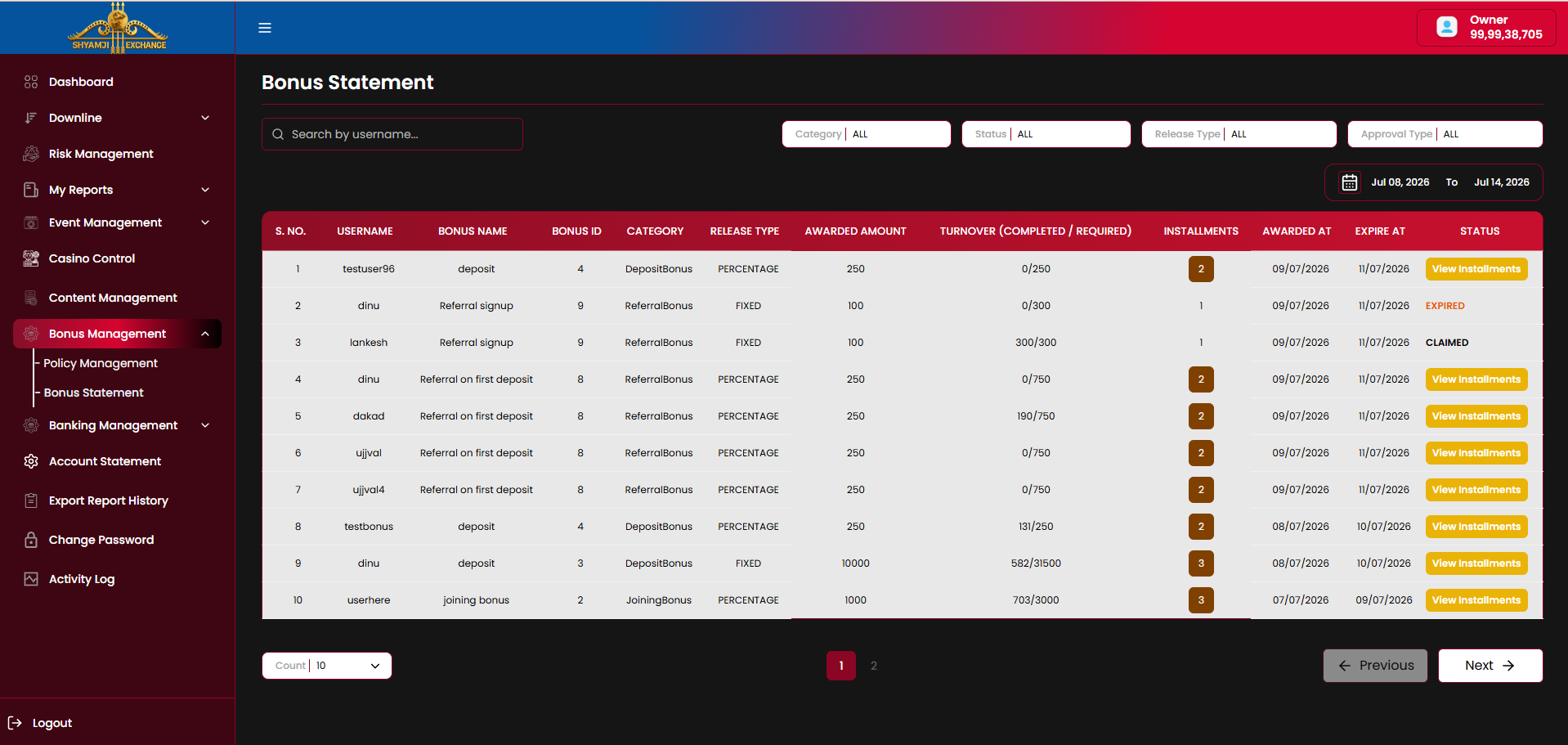
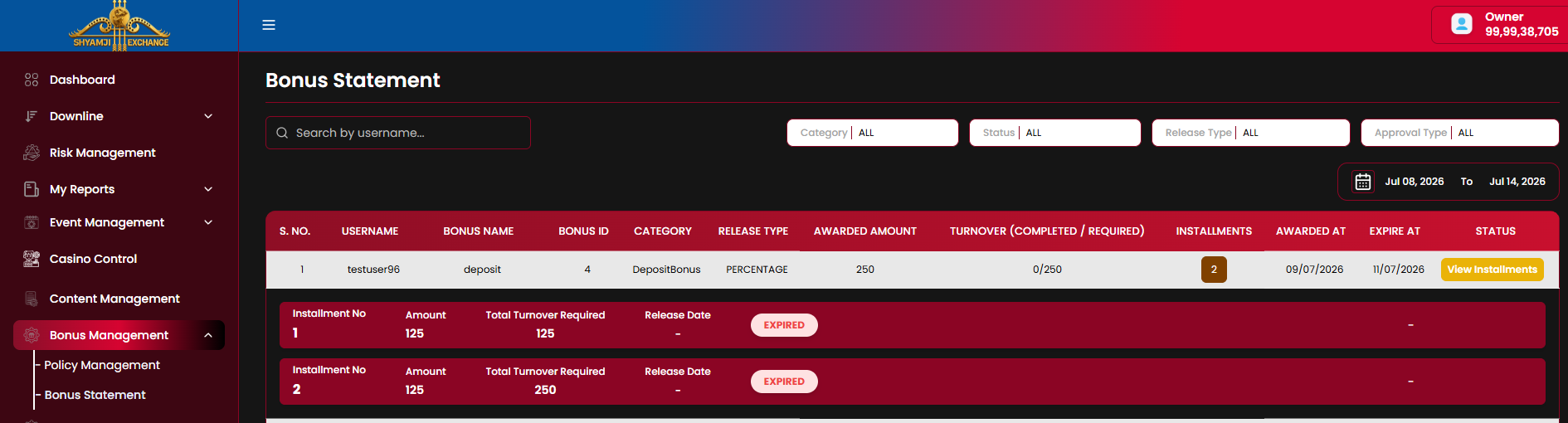
Bonus Statement is the player-level ledger of every bonus awarded platform-wide — this is where the turnover progress described in §10.3 is tracked per user, and where a Manual-approval installment (§10.3 Step 3) is actioned.
Controls
| Search by username | Included |
| Category filter (All / DepositBonus / ReferralBonus / JoiningBonus) | Included |
| Status filter (All / Expired / Claimed / …) | Included |
| Release Type filter (All / Percentage / Fixed) | Included |
| Approval Type filter (All / Auto / Manual) | Included |
| Date range (defaults to last 7 days) | Included |
Table columns
| Column | Description |
|---|---|
| S. No. / Username | Row index and the bonus recipient |
| Bonus Name / Bonus Id | Policy name (e.g. "deposit", "Referral signup") and its policy ID |
| Category | DepositBonus / ReferralBonus / JoiningBonus |
| Release Type | PERCENTAGE or FIXED — how the awarded amount was calculated |
| Awarded Amount | Bonus amount credited to the user's Bonus Wallet |
| Turnover (Completed / Required) | Live progress against the target computed per §10.3, e.g. "190/750" |
| Installments | Total installment count configured on the policy; opens “View Installments” |
| Awarded At / Expire At | Grant date and the forfeiture deadline (§10.3) |
| Status | View Installments (in progress) / Expired / Claimed |
View Installments
Expands the row into one line per installment: Installment No., Amount, Total Turnover Required (cumulative), Release Date, and Status (e.g. Expired) — this is the same installment breakdown described in §10.3 Step 2, and where a Manual-approval policy's release would be actioned once the installment's turnover is met.
Business rules
- A bonus reaching its Expire At date without completing turnover moves to Expired — remaining installments show Expired with no Release Date.
- Claimed indicates the bonus's full turnover was completed and released to the user.
- Approval Type filter distinguishes Auto-released rows from ones awaiting Manual admin approval per installment (§10.3 Step 3).
Module 11
Banking Management
›
Banking Management is where player-initiated deposit and withdrawal requests are reviewed and approved/rejected, and where the platform's own receiving accounts (UPI / Bank Account) are configured.
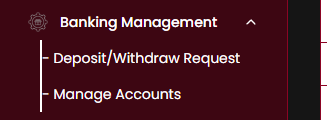
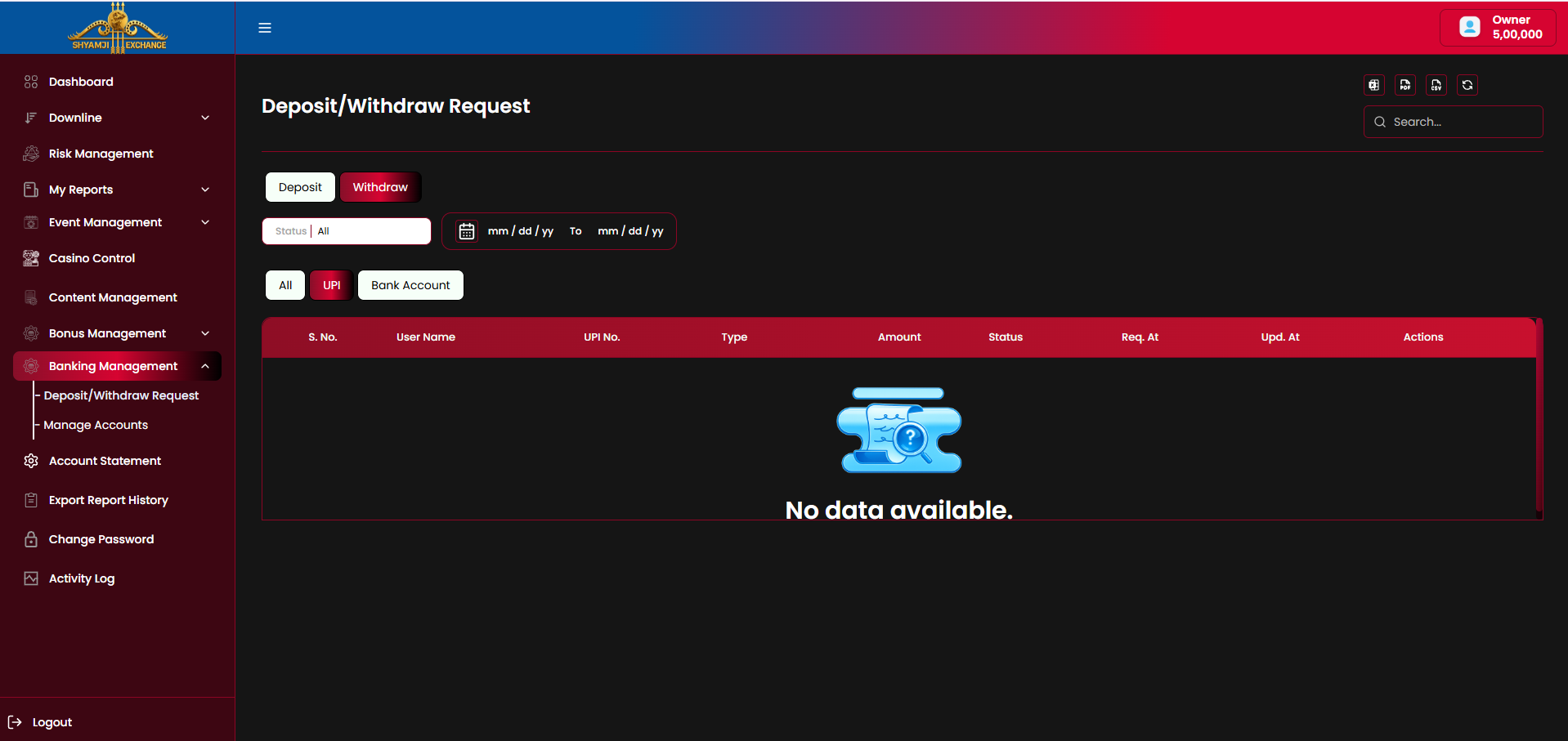
11.1 Deposit/Withdraw Request
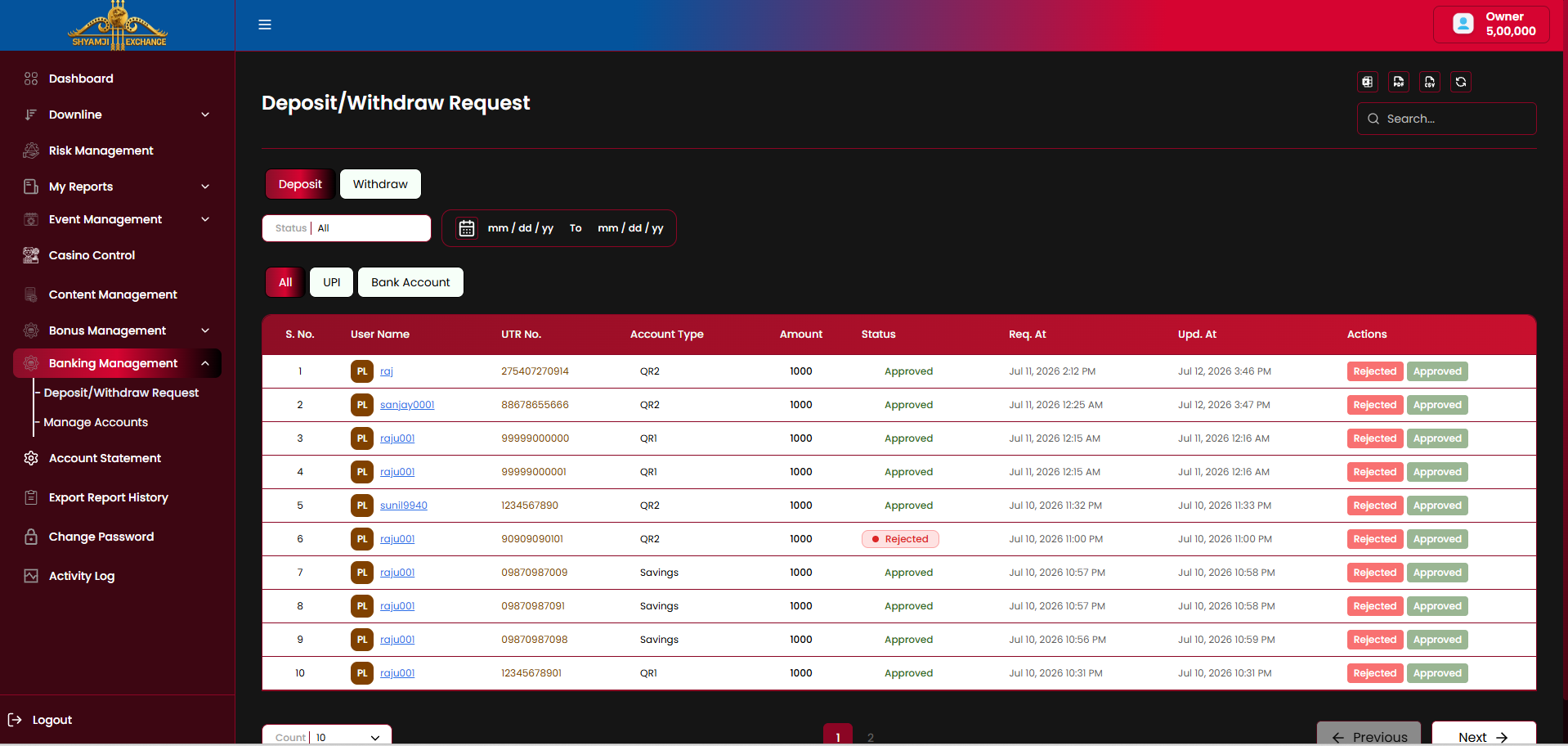
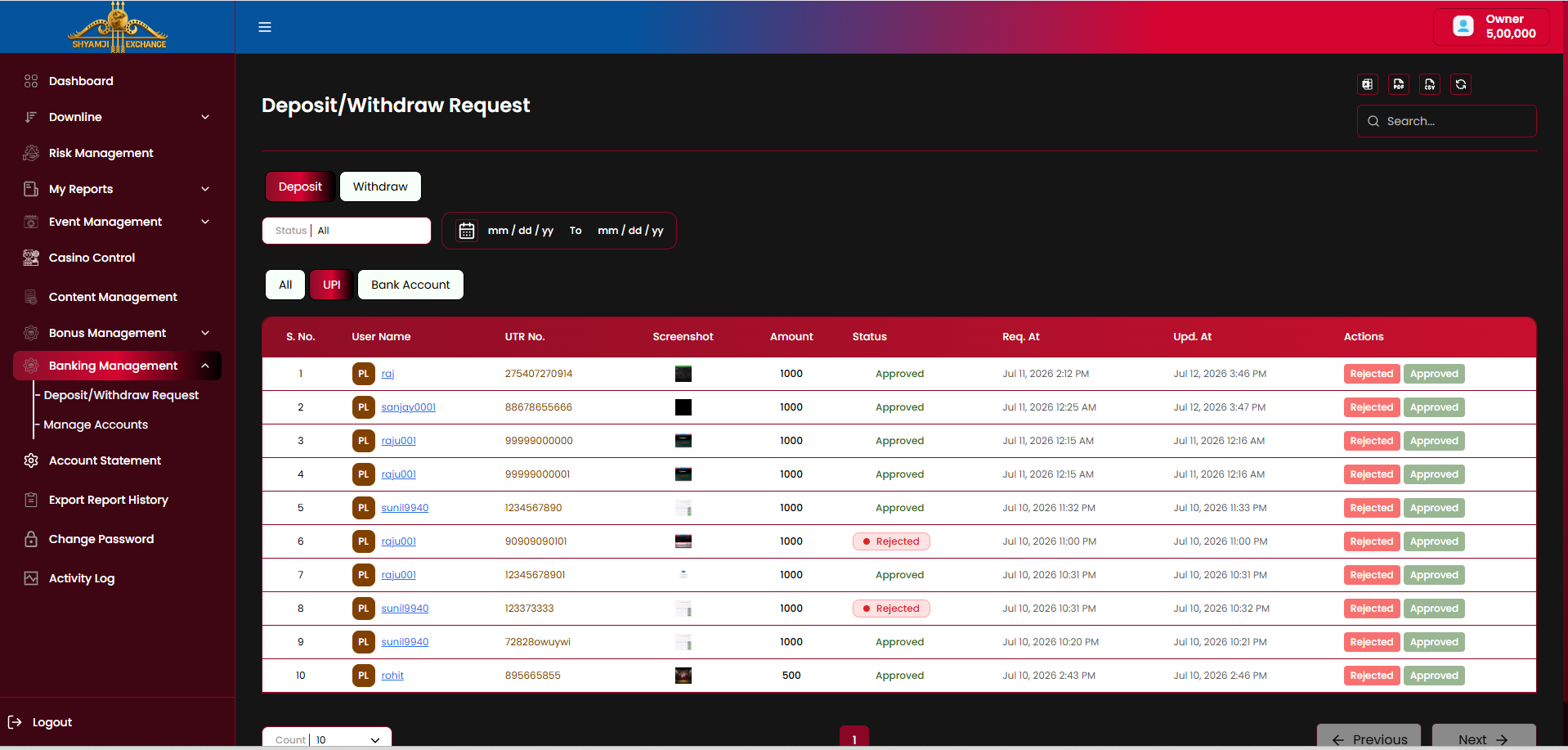
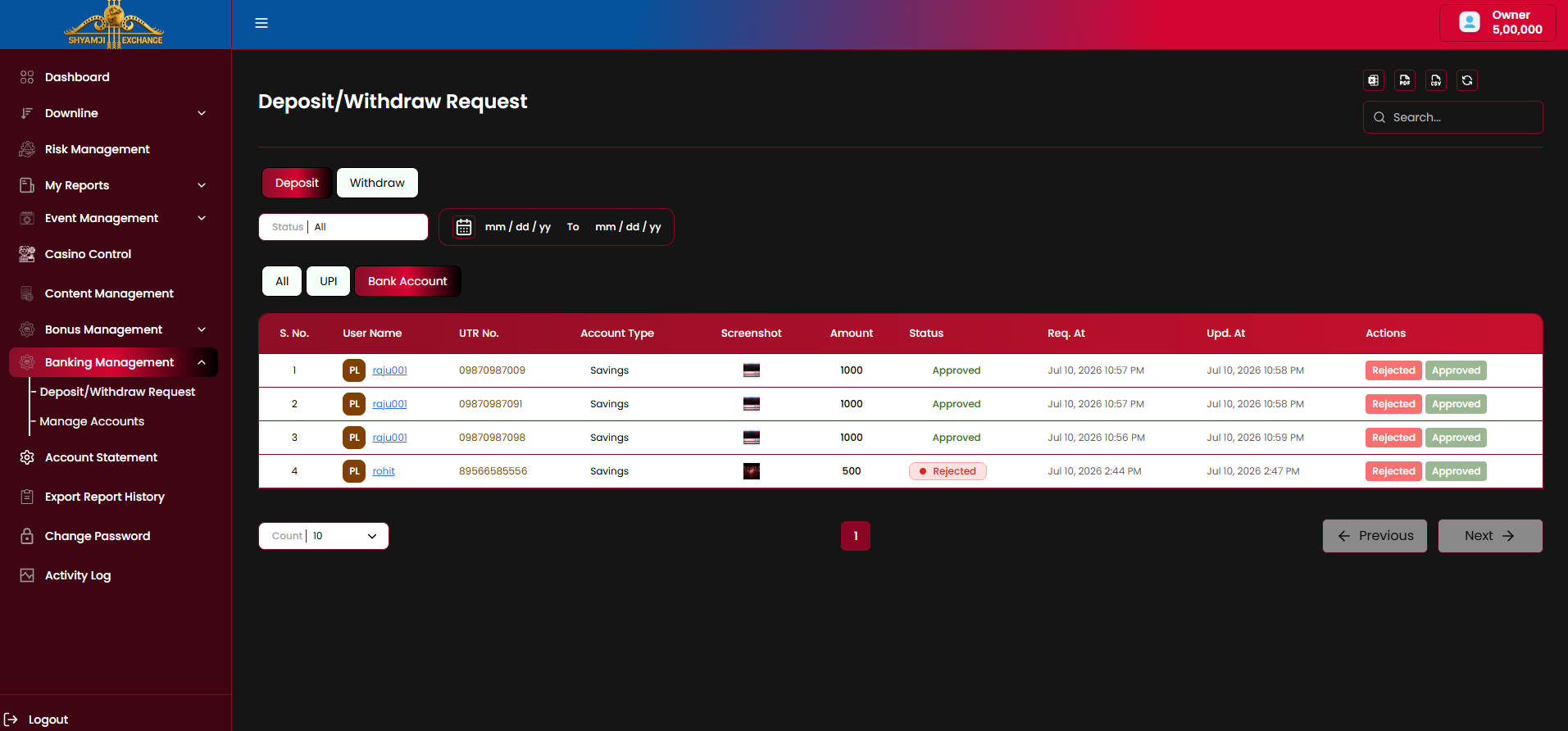
Deposit and Withdraw share one screen, switched by a top-level Deposit/Withdraw toggle; each further splits into All / UPI / Bank Account payment-method tabs, since the two methods carry different columns.
Deposit — All
Deposit — UPI
Deposit — Bank Account
Controls
| Deposit / Withdraw toggle | Included |
| All / UPI / Bank Account tabs | Included |
| Status filter (All / Approved / Pending / Rejected) | Included |
| Date range (mm/dd/yy → mm/dd/yy) | Included |
| Search box | Included |
| Export to Excel / PDF / CSV, refresh | Included |
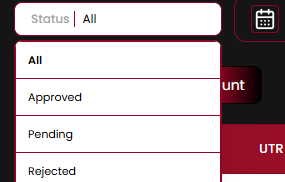
Table columns — Deposit, All
| Column | Description |
|---|---|
| S. No. / User Name | Row index and requesting player (linked to their profile) |
| UTR No. | Bank/UPI transaction reference number |
| Account Type | e.g. "QR1", "QR2", "Savings" — which platform receiving account the funds went to |
| Amount | Requested deposit amount |
| Status | Approved / Pending / Rejected pill |
| Req. At / Upd. At | Request submission time and last status-update time |
| Actions | Rejected / Approved buttons |
The UPI tab replaces Account Type with a payment-proof Screenshot thumbnail; the Bank Account tab keeps Account Type and adds the Screenshot column alongside it.
Withdraw — All
Withdraw — UPI (empty)
Withdraw — Bank Account
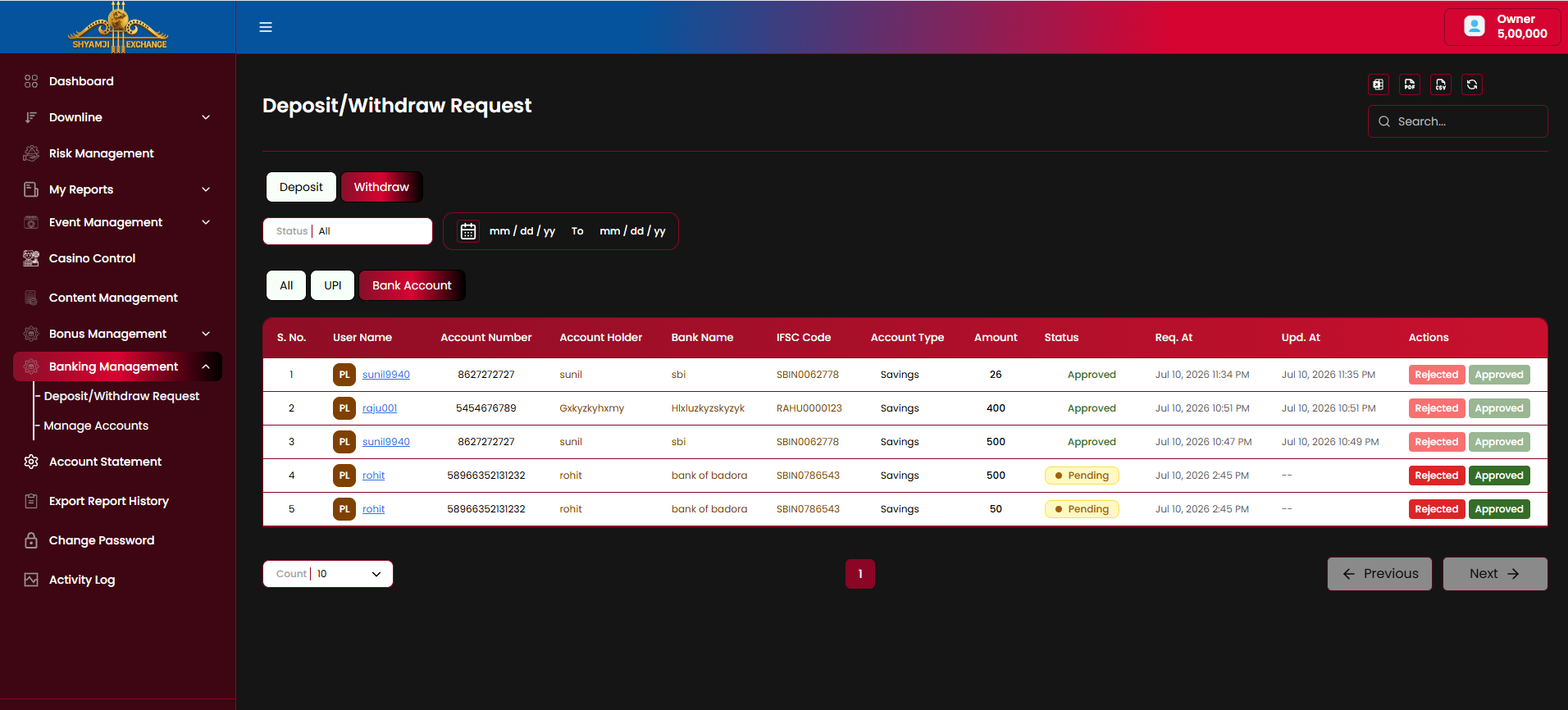
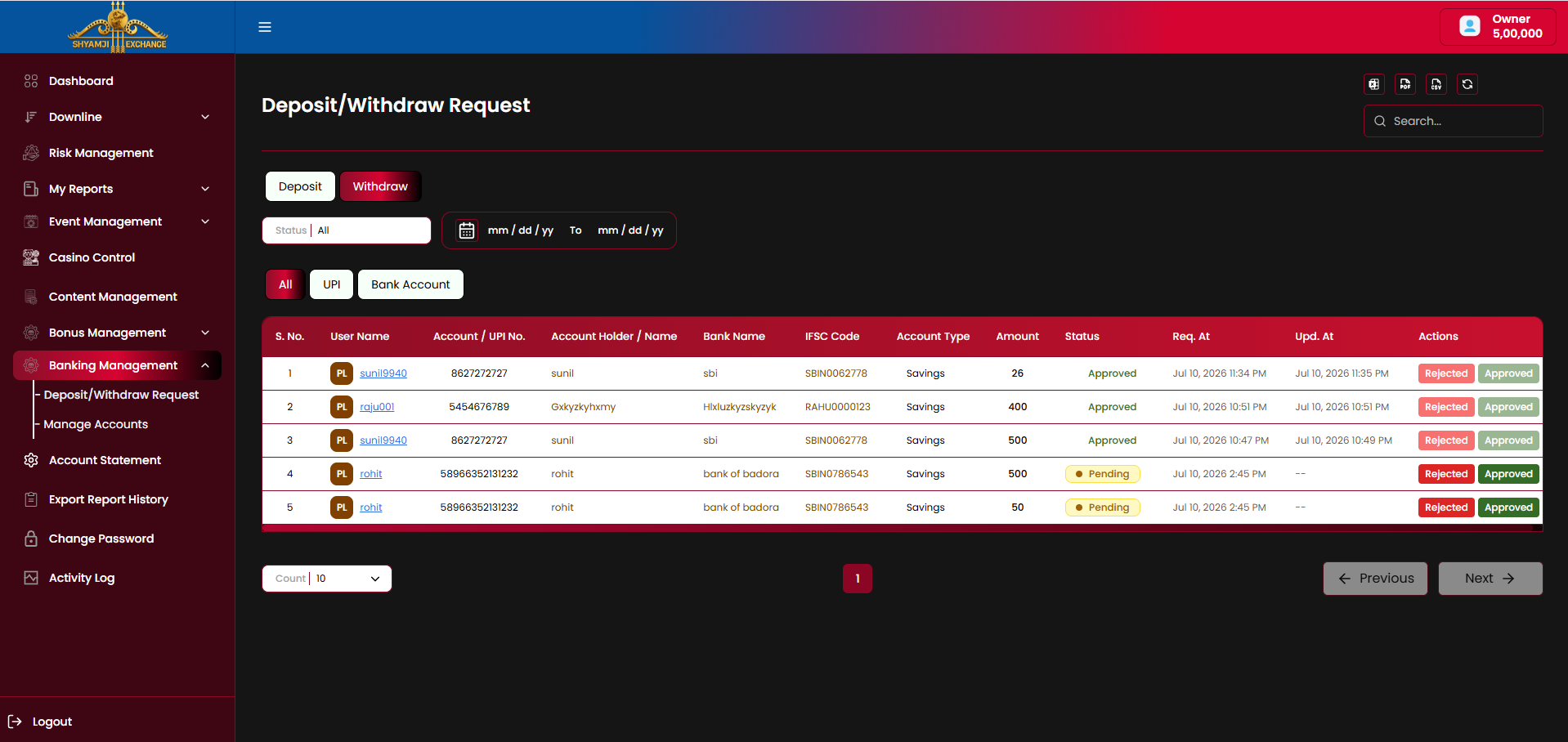
Table columns — Withdraw
| Column | Description |
|---|---|
| S. No. / User Name | Row index and requesting player |
| Account / UPI No. (All) / Account Number (Bank Account) | Destination account or UPI ID the withdrawal is sent to |
| Account Holder / Name | Registered name on the destination account |
| Bank Name | e.g. "sbi", "bank of badora" |
| IFSC Code | Bank branch code |
| Account Type | e.g. "Savings" |
| Amount | Requested withdrawal amount |
| Status | Approved / Pending / Rejected pill |
| Req. At / Upd. At | Request and last-update timestamps ("--" while still Pending) |
| Actions | Rejected / Approved buttons |
Business rules
- Approving a Deposit credits the player's balance for the requested amount; approving a Withdraw debits it and marks the transfer as sent.
- Rejecting either leaves the player's balance unaffected.
- Pending requests show "--" in Upd. At until an action is taken.
- Every approve/reject action is expected to write an entry into Account Statement (§13) and Business Report → Deposit/Withdraw (§6.8) — to be confirmed.
- UPI deposit/withdraw rows carry a Screenshot as payment proof; Bank Account rows instead carry full bank detail columns.
11.2 Manage Accounts
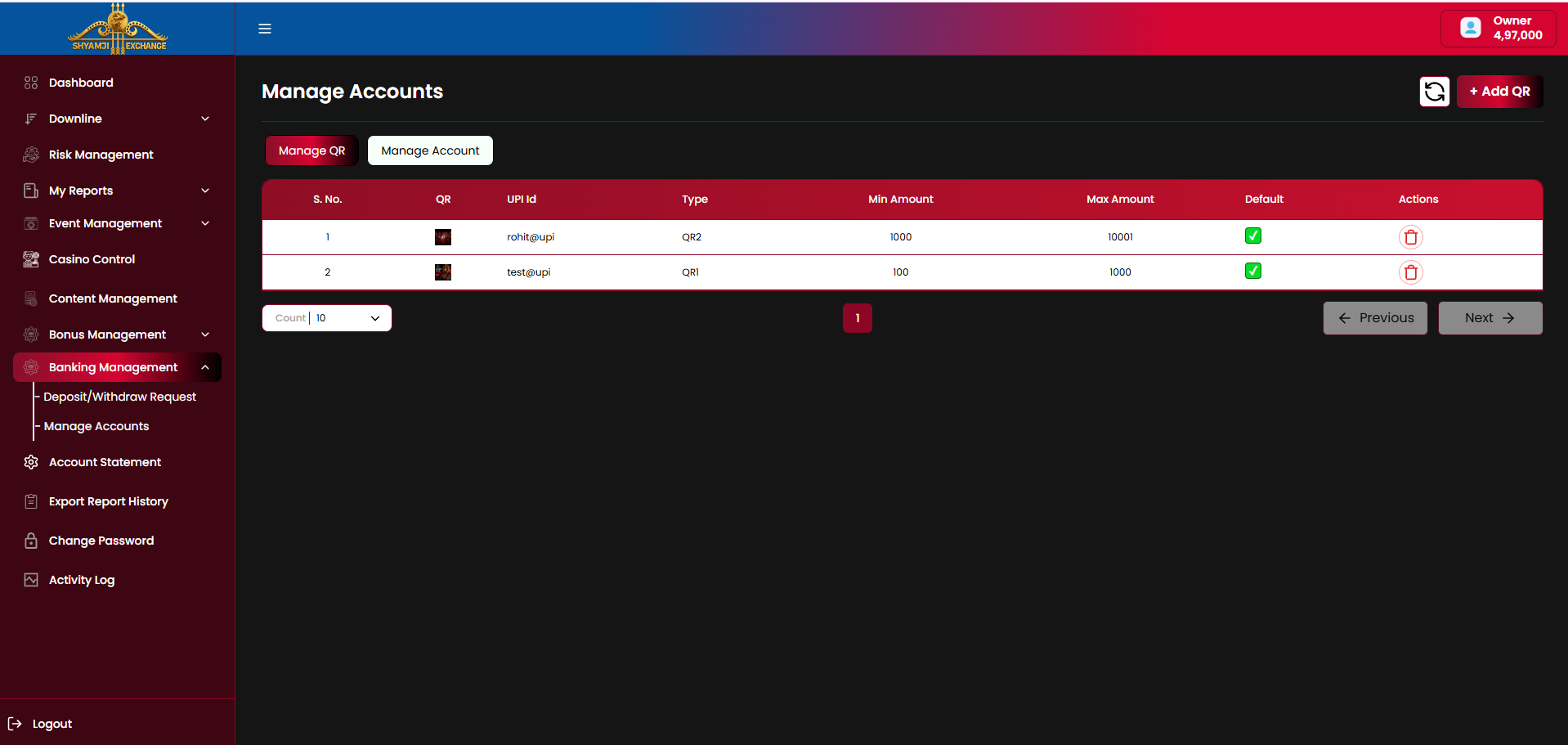
Manage Accounts configures the platform's own receiving accounts referenced as "QR1"/"QR2"/etc. in §11.1 — split into two tabs, Manage QR (UPI) and Manage Account (bank transfer).
Manage QR
| Column | Description |
|---|---|
| S. No. / QR | Row index and the uploaded QR code thumbnail |
| UPI Id | Receiving UPI address, e.g. "rohit@upi" |
| Type | QR1 / QR2 / QR3 / QR4 — the account slot referenced elsewhere (e.g. §4.4.1 Deposit's Account Type) |
| Min Amount / Max Amount | Deposit range this QR accepts |
| Default | Checkbox marking it as an active receiving account |
| Actions | Delete (trash) icon |
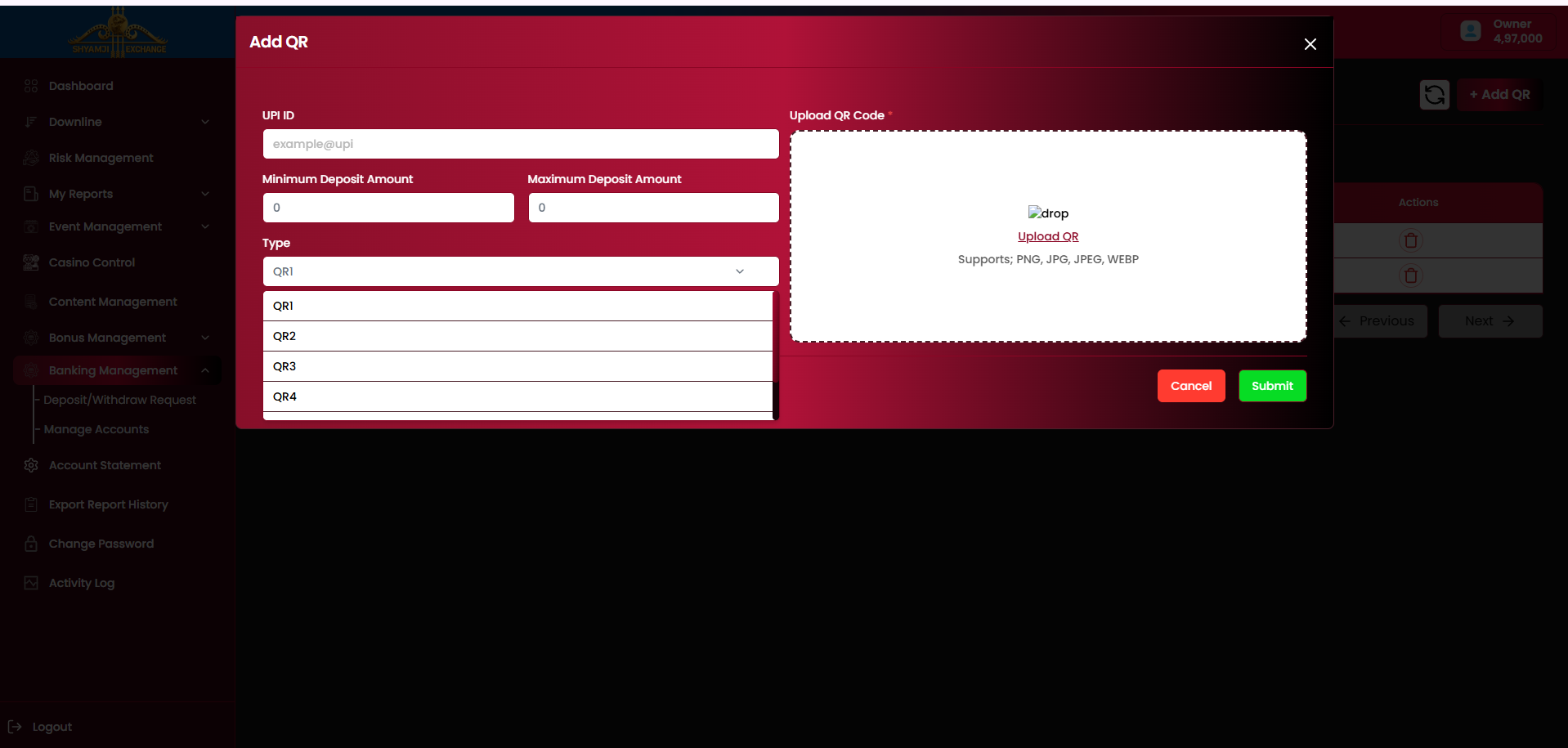
Add QR modal
| UPI ID | Required |
| Minimum / Maximum Deposit Amount | Required |
| Type (QR1 / QR2 / QR3 / QR4) | Required |
| Upload QR Code (PNG/JPG/JPEG/WEBP) | Required |
| Cancel / Submit buttons | Included |
Manage Account
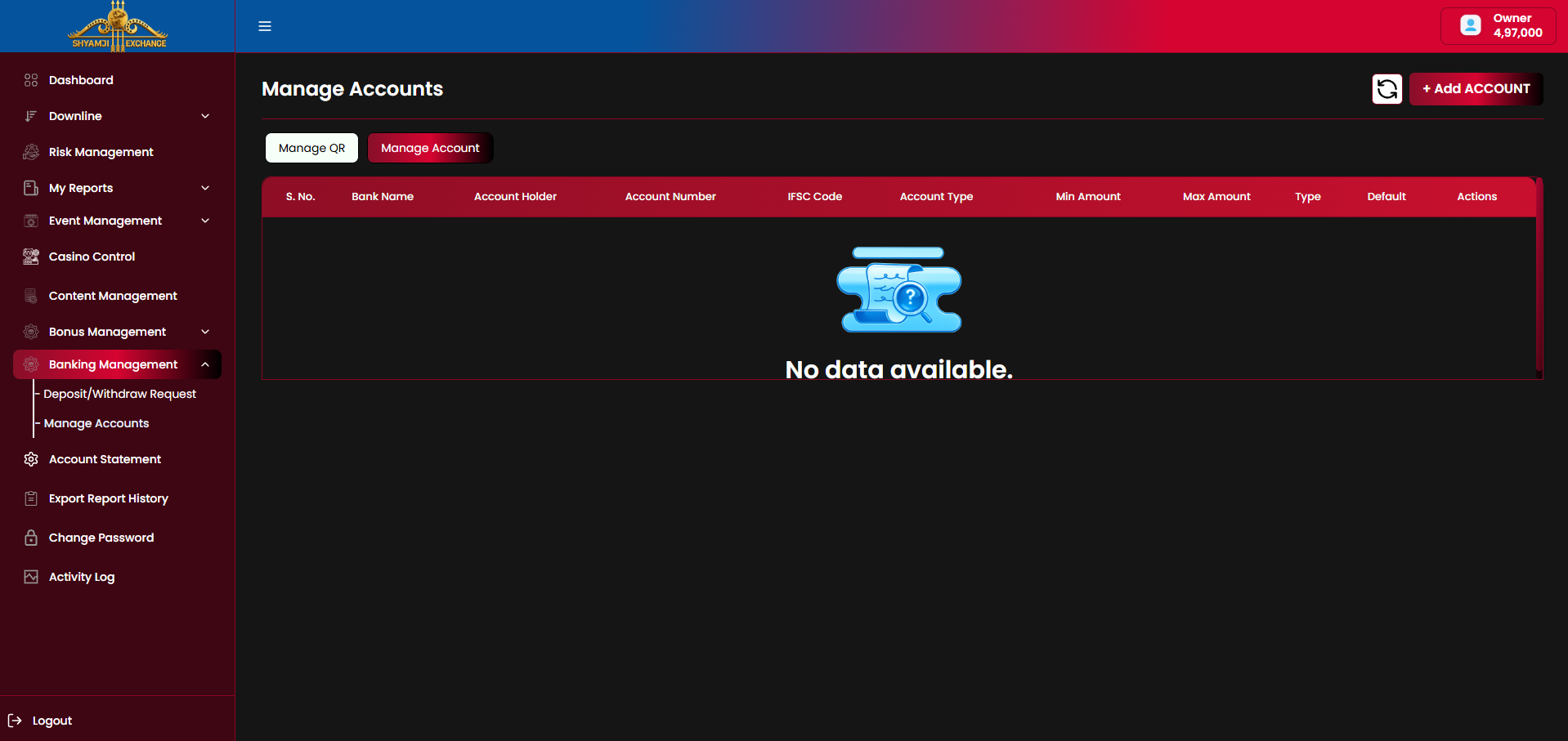
| Column | Description |
|---|---|
| S. No. / Bank Name | Row index and receiving bank |
| Account Holder / Account Number / IFSC Code | Full bank account detail |
| Account Type | e.g. Savings / Current |
| Min Amount / Max Amount | Deposit range this account accepts |
| Type | QR1 / QR2 / QR3 / QR4 slot, same scheme as Manage QR |
| Default | Marks it as an active receiving account |
| Actions | Delete (trash) icon |
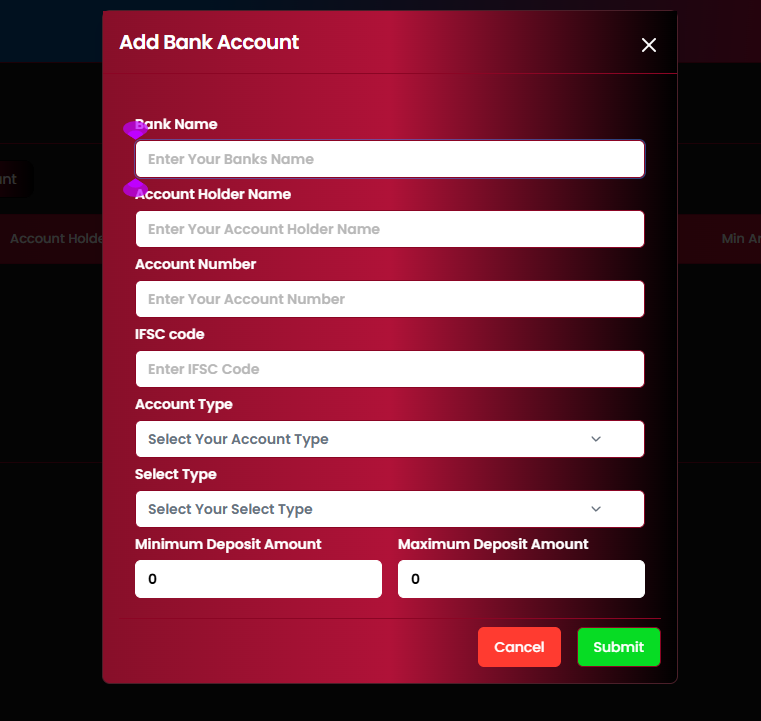
Add Bank Account modal
| Bank Name / Account Holder Name / Account Number / IFSC code | Required |
| Account Type (dropdown) | Required |
| Select Type (QR1–QR4 slot) | Required |
| Minimum / Maximum Deposit Amount | Required |
| Cancel / Submit buttons | Included |
Business rules
- The "+ Add QR" / "+ Add ACCOUNT" button (top right) swaps label depending on the active tab.
- Min/Max Amount ranges are expected to route an incoming deposit request (§11.1) to the matching receiving account automatically — to be confirmed.
- Multiple QR/Account rows can be marked Default simultaneously, based on the reference listing (both rows checked ✓).
Module 12
Export Report History
›
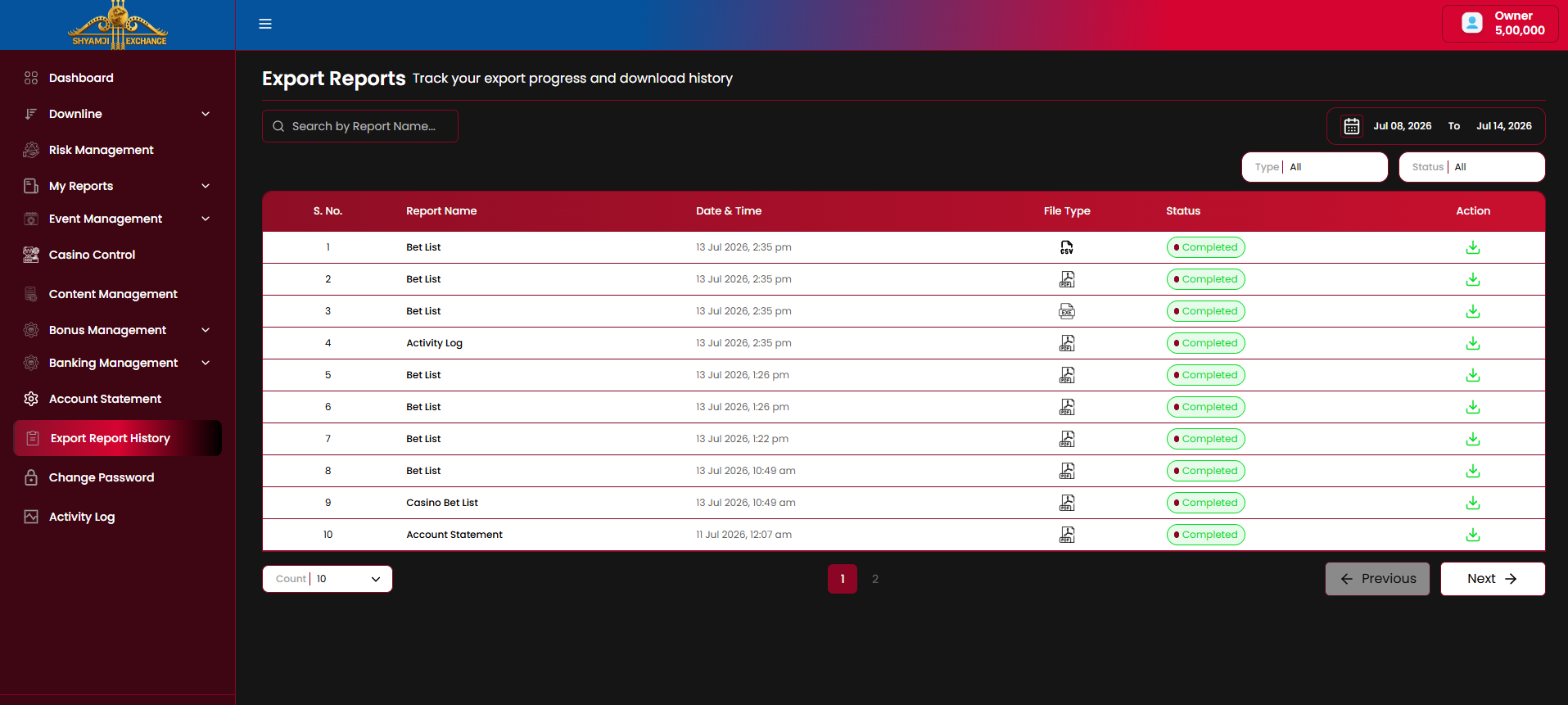
Export Report History is the central log of every export triggered elsewhere in the admin (Bet List, Casino Bet List, Account Statement, Activity Log, etc.) — tracking generation progress and hosting the download links so operators don't wait on-screen for large files.
Controls
| Search by Report Name | Included |
| Date range (defaults to last 7 days) | Included |
| Type filter (All / Excel / Csv / Pdf) | Included |
| Status filter (All / Completed / Pending / Failed) | Included |
| Export to Excel / PDF / CSV of this list itself, refresh | Included |
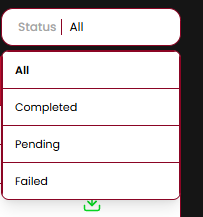
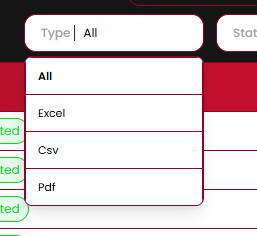
Table columns
| Column | Description |
|---|---|
| S. No. / Report Name | Row index and the source report, e.g. "Bet List", "Casino Bet List", "Activity Log", "Account Statement" |
| Date & Time | When the export was requested |
| File Type | Format icon — CSV / Excel / PDF |
| Status | Completed (green) / Pending / Failed pill |
| Action | Download icon — active once Status is Completed |
Business rules
- Every export button elsewhere in the admin (Bet List, Account Statement, Activity Log, etc., §4/§13/§14) writes an entry here rather than downloading directly, so large exports can generate asynchronously.
- The download Action is only clickable once Status reaches Completed; Pending/Failed rows have no active download.
- Failed exports are expected to offer a retry — to be confirmed once that state is shown.
Module 13
Account Statement (Owner)
›
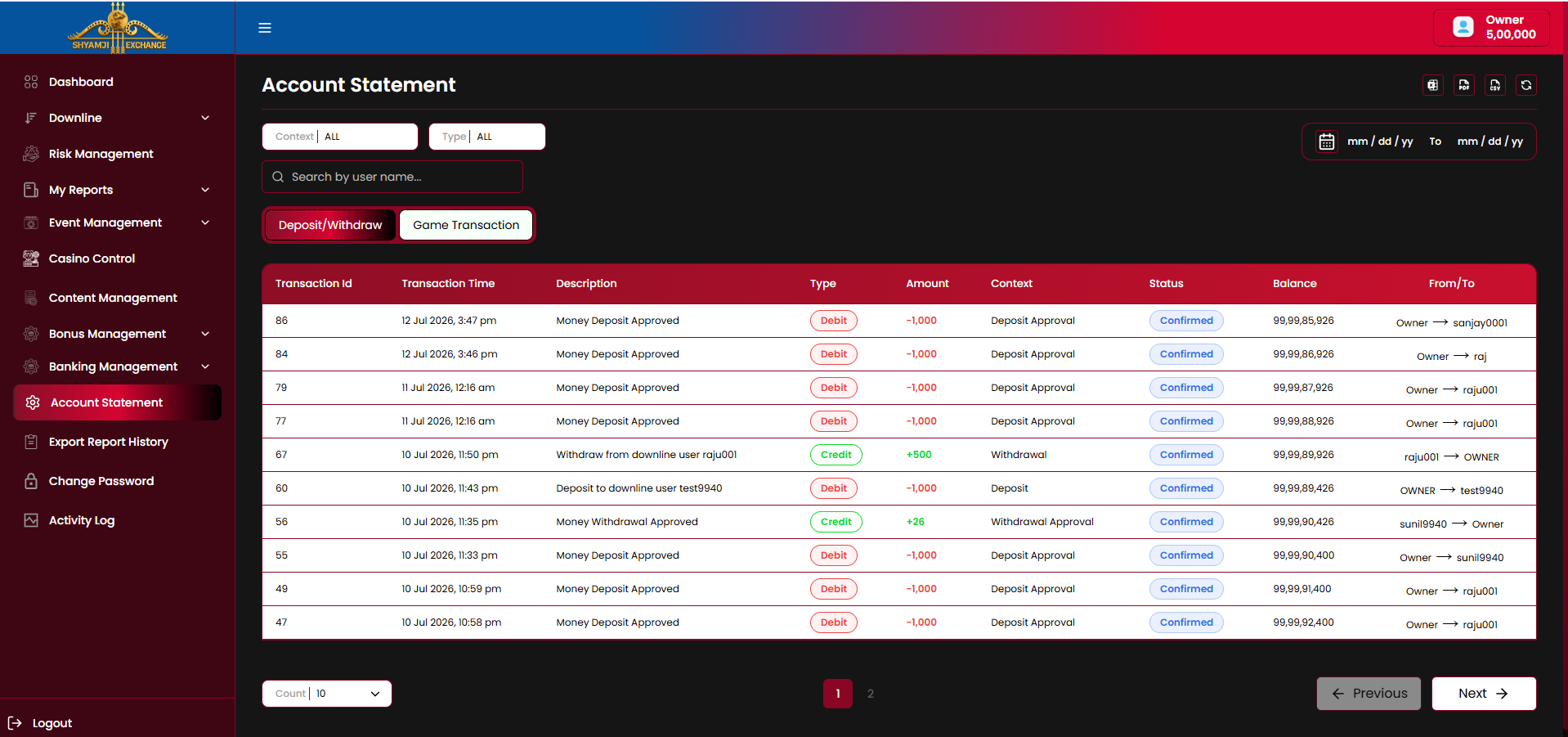
Account Statement is the logged-in account's own full ledger, split into two tabs: Deposit/Withdraw (fund movements with the downline) and Game Transaction (bet-level wins/losses across every player under this account).
13.1 Deposit/Withdraw
Controls
| Context filter (ALL / Won / Lost / Rollback / Bet) | Included |
| Type filter (ALL / Debit / Credit) | Included |
| Search by user name | Included |
| Date range (mm/dd/yy → mm/dd/yy) | Included |
| Export to Excel / PDF / CSV icons, refresh | Included |
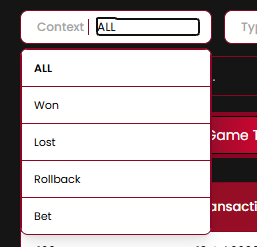
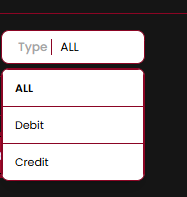
Table columns
| Column | Description |
|---|---|
| Transaction Id | Sequential ledger reference number |
| Transaction Time | Date and time of the entry |
| Description | Plain-language summary, e.g. "Money Deposit Approved", "Withdraw from downline user raju001" |
| Type | Debit (red) / Credit (green) pill |
| Amount | Signed amount moved |
| Context | Reason tag, e.g. "Deposit Approval", "Withdrawal", "Deposit", "Withdrawal Approval" |
| Status | Confirmed pill |
| Balance | Resulting balance after the entry |
| From/To | The two accounts involved, e.g. "Owner → sanjay0001" |
13.2 Game Transaction
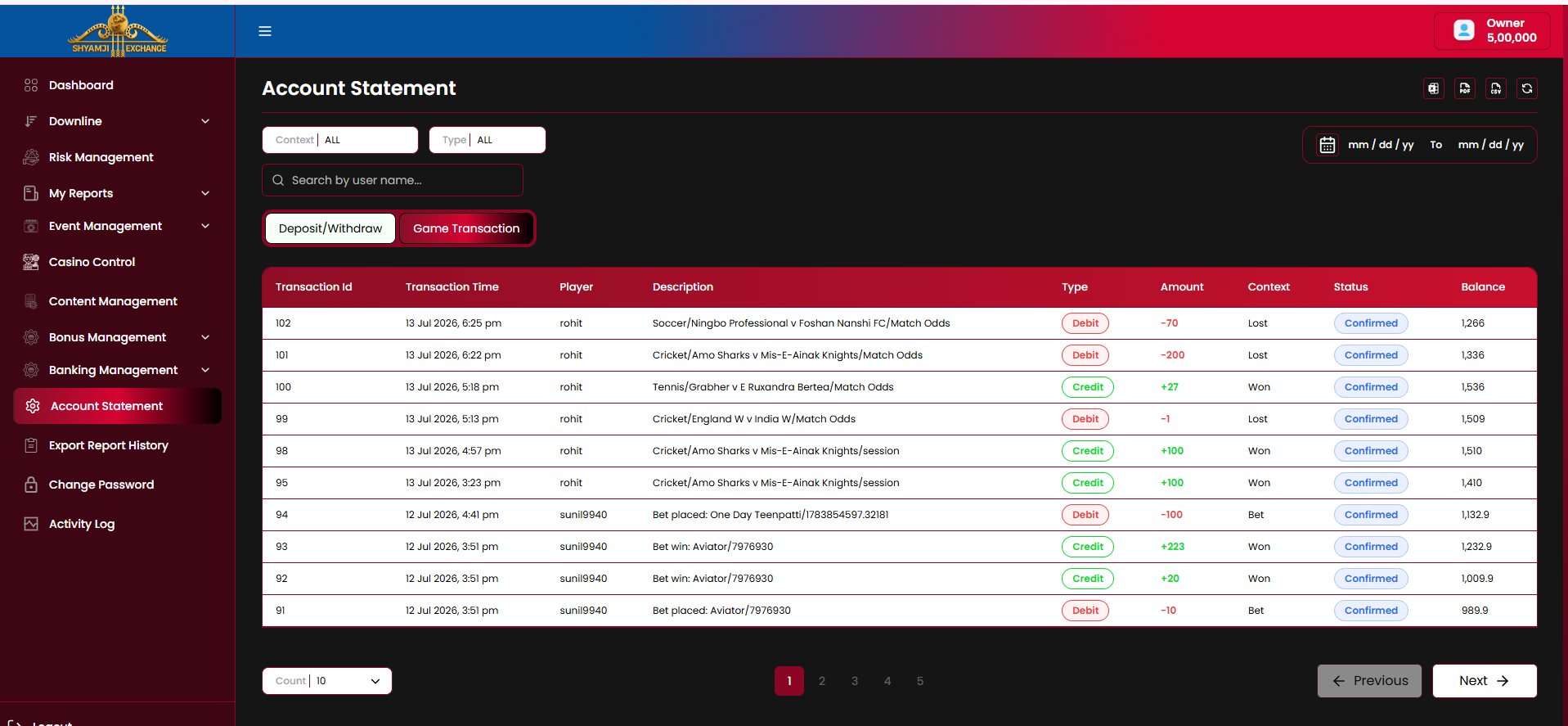
Shares the same Context / Type / Search / date-range / export controls as §13.1. Table columns differ to reflect individual bet outcomes rather than fund transfers.
Table columns
| Column | Description |
|---|---|
| Transaction Id / Transaction Time | Sequential reference and timestamp |
| Player | End user the transaction belongs to, e.g. "rohit", "sunil9940" |
| Description | Bet detail, e.g. "Soccer/Ningbo Professional v Foshan Nanshi FC/Match Odds", "Bet win: Aviator/7976930" |
| Type | Debit (red) / Credit (green) pill |
| Amount | Signed settlement or stake amount |
| Context | Won / Lost / Bet outcome tag |
| Status | Confirmed pill |
| Balance | Player's resulting balance after the entry |
Business rules
- Deposit/Withdraw and Game Transaction are mutually exclusive tabs; only one is shown at a time.
- Context filter values differ per tab context (Won/Lost/Rollback/Bet for Game Transaction vs. Deposit/Withdrawal-oriented tags for §13.1) — the reference screenshot shows one shared control; exact per-tab option set to be confirmed.
- "From/To" (§13.1) has no equivalent in Game Transaction since bets are single-player events, not transfers.
Module 14
Activity Log (Owner)
›
Activity Log (Owner) is the logged-in account's own login history — same structure as the Downline/End User Activity Log tabs (§4.5/§4.6), scoped to this account.
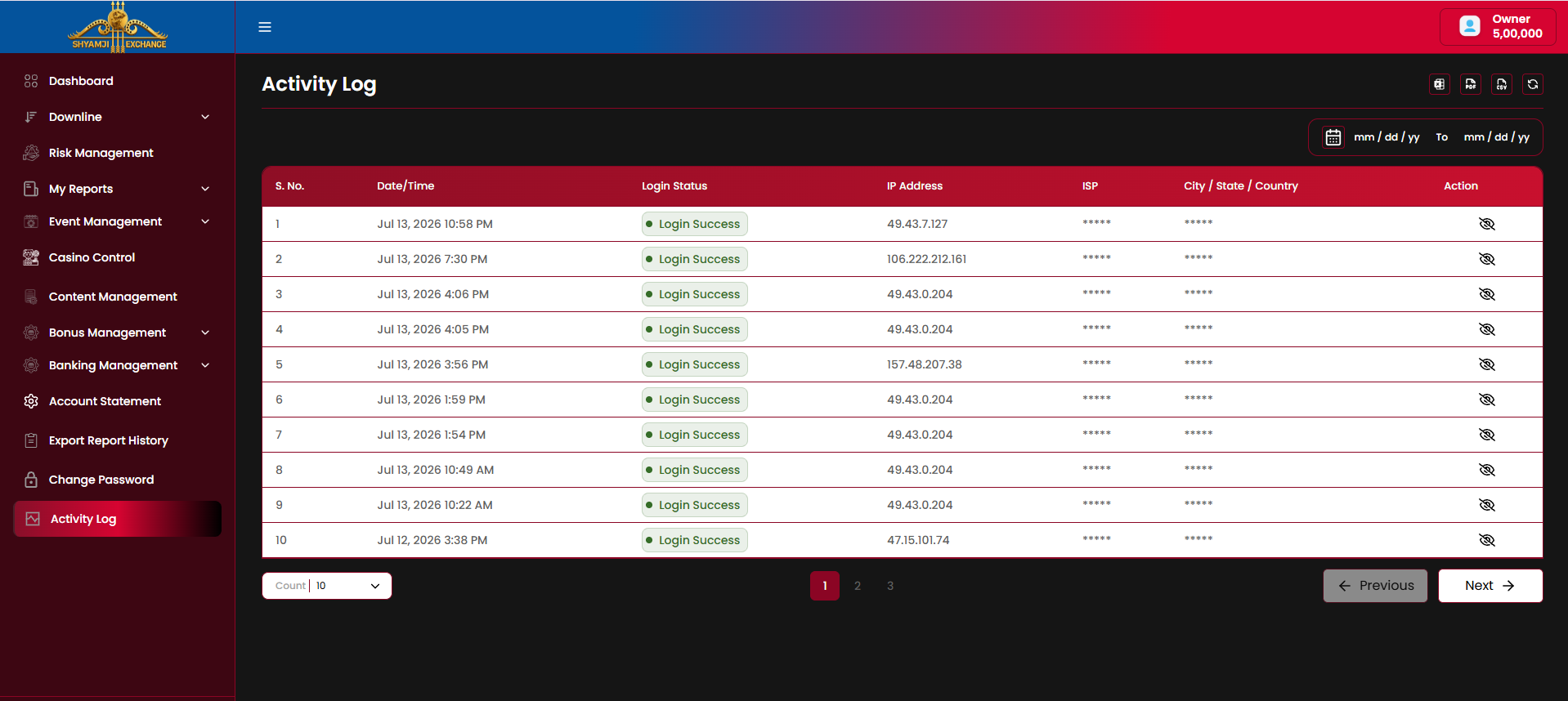
Table columns
| Column | Description |
|---|---|
| S. No. / Date/Time | Row index and login attempt timestamp |
| Login Status | Login Success / Login Failed pill |
| IP Address | Origin IP of the login attempt |
| ISP | Masked by default |
| City / State / Country | Masked by default |
| Action | Eye icon to reveal the masked ISP / location fields |
Controls
- Date range filter (mm/dd/yy → mm/dd/yy).
- Export to Excel / PDF / CSV icons, refresh icon.
- Count-per-page selector with pagination.
Module 15
Change Password
›
Change Password lets the logged-in account update its own login password from a simple settings form.
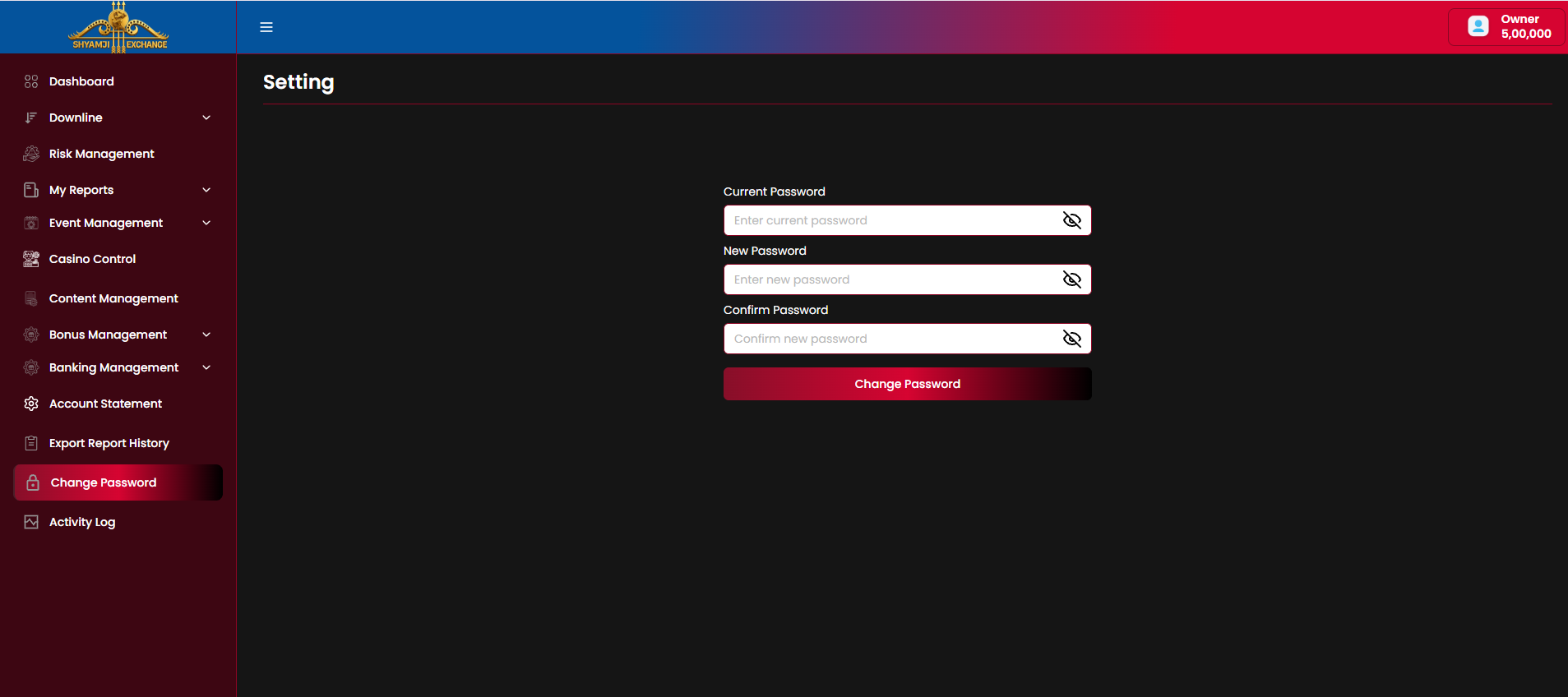
Fields
| Current Password (masked, show/hide toggle) | Required |
| New Password (masked, show/hide toggle) | Required |
| Confirm Password (masked, show/hide toggle) | Required |
| Change Password button | Included |
Validation
- Current Password must match the account's existing password.
- New Password and Confirm Password must match.
- On success, the account continues its session with the new password (or is logged out and required to re-authenticate — to be confirmed).
Module 16
Logout
›
Logout ends the current admin session, pinned as the last sidebar item (§3), and returns to the Login screen (Module 01).
- Clicking Logout immediately terminates the session and redirects to Login — no confirmation dialog.
- The session token is invalidated server-side, so back-navigation cannot restore the authenticated view.
Client Sign-off
By signing this document, the client confirms that the module requirements described above have been reviewed and approved. This document is complete — every module (01–16) and sub-section has been detailed against the reference screens shared. Any feature not explicitly mentioned in this document is considered outside the agreed scope and may require a separate Change Request (CR).
| Name & Role | Signature | Date |
|---|---|---|
| Client Representative | ||
| Project Manager |
Remarks / requested changes: